1
1. Choose Mouse Button & Interval
Select Left Click, Right Click, or Middle Click, then set the delay between clicks in milliseconds (e.g., 50 ms for rapid clicking or 1000 ms for steady pacing).
RunMacro is a free, high-speed Windows auto clicker designed to automate repetitive mouse clicks at custom millisecond intervals, screen coordinates, or detected UI elements. Supporting single, double, and middle clicks with background Chrome automation, it empowers Windows 10 and Windows 11 users to streamline workflows with zero coding.
Configurable millisecond pacing · Left/Right/Middle clicks · Windows 10/11 (64-bit)
 Zoom
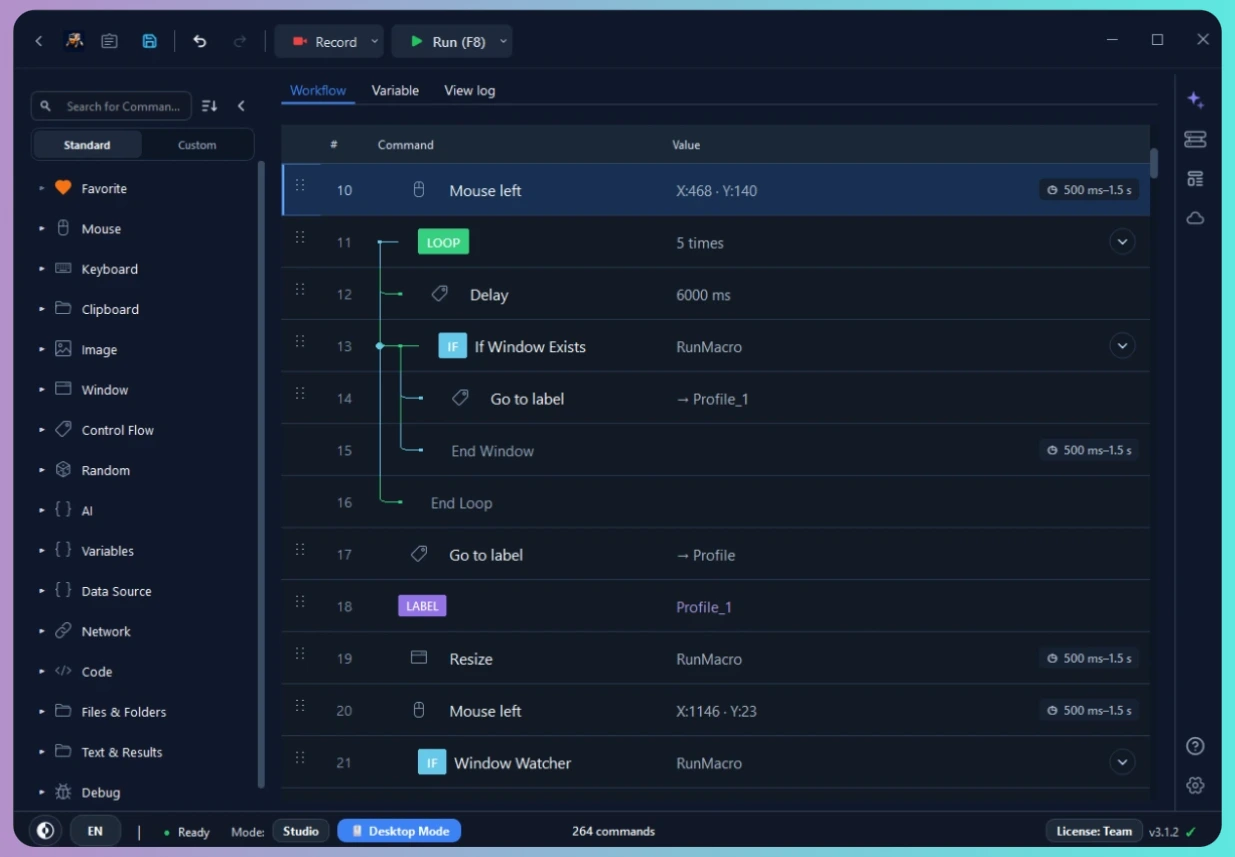
ZoomConfigure your mouse button, pacing, target coordinate, and toggle hotkeys.
Select Left Click, Right Click, or Middle Click, then set the delay between clicks in milliseconds (e.g., 50 ms for rapid clicking or 1000 ms for steady pacing).
Choose Current Cursor Location to click wherever you point, or specify Fixed Coordinates (X, Y) to lock clicking onto a specific button or interface element.
Enter a specific loop count or set it to run continuously until stopped. Use your configured hotkey (default F8 to start, F9 to stop) to control execution.
High-speed pacing, multiple click types, and coordinate targeting built for reliable automation.
Scans the Windows UI Automation Tree to lock onto buttons without guessing fragile coordinates.
Configure intervals down to single milliseconds. Pacing respects Windows OS thread scheduling for consistent performance.
Supports Single Click, Double Click, Left Button, Right Button, and Middle Mouse actions across all desktop software.
Lock clicks to exact screen coordinates (X/Y) so clicks land accurately, or let the clicker follow your live mouse position.
Start and stop clicking immediately using global hotkeys like F8 and F9, even while high-speed clicking is active.
Repeat for an exact number of clicks, run for a designated time duration, or loop indefinitely until manual hotkey stop.
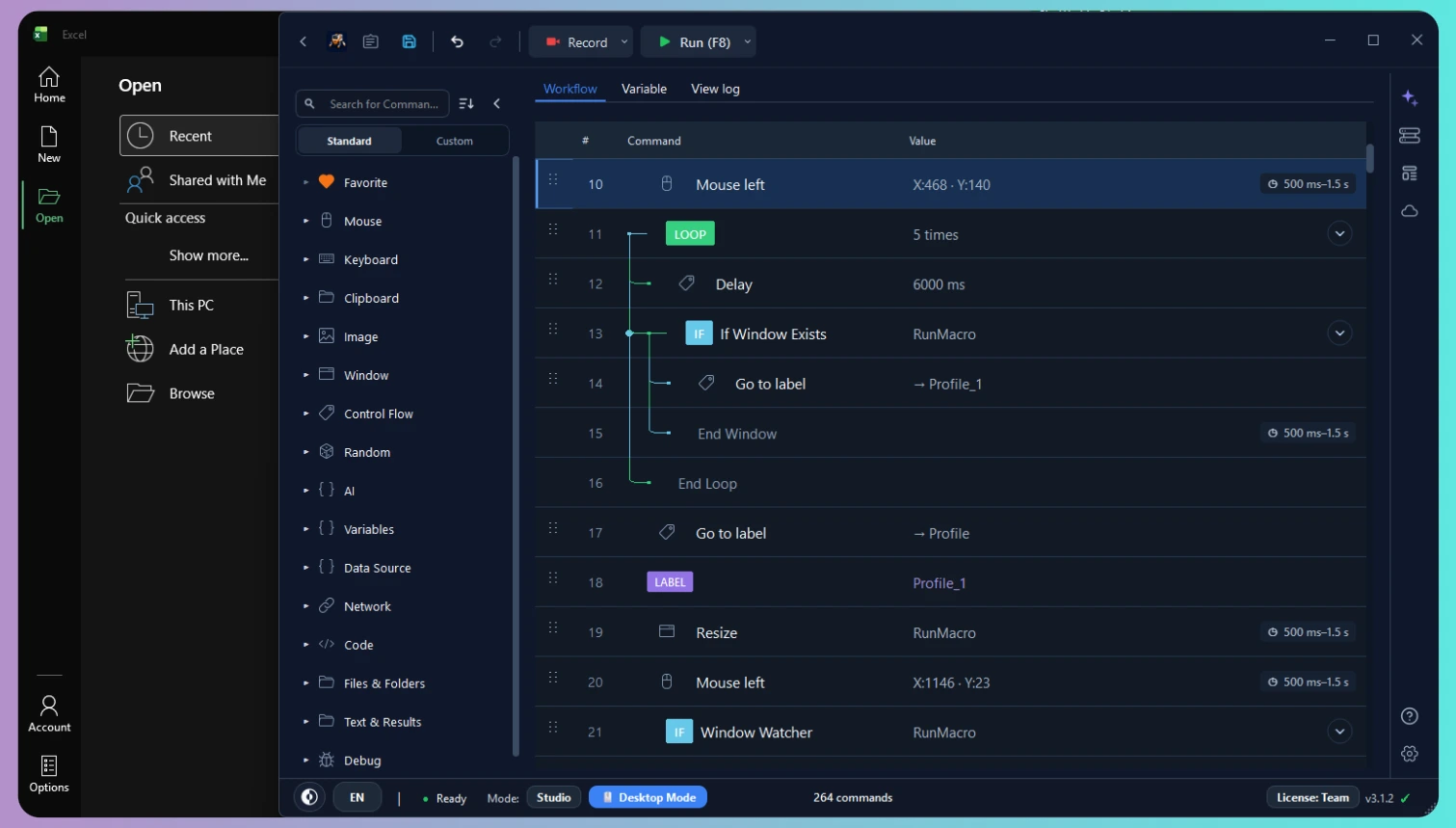
Record and lock clicks directly onto desktop UI elements like Microsoft Excel without fragile screen coordinates. Stop recording to generate instant Smart Desktop Click automation.
Select the exact mouse button behavior and coordinate mode your workflow demands.
Standard button clicks, interface progression, confirmation dialogues, and web links.
Automate right-click context menus, shortcut commands, and secondary interactions.
Open files, launch desktop shortcuts, or select words in documents with dual clicks.
Open links in background tabs, toggle auto-scroll, or trigger 3D viewport pivots.
Clicks remain anchored to specific screen pixels regardless of mouse displacement.
Clicks continuously trigger at whatever position your physical mouse is currently resting.
Choose the execution engine that matches your operational environment.
Sends native mouse clicks directly to the active Windows screen coordinate.
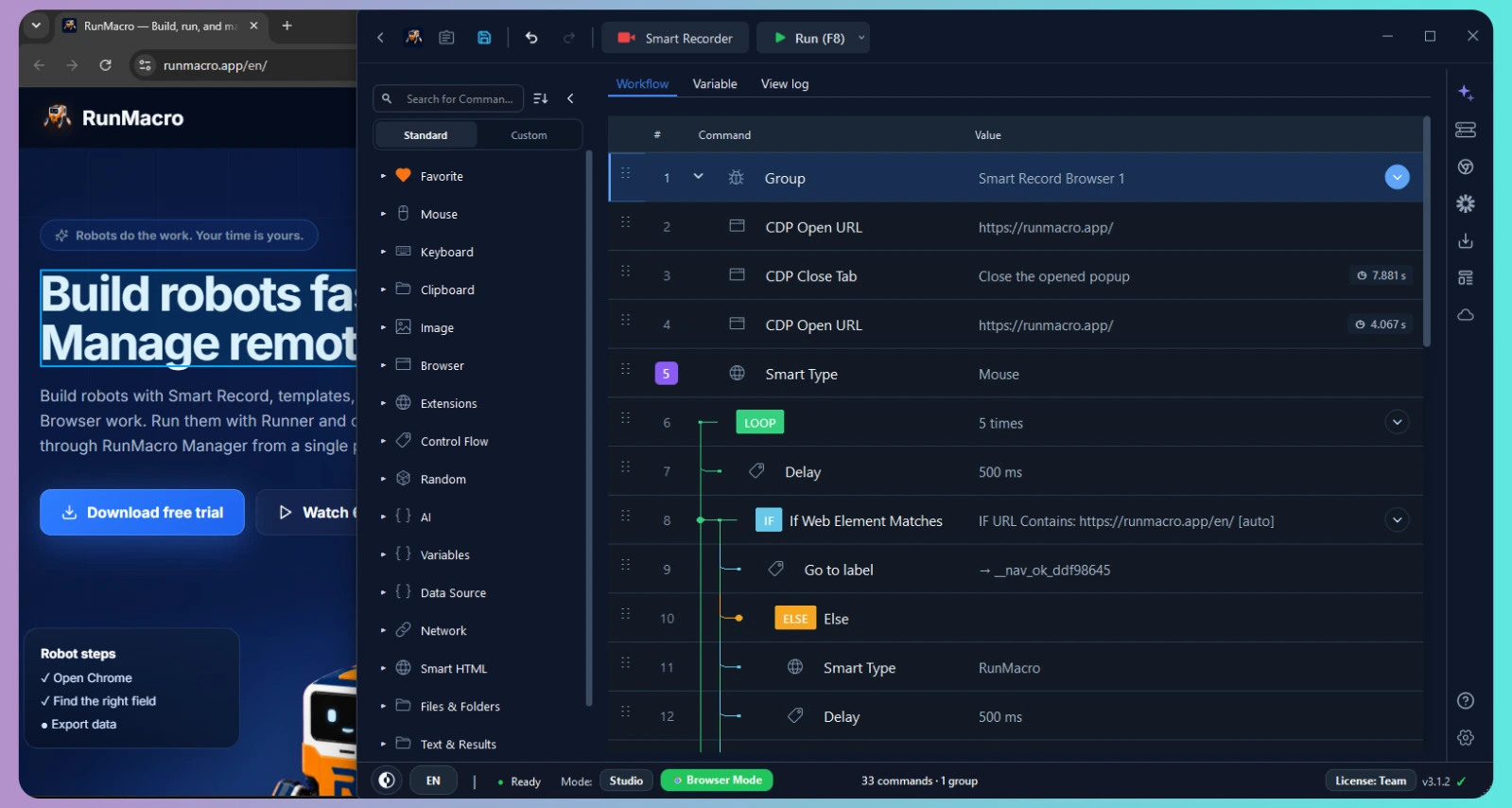
Dispatches mouse click events directly into web page elements via Chrome DevTools Protocol.
From rapid clicking tasks to routine software interaction, automate repetitive tapping.
Benchmark click speeds, test responsive user interfaces, and simulate rapid user interactions on web apps.
Click through database pagination, advance spreadsheet rows, or confirm batch dialogs in enterprise tools.
Continuously click refresh buttons, poll portal status indicators, or check for updated operational metrics.
Automate repetitive clicking loops in incremental games and simulations without fatiguing your hand.
Trigger thousands of button clicks in test environments to evaluate software stability and memory leaks.
Keep fixed coordinate clicks running on a secondary monitor while managing primary work on your main screen.
High-speed auto clicking can generate hundreds of events rapidly. Follow this verified checklist:
Open MS Paint, an online CPS test page, or an empty Notepad window.
Begin with 500 ms or 100 ms to confirm cursor behavior and coordinate lock.
Press F9 to confirm that clicking terminates immediately upon request.
Lightweight footprint engineered for high-performance Windows automation.
Understanding Windows OS input handling and execution characteristics.
Windows thread scheduling operates on timer slices (typically 10-15 ms). RunMacro utilizes high-frequency polling, but sub-millisecond precision is bounded by OS architecture.
Windows prevents standard user-level applications from dispatching mouse clicks into elevated Administrator or UAC security prompts.
Certain anti-tamper security environments and low-level DirectInput engines intercept hardware driver inputs directly, bypassing synthetic OS event queues.
Select the right automation tool based on your input requirements.
| Aspect | RunMacro Auto Clicker | RunMacro Auto Keyboard |
|---|---|---|
| Primary Input | Mouse Clicks (Left, Right, Middle, Double) | Keystrokes (Space, Enter, Tab, Combos, Text) |
| Targeting Method | Smart UI Tree (UI Automation), Coordinates (X, Y), or Live Cursor | Active Focused Window or CDP Web Field |
| Speed Pacing | Millisecond intervals (1 ms to hours) | Configurable delay per keystroke loop |
| Background Web Mode | Available via Chrome CDP selector clicking | Available via Chrome CDP text/key dispatch |
| Emergency Stop | Global Hotkey (F9) | Global Hotkey (F9) |
Clear answers about configuring and running RunMacro Auto Clicker.
An auto clicker is a software tool that automatically simulates physical mouse clicks at designated intervals and screen coordinates. RunMacro sends simulated mouse events to Windows or dispatches element clicks via Chrome DevTools Protocol.
Smart UI Click identifies desktop application buttons and inputs by their internal UI structure (UI Automation Tree) rather than screen pixels. This guarantees that clicks hit the exact button even if the app window is moved or resized.
You can configure click intervals down to 1 millisecond. Practical click throughput is governed by the Windows timer resolution and the target application responsiveness, typically delivering 20 to 60+ clicks per second.
RunMacro includes a dedicated emergency stop hotkey (default F9). Pressing F9 immediately pauses or halts the running macro regardless of how rapidly clicks are firing.
Yes! In Browser Mode, RunMacro targets web elements by CSS selector or XPath, dispatching clicks directly through Chrome DevTools Protocol without hijacking your physical mouse cursor.
Yes. RunMacro is digitally signed for Windows and contains no bundled adware, spyware, or unwanted background software. You can independently verify file integrity using the SHA256 checksum published on our official Download page.
Yes, RunMacro includes free core automation features with no credit card required. You can download and run auto clicker workflows immediately on Windows 10 and 11.
Yes. RunMacro Auto Clicker is fully compatible with both Windows 10 and Windows 11 (64-bit). It integrates seamlessly with Windows UI Automation, native window management, and high-DPI desktop scaling.
No. The Chrome extension is completely optional. You can use Desktop Mode to automate any Windows application, desktop software, or PC game out of the box. The Chrome extension is only needed if you want to click web elements in background tabs via Chrome DevTools Protocol without moving your physical mouse.

Create a robot in minutes, no coding needed. Reliable execution, remote management, transparent costs — and you always stay in control.