1
1. Add Extension to Chrome
Install RunMacro Smart HTML from the official Chrome Web Store with a single click. Pin it to your browser toolbar.
RunMacro Smart HTML is a free Chrome auto clicker extension that targets web elements by resilient selectors instead of fixed screen coordinates. Automate button clicks, form fills, and browser workflows in background tabs without moving your physical mouse.
Chrome Web Store verified · Element selector engine · Silent CDP dispatch · Chromium compatible
 Zoom
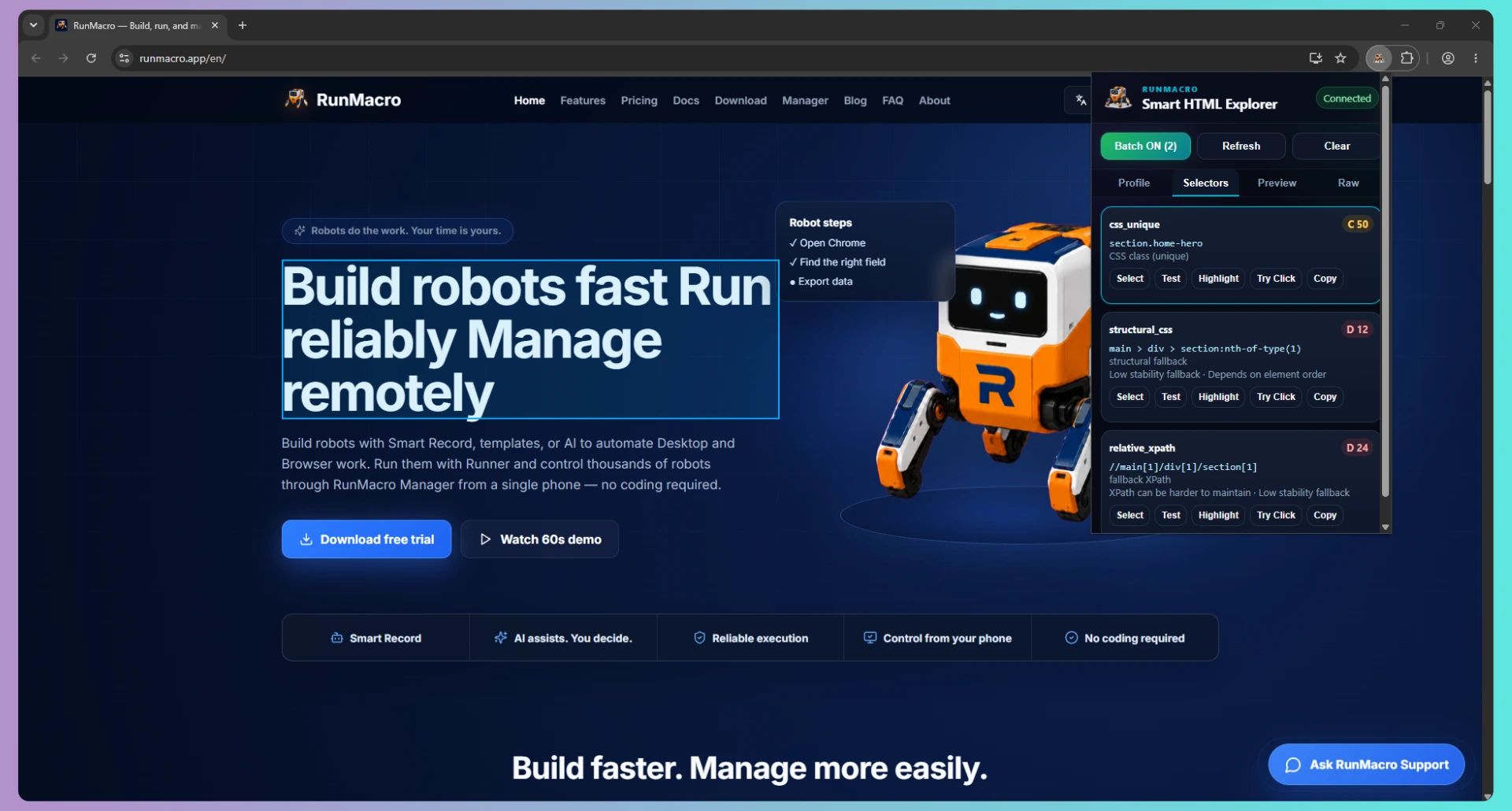
ZoomTarget web buttons by DOM structure rather than fragile pixel coordinates.
Install RunMacro Smart HTML from the official Chrome Web Store with a single click. Pin it to your browser toolbar.
Hover over the target button, link, or input field on any webpage. Smart HTML inspects and binds the unique CSS selector or XPath ID.
Set click delay, execution frequency, or form submission sequences. Clicks execute in background browser tabs silently.
Built specifically for modern dynamic web applications and responsive design.
Dispatches DOM events directly into target browser tabs. Your physical mouse and keyboard remain completely free.
Clicks target specific HTML elements by selector, meaning moved windows, zoom levels, and page scrolling never break the run.
Fully compatible with Google Chrome, Microsoft Edge, Brave, Opera, and any Chromium-based desktop browser.
Point-and-click targeting tool allows non-technical users to capture buttons and inputs without opening DevTools.
Control separate automation loops across multiple independent tabs or separate Chrome user profiles simultaneously.
Strictly reviewed by Google Web Store security guidelines. No third-party tracking, no suspicious drivers.
Flexible targeting modes tailored for all web frameworks and platforms.
Target IDs (#submit-btn), classes (.btn-primary), or custom attributes ([data-action="next"]).
Target elements by text content, parent relationships, or complex nested table cells.
Pauses execution until asynchronous AJAX data loads or dynamic popup modals appear.
Simultaneously populate text inputs, select dropdown items, and trigger submission buttons.
Watch Smart HTML target HTML elements and click continuously in background tabs without interrupting your work.
Choose the appropriate automation tool for web pages versus native desktop software.
Interacts directly with the webpage Document Object Model (DOM).
Sends native OS-level hardware input events to active Windows windows.
Streamline repetitive web browsing routines in work and daily productivity.
Automatically click refresh buttons and poll live dashboard metrics in background tabs without disturbing your focus.
Automate repetitive data submission in CRM tools, Google Forms, and internal employee web portals.
Click through Next Page buttons continuously while extracting structured data tables into spreadsheets.
Automate rapid clicking on checkout buttons or appointment availability slots during high-demand events.
Simulate user click journeys and stress test responsive web interfaces across multiple viewport sizes.
Automate routine confirmation dialogs, post publishing schedules, and content moderation dashboards.
No bulky installers or complex browser drivers needed. Follow these steps:
Click the Add to Chrome button to open the verified RunMacro Smart HTML listing.
Click "Add to Chrome" and confirm the standard browser extension permissions dialog.
Pin the RunMacro icon in your toolbar, open your target webpage, and pick your first element.
Engineered to run seamlessly across all Chromium platforms and modern desktop operating systems.
Understanding browser security policies and extension boundaries.
Extensions can only interact within web pages. They cannot click native desktop applications, taskbar menus, or Windows system dialogs.
Web pages with cross-origin embedded iframes (such as bank payment widgets) may restrict script access under browser security policies.
Chromium browsers throttle JavaScript timers in hidden background tabs. RunMacro utilizes Chrome DevTools Protocol to bypass typical tab throttling.
See why browser-native selector automation delivers superior reliability.
| Feature | RunMacro Smart HTML | Screen Coordinate Clicker | Selenium / Puppeteer |
|---|---|---|---|
| Mouse Hijacking | Zero — mouse stays 100% free | Takes over physical mouse | Runs headlessly |
| Window Resize Safety | Resilient to layout changes | Breaks immediately if moved | Resilient |
| Setup Complexity | 1-click Chrome install, no code | Simple numeric coordinates | Complex coding & drivers |
| Background Execution | Yes (multi-tab CDP dispatch) | No (active screen only) | Yes (command line) |
| Maintenance Effort | Minimal — visual selectors | High — re-recording often | High — script maintenance |
Common questions about the RunMacro Chrome Extension.
Yes. Because Smart HTML targets elements by unique CSS, text match, or DOM hierarchy rather than fixed screen X/Y coordinates, it reliably clicks the button even if page layout shifts, ads load, or window sizes change.
Yes. Smart HTML dispatches events directly to the browser DOM via Chrome DevTools Protocol, leaving your physical mouse completely free for your own work.
Yes. RunMacro Smart HTML uses native DOM event dispatching and Chrome DevTools Protocol (CDP) commands directly to targeted elements. It executes clicks and interactions reliably in background tabs or minimized browser windows without moving your physical mouse cursor or interrupting your active work.
Yes. The RunMacro Smart HTML extension works 100% standalone in Chrome for element inspection, selector generation, and recurring web clicks. If you later need desktop automation, Excel integrations, or file saving, you can connect it directly to RunMacro Studio.
Yes, RunMacro Smart HTML is free to install from the Chrome Web Store. You can start automating web clicks and form entries immediately.
Yes! Because Smart HTML uses Chrome DevTools Protocol to dispatch DOM events directly into the browser session, it clicks reliably even when the browser is minimized or hidden behind other windows.
Screen coordinates break whenever you resize the browser, scroll the page, or change monitors. Selector-based clicking targets the actual HTML element directly, so it always clicks the correct button regardless of position.
Yes. All Chromium-based browsers (including Microsoft Edge, Brave, and Opera) can install and run extensions from the Chrome Web Store seamlessly.
Yes! Smart HTML integrates with RunMacro Studio, allowing you to combine web automation steps with desktop file operations and local software into one unified workflow.

Create a robot in minutes, no coding needed. Reliable execution, remote management, transparent costs — and you always stay in control.