1
1. Set a Delay
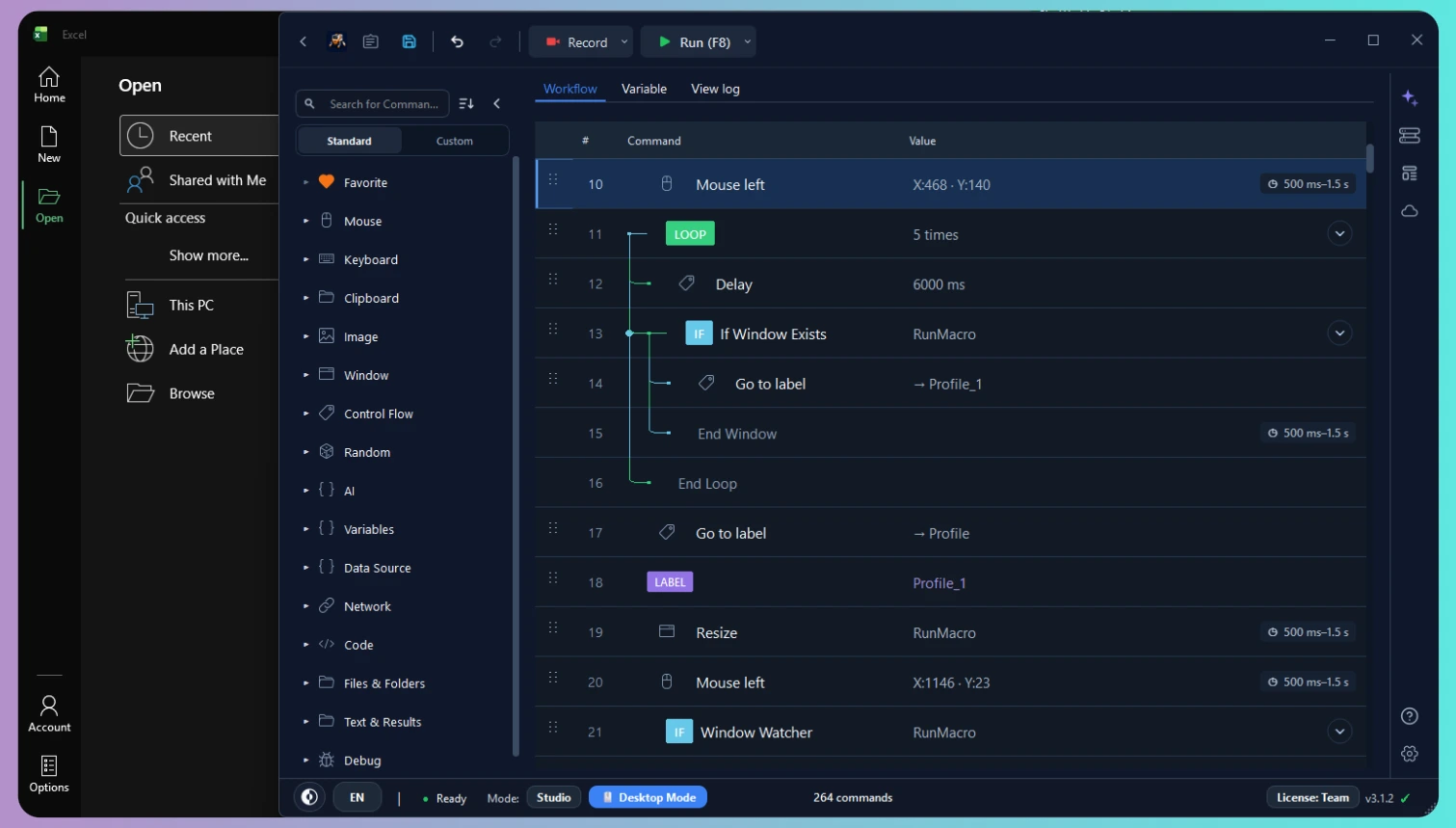
Add a Delay before the key press. Start with 500 ms so you can clearly observe the first test.
Automate key presses, repeated keystrokes, shortcuts, and high-speed text typing on Windows with zero coding.
Focused-window input · Approximate timing · Windows 10/11 (64-bit)
 Zoom
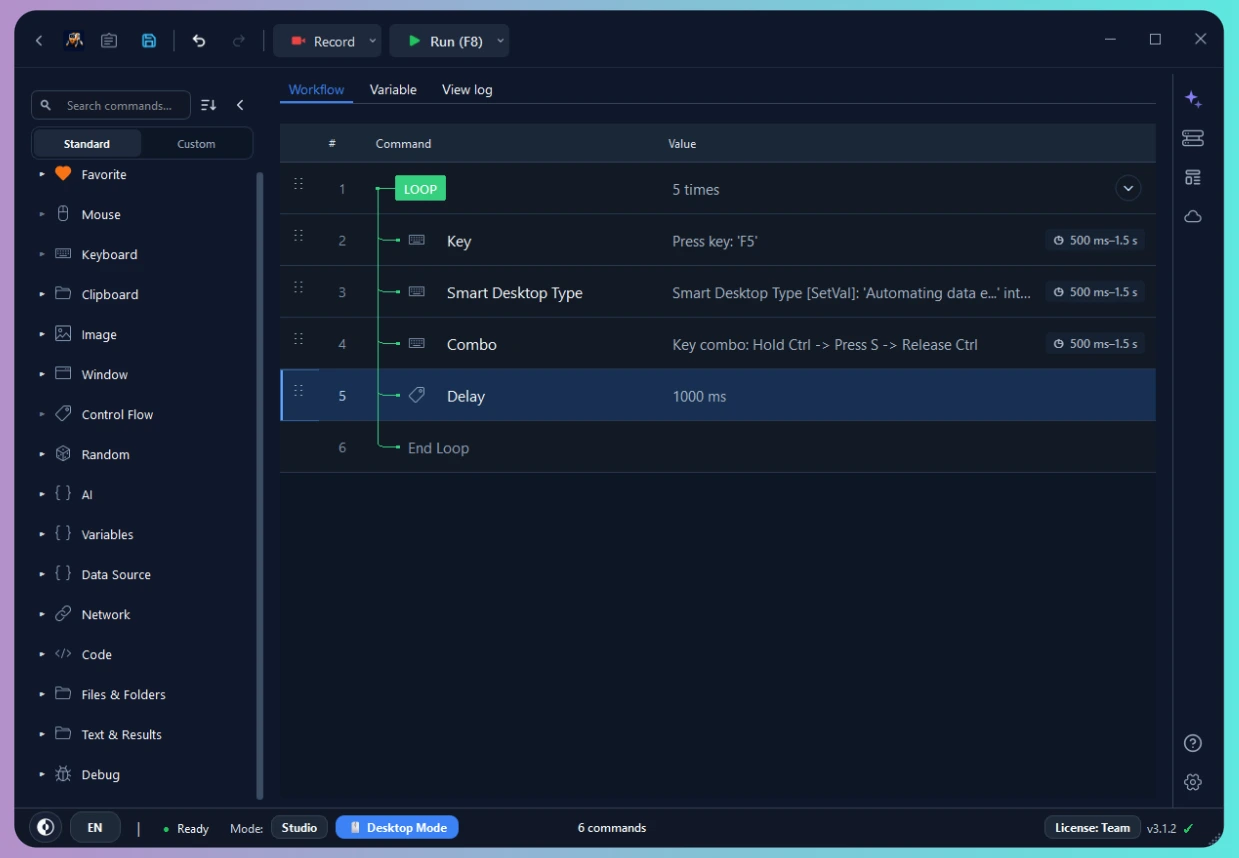
ZoomUse Delay, Key Press, and Studio Loop. Start with a small Notepad test.
Add a Delay before the key press. Start with 500 ms so you can clearly observe the first test.
Select a supported key such as Space, Enter, Tab, a function key, or an alphanumeric character.
Choose a small count first. Loop 0 continues until you pause or stop the workflow with your configured hotkeys.
Space, Enter, Tab, function keys, letters, numbers, and navigation keys are available in Key Press.
Repeat spacebar presses at custom intervals using Studio loops.
Form field progression, dialog submission, and data entry rows.
Trigger system shortcuts and specialized software hotkeys.
Automate repetitive single-character typing sequences.
Send shortcuts such as Ctrl+C, Ctrl+V, or Alt+Tab when the task needs them.
Simulate sustained key-down states for designated durations.
Automate cursor navigation, list traversal, and menu paging.
Continuously tap single keys or key sequences with custom millisecond intervals and loop control.
Simulate repeated presses of the Spacebar, Enter, Tab, numbers 1-9, or function keys (F1-F12) without writing scripts.
Set pacing delays (e.g. 50 ms, 200 ms, or 1000 ms) before each key press to match your target software responsiveness.
Select a bounded count (such as 10 or 100 iterations) or loop continuously until paused with F8 or stopped with F9.
Automate system shortcuts such as Ctrl+C, Ctrl+V, Alt+Tab, or hold down keys for designated durations.
Automate repetitive phrases, sentences, and form data entry with natural typing or clipboard paste.
Simulate natural character-by-character typing or instantly inject multi-line paragraphs using clipboard paste.
Dynamically insert invoice numbers, timestamps, customer emails, or counter variables into input fields.
Combine Type Text with Tab progression to automatically step through desktop forms and web dialogs.
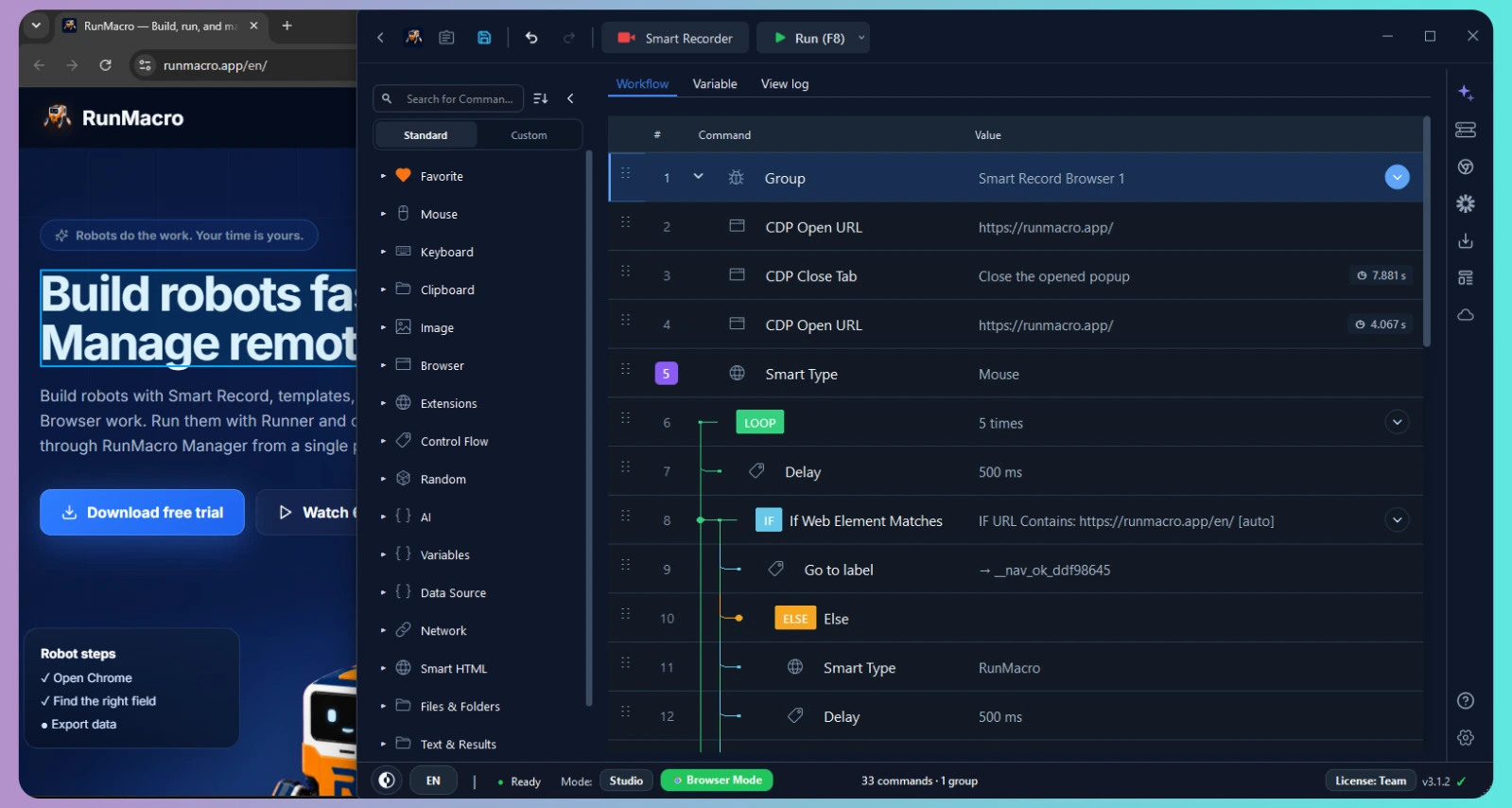
In Browser Mode (CDP), dispatch text directly into web input elements without moving your physical mouse cursor.
See RunMacro automatically enter text into Windows applications using configurable typing speed and delays.
RunMacro provides two distinct execution modes depending on your automation target.
Sends native Windows keyboard events directly to the currently focused foreground window.
Browser Mode dispatches keyboard input within the connected Chrome page/session; the active web target still depends on workflow configuration.
Use keyboard clicker and auto key presser building blocks for legitimate repetitive work and test workflows.
Move through form fields with Tab, confirm repeatable steps with Enter, or use keyboard clicker shortcuts in desktop software.
Repeat a bounded input sequence with an auto key presser while checking that a form, dialog, or desktop control responds as expected.
Use arrows, function keys, and spacebar tapping when a workflow needs repeatable keyboard clicker execution rather than mouse clicks.
Start in Notepad with a small loop. F8 pauses or resumes by default, and F9 requests a stop by default; both hotkeys are configurable.
Lightweight footprint engineered for high-performance Windows automation.
Focused Windows input has security and application limits worth checking before a real workflow.
Standard user-level processes cannot inject simulated keystrokes into elevated Administrator windows due to Windows User Account Control (UAC) UIPI isolation.
Keystroke simulation is strictly prohibited on the Windows Secure Desktop, including login screens, lock screens, and UAC elevation credential prompts.
Software reading direct hardware input (DirectX raw-input devices) or protected by kernel-level integrity drivers may ignore synthetic OS key messages.
Choosing the appropriate automation command based on your workflow requirements.
| Feature / Aspect | Auto Keyboard | Mouse Auto Clicker |
|---|---|---|
| Primary Simulated Action | Physical key taps, Spacebar, hotkeys, key-hold | Mouse button clicks (Left, Right, Middle) |
| Targeting Mechanism | Focused control or Chrome CDP session | Screen coordinates (X, Y) or visual elements |
| Workflow Method | Delay → Key Press → Studio Loop | Mouse Click → Delay → Studio Loop |
| Web Automation Support | CDP key event dispatch in browser session | Coordinate click or Smart HTML element click |
| Typical Workplace Usage | Form entry, Tab field steps, Enter triggers | Button tapping, link opening, routine clicks |
Quick answers about setup, background browser input, supported keys, and Windows requirements.
Yes. RunMacro Auto Keyboard is fully tested and optimized for Windows 11 (64-bit) as well as Windows 10. It integrates seamlessly with Windows 11 window management, dark mode, and accessibility APIs.
Yes. RunMacro includes dedicated Key Combo commands that let you hold modifier keys (Ctrl, Alt, Shift, Win) while pressing any other key, making it easy to automate shortcuts like Ctrl+C, Ctrl+V, Alt+Tab, or custom application hotkeys.
Desktop Mode sends keyboard input to the focused Windows application, so you should leave that target active. Browser Mode can dispatch input inside a connected Chrome page or session without taking over the physical mouse cursor.
No. Add Delay and Key Press commands to the visual workflow, then use Studio Loop to repeat the sequence.
A keyboard clicker repeatedly presses single keys such as Space, Enter, or Tab at custom intervals. An auto typer automates full sentences, form values, and paragraphs using Type Text or Paste commands. RunMacro supports both inside the same visual workflow.
Key Press includes Space, Enter, Tab, letters, numbers, function keys, and navigation keys. RunMacro also provides separate Key Combo and Key Hold or Release commands.
Yes. The current Windows application supports 64-bit Windows 10 and Windows 11.
RunMacro provides a trial experience. Current plan details and feature limits are listed on the Pricing page.

Create a robot in minutes, no coding needed. Reliable execution, remote management, transparent costs — and you always stay in control.