
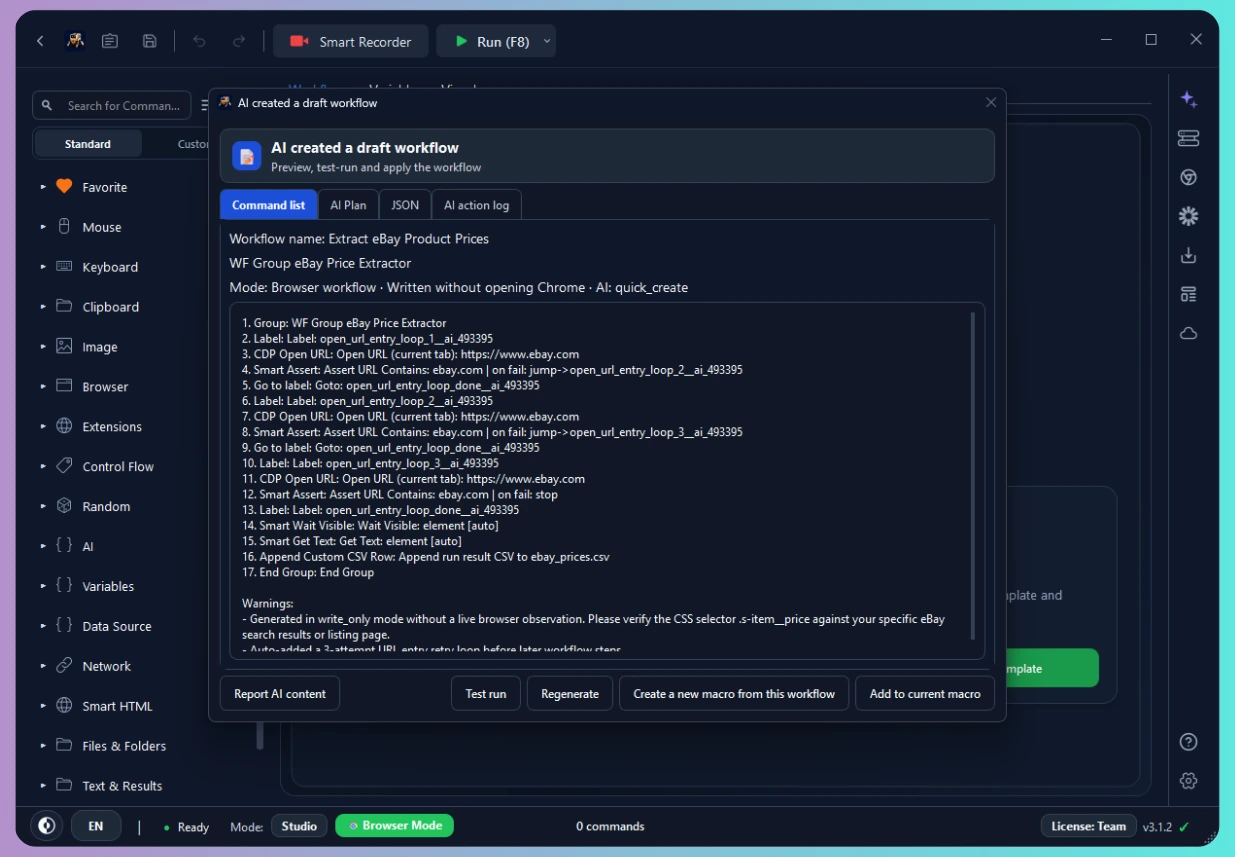

Building automation used to mean either learning to code or painstakingly clicking together every step by hand. AI automation changes the starting point: you describe what you want in plain language, and AI drafts the workflow for you. In RunMacro, that means you can go from a sentence like "open this page and extract the product names and prices" to a working, editable workflow — without writing a line of code.
This guide explains what AI automation means inside RunMacro, how the describe-to-workflow process actually works, when to reach for AI versus building by hand, and — most importantly — why you should always review what the AI produces before you run it.
What 'AI automation' means in RunMacro
AI automation here does not mean a bot that runs on its own with no oversight. It means using AI as a fast first-drafter: you state the goal in natural language, and AI proposes the sequence of steps to achieve it. You stay in control — the output is a normal RunMacro workflow made of the same visible commands you would build yourself, so you can inspect and change every step. The AI writes the first draft; you approve the final version.
That framing matters because it sets the right expectations. AI is excellent at turning "read every product's name and price into a list" into a plausible set of steps in seconds. It is not a guarantee that every selector is perfect or every edge case is handled — which is why the review step below is not optional.
How AI turns a description into a workflow
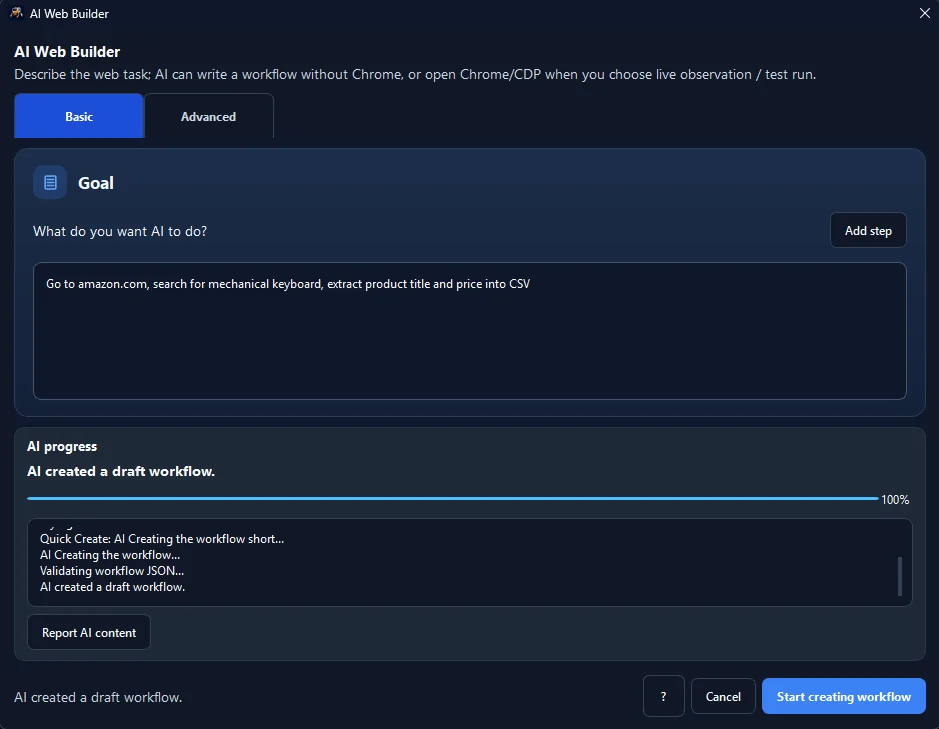
The process is designed around the browser. You describe the task, and the AI web builder works with background Chrome (CDP):
1. Opens the page and observes the DOM structure.
2. Figures out which elements to act on and how.
3. Assembles a workflow of commands like Open URL and Smart HTML actions.
4. Shows a preview — nothing runs against your data until you accept it.
Because it reads the live, rendered page rather than guessing, the draft tends to target elements that actually exist on the page you pointed it at — a much stronger starting point than a generic template.
What AI is good at — and where hand-building wins
🤖 When to use AI Builder
• You want a fast starting point
• The task is a common web pattern (fill a form, extract a list, click through pages)
• You are not sure which commands to use yet
🛠️ When to build or record by hand
• You need exact control or the logic is unusual
• You already know precisely what you want (see the workflow builder guide)
• The exact clicks matter — capture them with Smart Record
In practice the strongest workflow is often AI-drafted and then hand-refined.
Review and edit what the AI creates
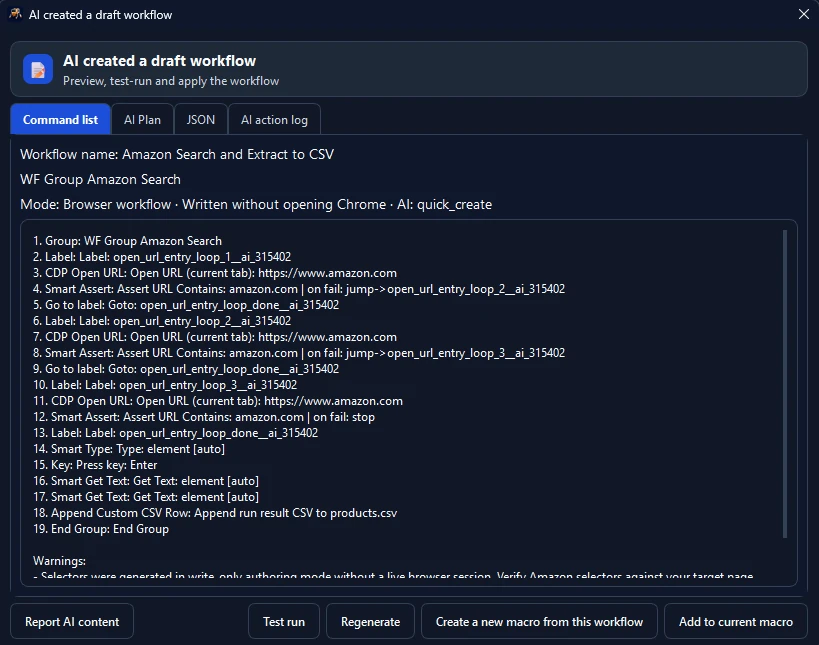
This is the step people are tempted to skip, and it is the one that matters most. Treat the AI's output as a draft, not a finished product. Open the generated workflow and walk the checklist:
• Targets: does each step point at the right element, not a lookalike nearby?
• Waits: is there a Wait for element before every action that depends on the page loading?
• Values: are the strings being typed, and the fields they go into, correct?
• Branches: is there an IF element where a field might be missing, so the run does not crash on an edge case?
Because every step is an editable Smart HTML or browser command, adjusting the draft is straightforward — tighten a selector here, add a wait there. Review turns a plausible draft into a dependable workflow.
Use AI inside a workflow, not just to build it
AI can also do work *while* a workflow runs, not only when you build it:
• AI Integration — calls AI mid-run to classify a message, summarize text, or choose a path when rules cannot be fixed in advance.
• AI assistant — answers questions and guides you while you build.
Together they cover three roles: drafting the workflow, helping you build it, and making judgment calls inside a run.
Tips for describing tasks the AI can act on
The clearer your description, the better the draft:
❌ VAGUE PROMPT:
"Automate this website for me."

✅ ACTIONABLE PROMPT:
"Open https://store.example.com/shoes, extract each product's
name (.item-title) and price (.item-price), then save to products.csv."
Name the page and the concrete outcome. Break a big goal into smaller, specific asks rather than one vague paragraph. Mention the fields or buttons by the words that appear on screen. And after the first draft, iterate: run a small test, see where it stumbles, and refine either the prompt or the generated steps.
Real-world example: from a sentence to a scraper
Suppose you write: *"Open this catalog page and collect each item's name and price."*
[PROMPT]: "Open this catalog page and collect each item's name and price."

🤖 [AI GENERATED DRAFT]:
1. OPEN URL "https://catalog.example.com" (Background Chrome)
2. WAIT FOR ELEMENT "#product-grid"
3. LOOP FOR EACH ".product-card":
     - READ TEXT ".product-name"  → {item_name}
     - READ TEXT ".price-value"   → {item_price}
     - APPEND ROW TO "catalog.csv"
You review the preview, confirm selectors, add a short delay, and accept. The draft can reduce the amount of manual selector-picking, although review and correction time depends on the page. From there, the same output plugs straight into the pattern in how to extract data from websites.
Common mistakes and how to fix them
| Mistake | Fix |
|---|---|
| Running the draft without reviewing | Always inspect the generated steps first; AI can misread an ambiguous layout |
| Vague prompts | "automate this site" gives a weak draft. Be specific about the page and the outcome |
| No waits | If the draft acts before content loads, add a Wait for element |
| Expecting perfection first try | Treat it as an iterative loop — draft, test small, refine |
Setup and requirements
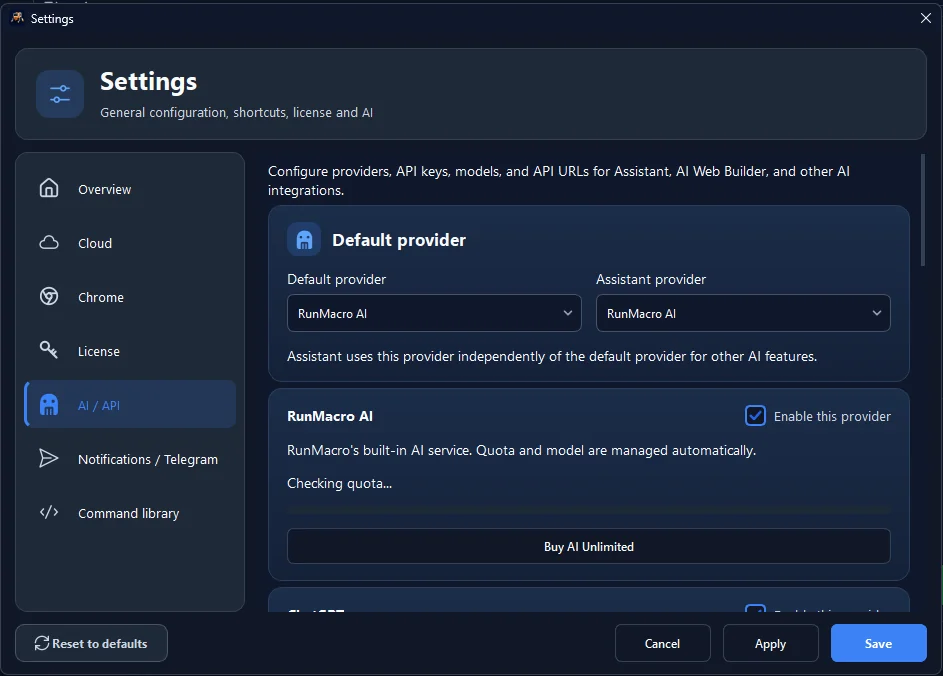
Some AI capabilities rely on an external AI provider, which means configuring an API key before the AI features will work. The exact requirements can change, so check what is needed in-app before you start rather than assuming. The non-AI parts of RunMacro — recording, the command library, running workflows — do not need any of this.
Frequently asked questions
Do I need to know how to code to use AI automation?
No. You describe the task in plain language and review the visual workflow the AI drafts — no coding involved.
Does AI run my workflow automatically without my approval?
No. RunMacro shows the generated workflow as a preview so you can review and edit it before it runs.
Do AI features require any setup?
Some AI capabilities rely on an external AI provider, which means configuring an API key. Check the current requirements in-app before you start.
Can I edit what the AI builds?
Yes — the output is a standard workflow of editable commands, so you can change selectors, add waits, or restructure steps freely.
Can AI make decisions while the workflow runs?
Yes. An AI Integration step can classify, summarize, or choose a path mid-run when the rules cannot be fixed in advance.
Is RunMacro free?
RunMacro offers a free trial. Current plan limits and pricing are listed on the pricing page.
Conclusion
AI automation lowers the starting effort: describe the task, let AI draft an editable workflow in background Chrome, then review and refine before you run. The key mindset is that AI is a first-drafter and you are the editor.
To go deeper, learn to build workflows by hand for full control, or see the browser techniques behind it in how to extract data from websites.
