
RunMacro Documentation
Create your first robot, then go further as needed.
Clear step-by-step guides to create, run, and improve robots for repetitive computer work.
Automate web elements by selector (Smart HTML)
The Smart HTML command acts directly on a web element (button, input, link...) using a recorded smart selector instead of coordinates.
Prerequisites#
- Add Smart HTML to the macro.
- Prepare the data or target that Smart HTML will use.
Supported modes#
- Browser Mode
What it does#
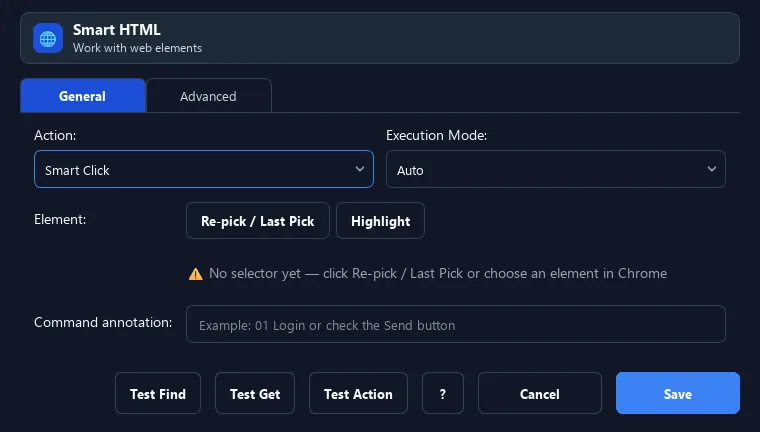
The Smart HTML command acts directly on a web element (button, input, link...) using a recorded smart selector instead of coordinates. It re-resolves the element via multiple signals (id, text, attributes, even Shadow DOM), staying reliable when the UI shifts. It supports many actions: click/type/hover, extract text/attribute/table, check, select dropdown, wait and assert.
Screenshots & video#
When to use it#
- Automate a website precisely by element (no coordinate drift).
- Fill forms, click buttons, choose dropdowns on the web.
- Extract data (text, links, tables) from a page.
- Run in the background via Chrome/CDP without taking the real mouse.
When not to use it#
- Do not use it for Desktop apps, canvases without useful DOM, or unverified selectors.
Configuration steps#
- Use the element picker (Extension) to capture the target selector.
- Add a Smart HTML command and choose the action (Click, Type, Extract...).
- Choose the execution mode: Auto/CDP (background), Extension (active browser), or Real Mouse.
- (For Type) enter content; (for Extract) set a result variable. Save.
Every option explained#
Expected result#
After execution, Smart HTML completes the described action and makes its result available to the next step.
Real example#
Example: fill a web email field then click a button#
- Pick the email field selector, add Smart HTML action Type, enter the email.
- Pick the "Continue" button selector, add Smart HTML action Click.
- Use Auto/CDP mode to run in the background.
Limitations and failure cases#
- Selector, iframe/shadow context, and execution mode determine the target; DOM replacement can make the action miss.
Tips & common mistakes#
Verification details#
commands/smart_html.py
