
RunMacro Documentation
Create your first robot, then go further as needed.
Clear step-by-step guides to create, run, and improve robots for repetitive computer work.
Process text with AI in RunMacro
AI Integration sends text from a variable or clipboard with a prompt to your configured AI provider, then stores the reply in a variable or clipboard. A provider must be enabled in Settings first.
Prerequisites#
- At least one AI provider enabled in Settings (API key + model).
- Internet access to call the API.
- Input text available in a variable or the clipboard.
Supported modes#
- Desktop Mode — Runs in both Desktop and Browser modes.
- Browser Mode
What it does#
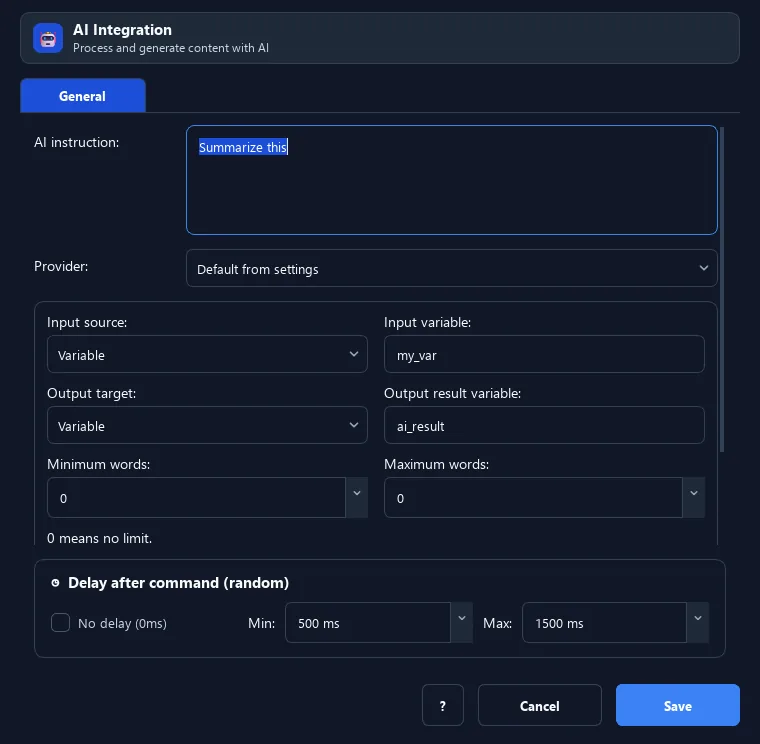
The AI Integration command takes input text (from a variable or the clipboard), combines it with the prompt you write, sends it to the AI provider you configured in Settings, then saves the reply to a variable or clipboard. Use it to summarize, rewrite, translate, classify, or extract content inside a workflow.
Screenshots & video#
When to use it#
- Summarize or rewrite a piece of collected text.
- Translate content to another language between steps.
- Classify or label data, then branch on the result.
- Generate short content within a min/max word limit.
When not to use it#
- You do not want to send data to an external service.
- No AI provider can be configured.
- You need 100% deterministic output — AI replies can vary between runs.
Configuration steps#
- Open Settings › AI and enable at least one provider (enter an API key + pick a model).
- Add an AI › AI Integration command.
- Choose the Input source: Variable or Clipboard. For a variable, enter its name.
- Write a Prompt describing the task (you can insert variables inside it).
- Choose the Output target: save to a variable (enter a name) or the clipboard.
- (Optional) Set min/max words to bound the length. Save and test.
Every option explained#
Expected result#
RunMacro calls the AI provider and stores the returned text in the chosen variable or clipboard; it logs the number of characters received.
Real example#
Example: summarize clipboard content#
- Copy a block of text (or use Copy Text to grab it into the clipboard).
- AI Integration: Source = Clipboard, Prompt = "Summarize the following briefly".
- Output target = variable
summary, Max words = 60. - Use
{summary}in later steps.
Limitations and failure cases#
- Depends on an external service: needs a valid API key and stable network.
- A per-command model does not override the model configured in Settings.
- Results may differ between runs.
Tips & common mistakes#
Verification details#
commands/ai.py
