
Docs
RunMacro Documentation
Create your first robot, then go further as needed.
Clear step-by-step guides to create, run, and improve robots for repetitive computer work.
Branch on a web element/condition (Smart HTML IF)
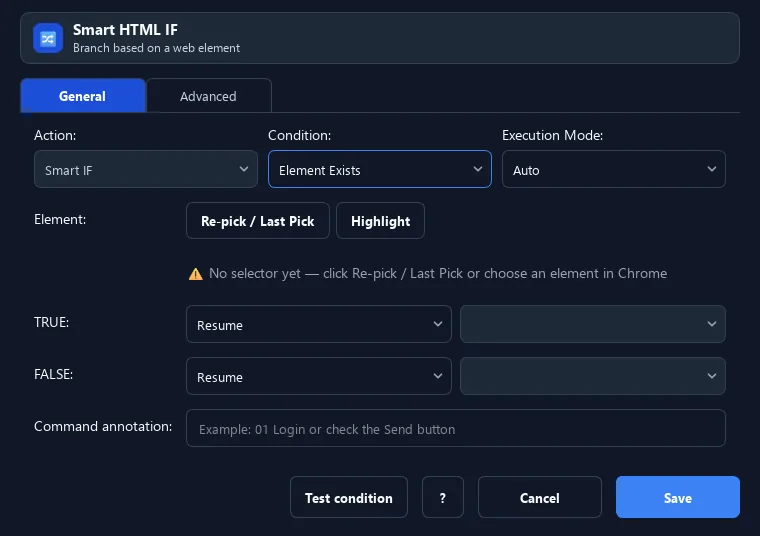
The Smart HTML IF command checks a web condition — element exists/visible, text contains, attribute contains, URL contains/regex, or a variable condition — then jumps to the IF (true) or ELSE (false) label.
Prerequisites#
- Add Smart HTML IF to the macro.
- Prepare the data or target that Smart HTML IF will use.
Supported modes#
- Browser Mode
What it does#
The Smart HTML IF command checks a web condition — element exists/visible, text contains, attribute contains, URL contains/regex, or a variable condition — then jumps to the IF (true) or ELSE (false) label.
Screenshots & video#
When to use it#
- Act only when an element/message appears.
- Branch by the current URL (logged in or not...).
- Check page text/attribute to decide.
When not to use it#
- Do not use IF Element to wait for appearance; it is a point-in-time condition, not a wait.
Configuration steps#
- Add a Smart HTML IF command.
- Choose the condition (Exists/Visible/Text contains/URL contains/Variable...), and enter the expected value if needed.
- Set IF/ELSE labels. Save.
Every option explained#
Expected result#
After execution, Smart HTML IF completes the described action and makes its result available to the next step.
Real example#
Example: skip if already logged in#
- Smart HTML IF, condition URL contains
/dashboard. - IF label =
logged_into skip login. - ELSE =
do_loginto log in.
Limitations and failure cases#
- The DOM can change immediately after the check; multiple matches or a wrong frame can choose an unexpected branch.
Tips & common mistakes#
Combine with Label/Goto to build smart web flows (re-login when logged out...).
Verification details#
commands/smart_html.py
