
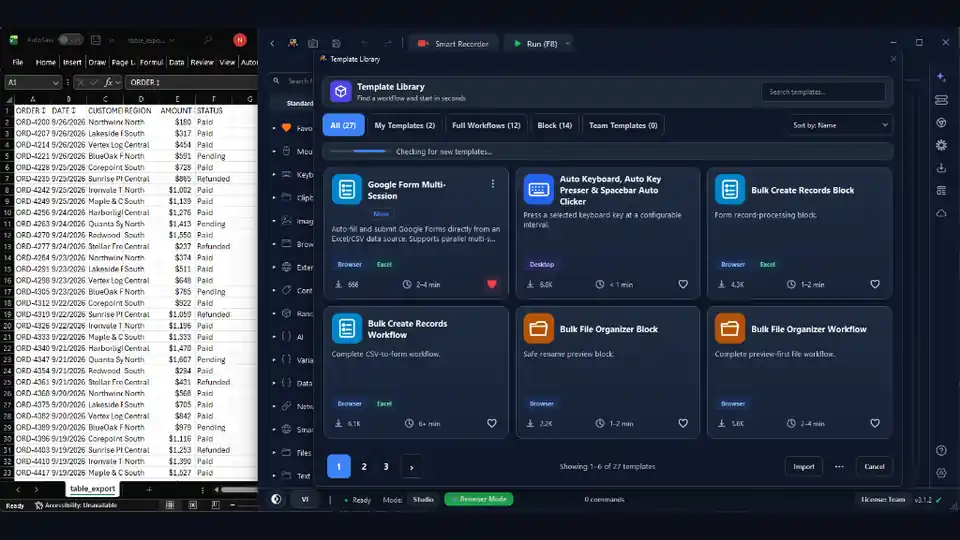

Most teams do not lose their week to big projects. They lose it to dozens of small, repetitive tasks that nobody schedules but everybody does: re-typing data between systems, filling the same forms, downloading the same reports, tidying the same folders. Individually each one takes a few minutes. Added up across a team, they quietly cost hours every single week.
Workflow automation is simply the practice of handing those repeatable tasks to software so your people spend their time on judgment and decisions instead of busywork. The good news is that you no longer need a developer to do it. Below are ten concrete, field-tested ways teams use RunMacro — a no-code automation tool for Windows — to win that time back, with a short note on how to start each one.
| Task | RunMacro Solution | Biggest Win |
|---|---|---|
| Copy Excel → Web/App | Data Source – Get Row + Smart HTML / Type Text | Consistent entry from supplied source data, with validation still required |
| Scrape prices & listings | Background Chrome CDP + Loop | Hands-free data collection |
| Multi-account routines | Parallel Chrome profiles | Reduced elapsed time when capacity permits |
| Recurring reports | Scheduler + Google Sheets | Ready before the Monday standup |
| File cleanup | Batch rename + folder sort | Shared drives stay tidy automatically |
1. Move data between systems without re-typing
⏱️ *Saves 3–5 hours/week* · 🏷️ *Data Entry*
Almost every team has one app that does not talk to another, so a person copies rows from a spreadsheet into a CRM, an admin portal, or an internal tool by hand. It is slow, and it is exactly where typos slip in.
A RunMacro workflow reads each row from your Excel or CSV file and enters it field by field, identically every time. Map the columns once, then a 200-row job that used to eat an afternoon runs on its own. See the full method in how to automate data entry from Excel.
2. Fill and submit web forms on autopilot
⏱️ *Saves 2–4 hours/week* · 🏷️ *Web Ops*
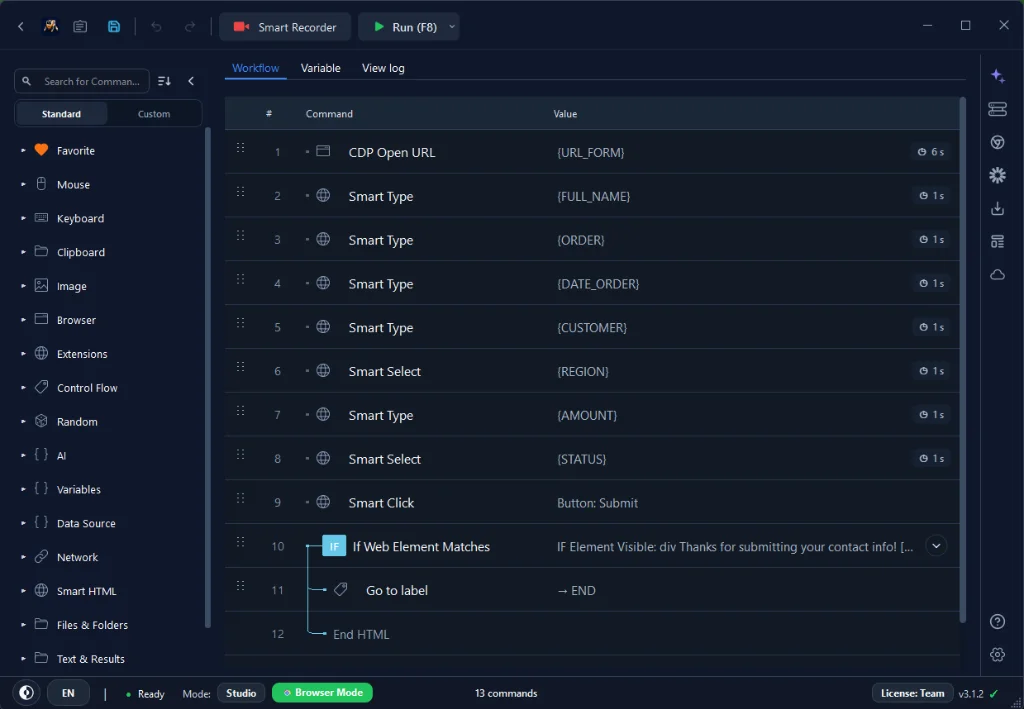
Onboarding a customer, registering an order, updating a supplier portal — these usually mean the same fields, in the same order, over and over. Record the sequence once and RunMacro replays it for every new record.
Because it targets fields by their on-page structure with Smart HTML rather than fixed screen positions, the workflow keeps working even when the page layout shifts. See it end to end in auto-fill Google Forms in the background.
3. Pull data off websites instead of copy-pasting
⏱️ *Saves 4–6 hours/week* · 🏷️ *Research*
Compiling prices, listings, or contact details from a website is pure mechanical work. Let a workflow open each page, read the values you need, and append them to a spreadsheet automatically. This alone can replace hours of manual research every week. There is a complete walkthrough in the guide on how to extract data from websites, including pagination and exporting to Google Sheets.
4. Run the browser in the background while you keep working
⏱️ *Frees 100% of your mouse & PC* · 🏷️ *Productivity*
One reason people avoid automation is that it seems to lock up the computer. RunMacro's Background mode solves that:
• Drives Chrome through the DevTools Protocol.
• Clicks and types inside the page without taking over your real mouse or keyboard.
• Launch a long job and carry on with email, documents, or even gaming on the same machine.
5. Handle many accounts or profiles in parallel
⏱️ *Saves 5–10 hours/week* · 🏷️ *Agency / QA*
Agencies, marketplaces, and support teams often repeat the same steps across dozens of accounts. Run one workflow across multiple Chrome profiles so the same routine executes for each account, in its own isolated session, without a human switching between them. What was a whole morning of tab-juggling becomes a single unattended run.
6. Generate recurring reports without the Monday scramble
⏱️ *Eliminates the Monday-morning rush* · 🏷️ *Reporting*
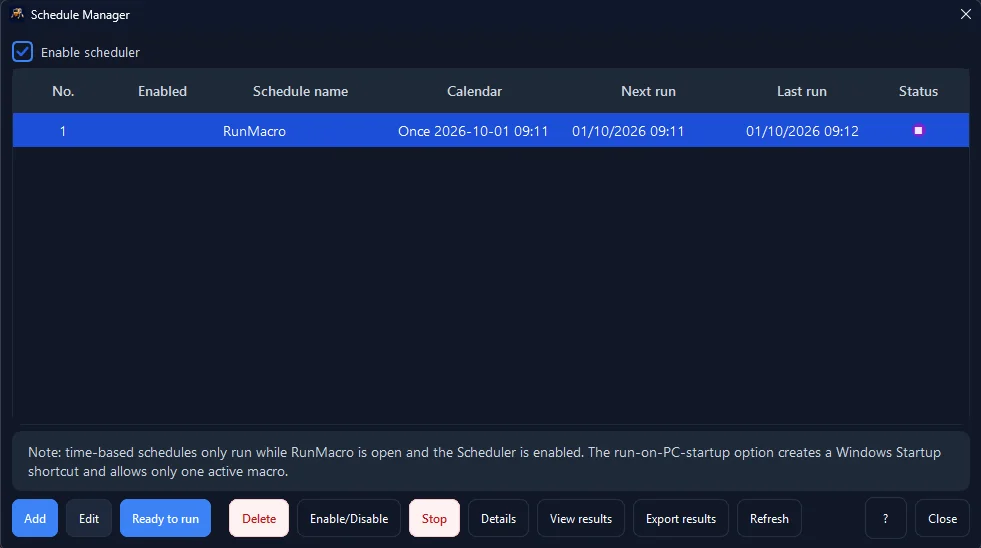
Many reports are just the same gather-format-send ritual on a schedule. A workflow can collect the numbers, drop them into your template, and save or send the file — every day or every week, at a fixed time on the Scheduler, without anyone remembering to do it. The output is consistent because the steps never vary.
7. Keep shared drives clean automatically
⏱️ *Saves 1–2 hours/week* · 🏷️ *Files*
Renaming exports, sorting files into folders, and clearing temporary directories are chores that everyone postpones until the drive is a mess. Schedule a workflow to list a directory, batch-rename by a rule, and clear temp folders so shared storage stays organized without anyone babysitting it. Small, but it removes a recurring source of friction for the whole team.
8. Build once, reuse everywhere with variables
⏱️ *Multiplies one build across unlimited tasks* · 🏷️ *Design*
The difference between a throwaway macro and a durable one is data handling. Store inputs in variables and a single workflow adapts to different customers, files, or accounts instead of being rebuilt each time. This is how one well-made automation ends up covering ten near-identical tasks — and how a fix applied once replaces editing five copies.
9. Package workflows for non-technical colleagues
⏱️ *Lets the whole team run automation* · 🏷️ *Delegation*
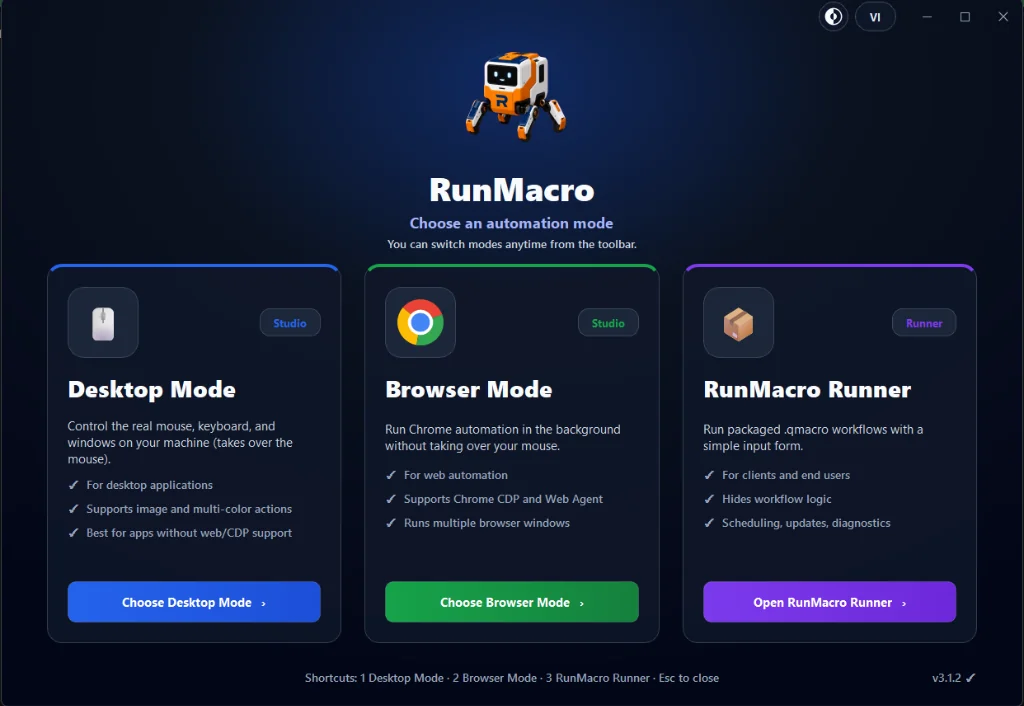
Automation only scales when the people who need it can run it. Package a workflow into a simple Runner: your teammate fills in a couple of fields and presses run, never touching the underlying steps. The expert builds it once; everyone else benefits, safely, without being able to break it.
10. Schedule the boring jobs to run overnight
⏱️ *Runs while you sleep* · 🏷️ *Automation*
The most painless automation is the one you never see. Let routine jobs run outside working hours — the seven patterns in scheduled automation are a good starting list — so the results are simply waiting when the team logs in. Overnight processing also means long tasks do not compete with people for the machine during the day.
How to measure the time you save
A win you cannot show is a win that gets cut. Use this formula:
[TIME SAVED / WEEK] = (Manual time per run × Runs per week) - Bot runtime

Example: Order entry
  Manual:   10 min/run × 20 runs/week = 200 min (~3.3 hrs/person/week)
  Team of 5 = ~16.5 hrs/week saved (~66 hrs/month)
Before you automate, time one manual run and count how often it happens. After automating, the workflow's own log gives you the run count and success rate for free. Put the two numbers side by side and the case for the next automation makes itself.
Frequently asked questions
Do we need a developer to set this up?
No. RunMacro is a no-code tool — team members build workflows by arranging visual commands.
Which task gives the fastest payback?
Usually data entry between systems or a recurring report — high frequency, clear rules, easy to measure.
Can automations run without tying up someone's computer?
Web tasks run in background Chrome without the cursor, and routine jobs can be scheduled to run overnight.
How do we get the team to actually adopt it?
Start with one visible win, then package workflows so non-technical colleagues can run them with a couple of inputs.
Is RunMacro free?
RunMacro offers a free trial. Current plan limits and pricing are listed on the pricing page.
How to choose what to automate first
Do not try to automate everything at once — that is how automation projects stall:
1. Pick the single task that annoys your team most this week.
2. Automate just that one — a five-minute no-code workflow that saves ten minutes a day pays for itself within a week.
3. Let the visible early win bring the team on board; the next candidates reveal themselves.
