
Docs
RunMacro Documentation
Create your first robot, then go further as needed.
Clear step-by-step guides to create, run, and improve robots for repetitive computer work.
Batch rename files in RunMacro
Batch Rename Files renames many files by find-replace, prefix/suffix, sequence, or a CSV/Excel mapping, with a safe preview mode.
Prerequisites#
- The folder exists; mapping mode needs a valid CSV/Excel file.
Supported modes#
- Desktop Mode — Operates on the local file system.
- Browser Mode
What it does#
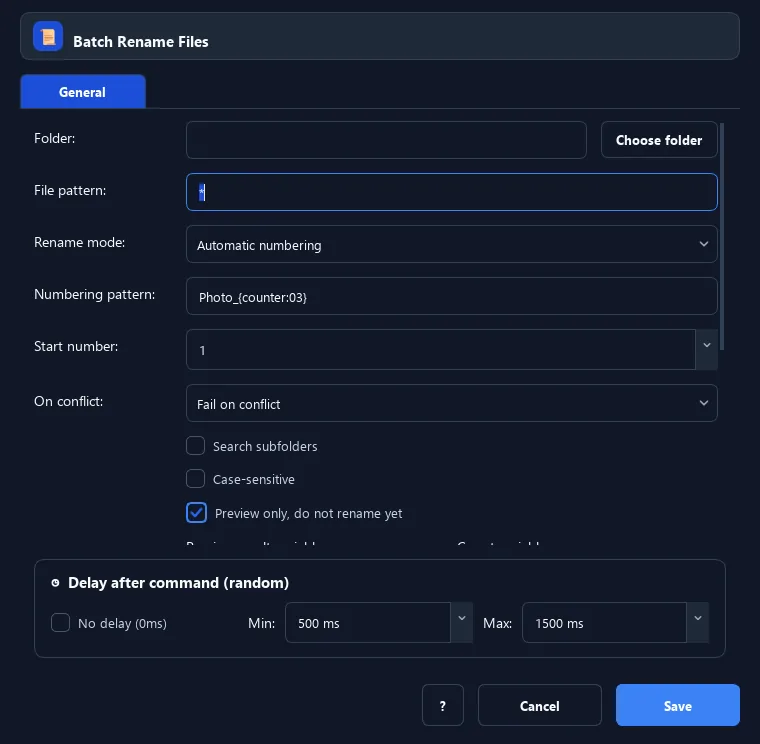
The Batch Rename Files command renames many files in a folder using four modes: find-replace, prefix/suffix, sequence numbering, or a mapping table (CSV/Excel). It defaults to a preview (dry run) so you can check before applying.
Screenshots & video#
When to use it#
- Standardize many image/document names.
- Number files by a pattern.
- Rename by an old→new list in Excel/CSV.
When not to use it#
- You are renaming a single file — use Rename File or Folder.
Configuration steps#
- Add a File › Batch Rename Files command.
- Enter the folder and a pattern (e.g.
*.jpg). - Choose a rename mode: find-replace, prefix/suffix, sequence, or mapping.
- Fill the matching parameters (find/replace text, prefix, sequence pattern, or mapping file + source/destination columns).
- Run in preview to check the plan variable; when it looks right, turn preview off and run for real. Save.
Every option explained#
Expected result#
In preview: the preview variable holds the plan. When applied: files are renamed per the plan.
Real example#
Example: renumber all photos#
- Batch Rename: images folder, pattern
*.jpg, mode = sequence, patternIMG_{counter:04}, start 1. - Run preview, check
{batch_rename_preview}; if good, turn preview off and run.
Limitations and failure cases#
- Names invalid on Windows are flagged.
- Multiple files mapping to one destination cause a collision.
Tips & common mistakes#
Always run the preview before applying. If two files map to the same destination, the command reports a collision.
Mapping mode reads .csv, .xlsx, or .xlsm; the source and destination column names must match.
Verification details#
commands/filesystem.py
