
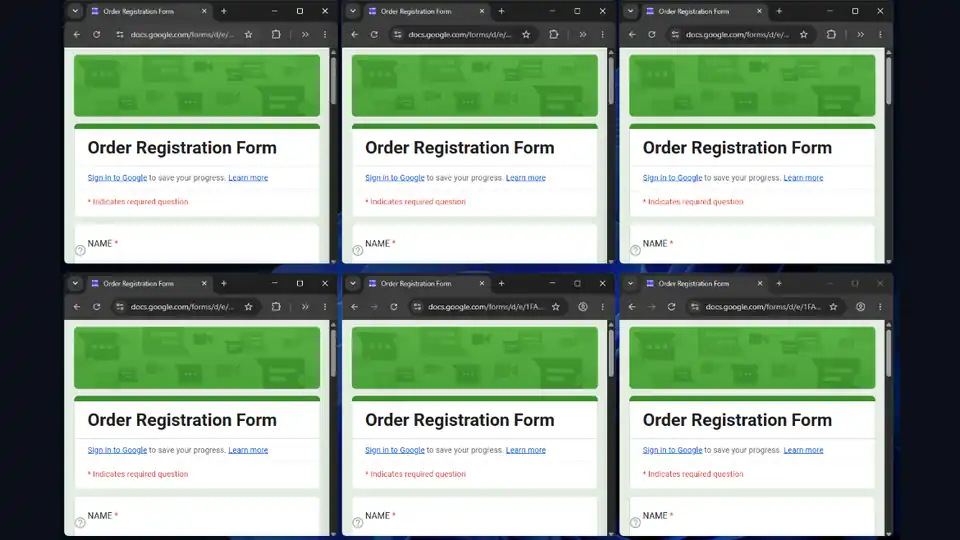

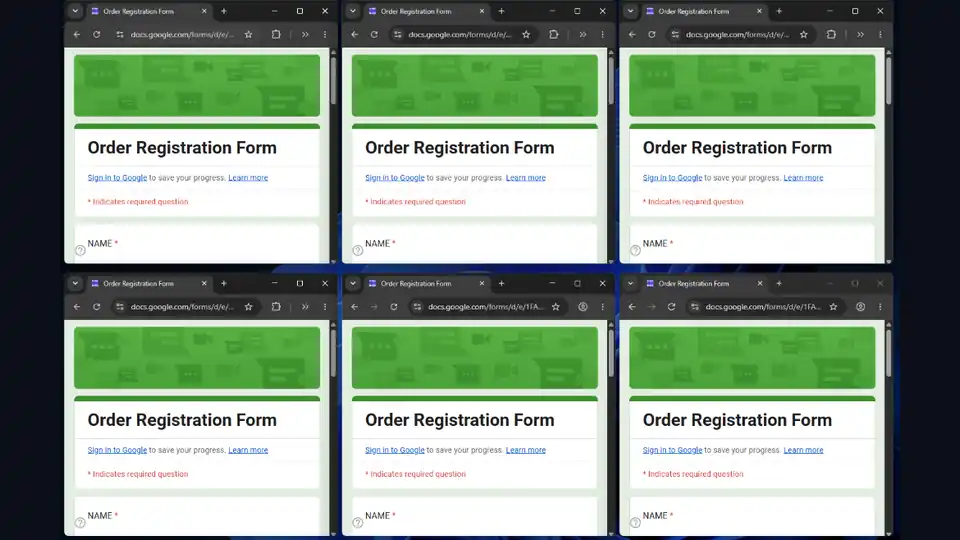
As your workload grows — running the same web task across many accounts you manage, such as client logins, regional profiles, or test identities — doing them one at a time becomes a bottleneck. Each profile waits for the previous one to finish, and the total time just keeps multiplying.
The answer is multi-profile browser automation with RunMacro: several background Chrome windows working at once, while your mouse and keyboard stay free for other work on the same computer.
Why run multiple profiles in parallel
Each Chrome profile is its own isolated environment: it keeps a separate login session, cookies, history, and identity. That lets you work across many accounts without sessions bleeding into each other. Parallel profiles can reduce total elapsed time when the target service, network, browser provider, and machine have enough capacity. Gains taper as CPU, RAM, network, and service limits become bottlenecks. And because it all runs in background Chrome, it never takes over your mouse.
The foundation: one independent background Chrome session per profile
The core is still Background mode (Chrome/CDP). Each profile opens its own Chrome session, driven directly through the DevTools protocol rather than a physical mouse.
Because no session needs the real cursor, many sessions can run simultaneously without stepping on each other — impossible with coordinate-based auto clicking, where there is only one cursor on screen. RunMacro's Chrome CDP profiles keep each session signed in as its own separate identity.
How to build a multi-profile workflow, step by step
Step 1 — Prepare a profile for each identity
Each account or identity should map to its own Chrome CDP profile, already logged in. This keeps every session in the right context, with its own cookies and login, so browser storage and login sessions remain separate.
Step 2 — Build one shared standard workflow
Create a template process: Open URL → Wait for element → fill and click with Smart HTML → submit. This one workflow gets reused across every profile, so a fix or an improvement made once applies everywhere.
Step 3 — Separate the data per profile
Use Data Source – Get Row to read assigned CSV, Excel, or Google Sheet rows. Give each concurrent workflow a distinct data range because reading a row does not atomically lock it for another runner. Mark each row done with Mark Row so a restart never re-processes it.
Step 4 — Run in parallel across profiles
Launch that same workflow on each profile so multiple sessions process at the same time. Each session works independently in its own background Chrome window, and none of them needs your cursor.
Step 5 — Log results centrally
After each submission, write a result row with Append CSV Row or push it to Google Sheets to build one consolidated log across all profiles — including which profile produced each row.
[SHARED DATA: submissions.csv]
        |
        |-- Profile 1 (Marketing) --> Chrome CDP (Background) --> Rows 1-50    --|
        |-- Profile 2 (Sales)     --> Chrome CDP (Background) --> Rows 51-100  --+--> [CENTRAL LOG: results.csv]
        |-- Profile 3 (Support)   --> Chrome CDP (Background) --> Rows 101-150 --|
Managing and monitoring many sessions at once
When ten sessions run together, logging stops being optional and becomes essential:
• Record per-profile results — profile name, timestamp, success/failure — to a shared CSV or Google Sheet.
• Add a Telegram notification on failure so a stuck profile reaches you immediately.
• Use the Scheduler to launch the whole set on a timer.
• Use RunMacro Manager to coordinate profiles across several machines centrally.
Scaling safely: how many profiles is enough?
Each background Chrome session consumes RAM and CPU. The more you open, the heavier the load, and past a threshold your speed drops or sessions hang. Scale gradually and measure on your own hardware:
| Machine condition | Starting approach |
|---|---|
| Limited available memory | Start with one profile |
| Moderate free CPU and memory | Test two or three profiles |
| Higher-capacity machine | Increase one profile at a time while monitoring failures, CPU, and memory |
RunMacro does not define a fixed profile count by RAM size; page weight, extensions, browser provider, and workflow activity materially change resource use.
Start at the low end, watch Task Manager, then push higher. Do not copy someone else's number — measure on your own machine.
Tips to keep the system stable
• ✅ Add a Random Delay between steps so sessions stay within rate limits
• ✅ Assign distinct data ranges per profile and avoid concurrent writes that could create duplicate or crossed records
• ✅ Test with 2–3 profiles first to confirm the workflow is correct before scaling up
• ✅ Everything runs in the background — keep using your computer normally while sessions work
Troubleshooting
| Problem | Solution |
|---|---|
| Sessions slow down or hang | Resource ceiling hit. Reduce parallel profiles, close unused tabs, add delays so sessions are not all active at once. Scale back to what your machine handles. |
| Two profiles processed the same rows | Data not split cleanly. Give each profile a distinct slice of the source and mark rows as processed so no row is picked up twice. |
| One profile fails silently | Without per-profile logging you cannot see it. Record profile name + result on every submission so a single failure stands out. |
Frequently asked questions
Will running many profiles at once mix up the data?
No, as long as you separate the data by profile from the start (each profile takes its own rows) and each profile uses its own Chrome session.
How many profiles can I run in parallel?
It depends on your hardware. RAM and CPU are the two main limits. Scale up gradually and monitor, rather than opening everything at once.
Do I need to know programming for this?
No. You build one visual workflow and run it across many profiles — no coding required.
Can I use my computer while the profiles run?
Yes. Because they run in background Chrome over CDP, the sessions do not take the real cursor, so you can keep doing other work.
Is RunMacro free?
RunMacro offers a free trial. Current plan limits and pricing are listed on the pricing page.
Conclusion
Running multiple Chrome profiles in parallel is how you multiply throughput when volume gets high. Build one solid standard workflow, separate your data cleanly, scale gradually, and always log.
To manage repetitive submissions across profiles, discover our dedicated form autofill tool, powered by the RunMacro Chrome Extension and web automation. If you are new to background automation, start with how to auto-fill Google Forms in the background, or see how to run automation while gaming on the same computer.
