
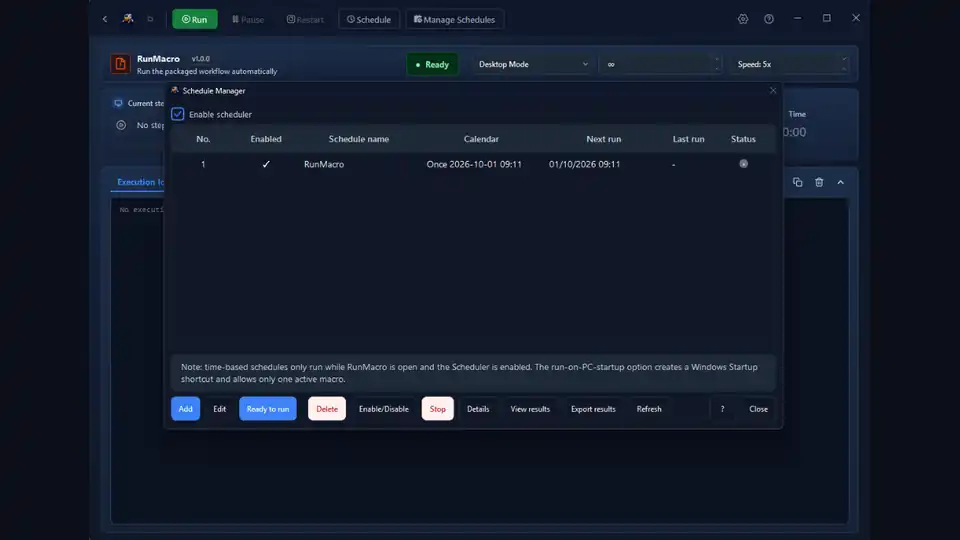

Some tasks are not hard — they are just relentless. The daily report. The overnight data pull. The Monday-morning form submissions. Doing them by hand means someone has to remember, show up, and click through the same steps over and over. Scheduled automation fixes that: build the workflow once, decide when it should run, and the work happens on its own — even outside working hours.
In this article we round up seven repetitive jobs that are ideal candidates for a schedule, with a concrete example for each and the RunMacro feature that makes it work. The goal is not to automate everything at once — it is to spot the one or two tasks quietly eating your week and hand them to a timer.
How scheduling works in RunMacro
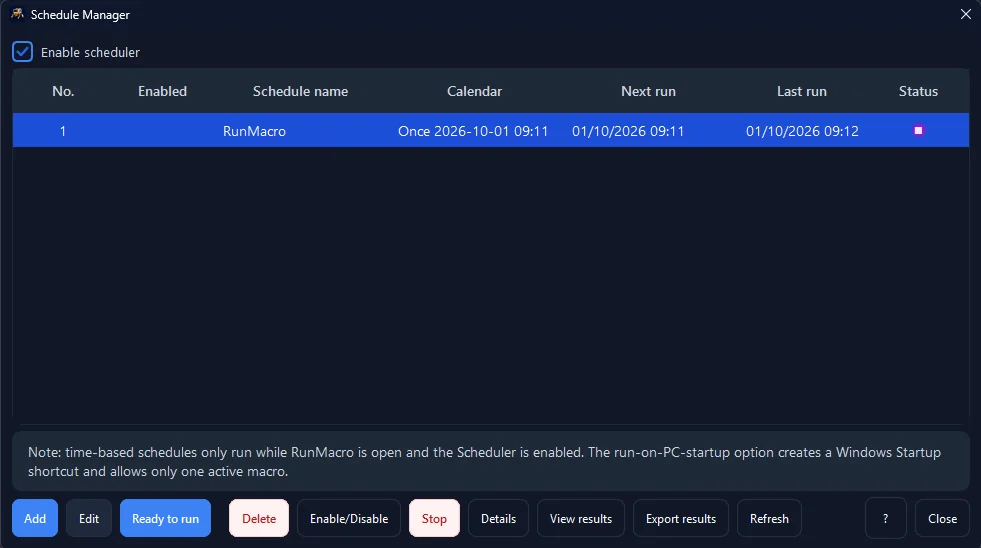
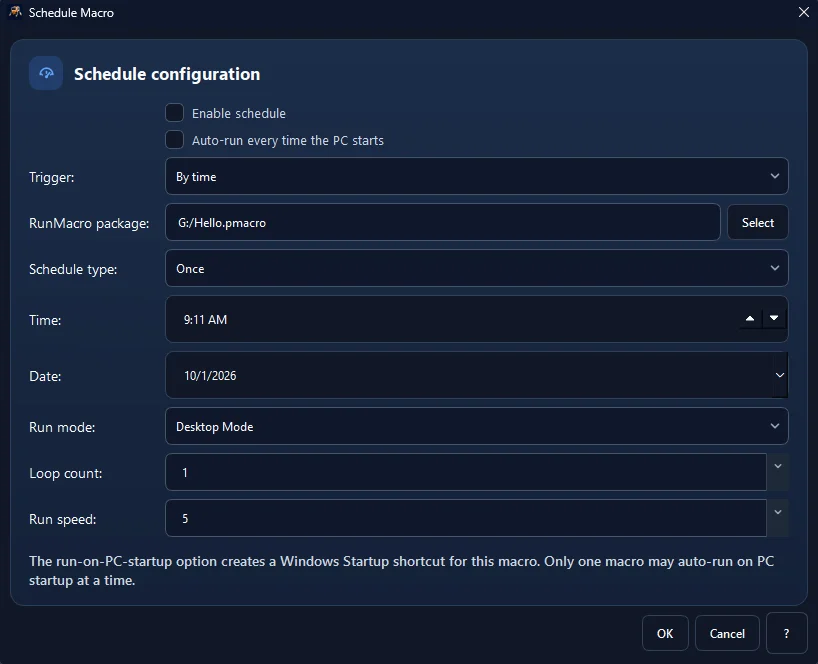
A schedule is just a trigger on top of a normal workflow. You build and test the workflow the usual way, then give it to the Scheduler with a time or a repeating interval — every night at 2 a.m., every Monday at 8, every hour. When the moment arrives, RunMacro runs the workflow exactly as if you had pressed play.
Two things follow from that. First, the computer must be awake and running RunMacro at the scheduled time; many teams keep an always-on PC or a small VM for this. Second, because web steps run in background Chrome over CDP, a scheduled run will not fight you for the mouse — but desktop-app steps use the real input, so schedule those for quiet hours when no one is at the keyboard.
| Task | Ideal Cadence | Mode | Biggest Win |
|---|---|---|---|
| 🌙 Overnight data collection | Nightly (2 AM) | Background Chrome CDP | Fresh data waiting when you log in |
| 📊 Report assembly | Monday 8 AM | Google Sheets | No more Monday-morning scramble |
| 📝 Recurring form submissions | Daily / Weekly | Background Chrome CDP | Never miss a check-in or filing |
| 👥 Multi-account routines | Hourly / Batch | Multi-profile | Dozens of accounts handled on time |
| 📁 File cleanup | Friday 6 PM | Desktop / File actions | Shared drives stay tidy automatically |
| 📥 Google Sheets sync | Hourly / Real-time | Google Sheets action | Dashboard always shows current data |
| 🩺 Health checks | Every 15–30 min | Chrome CDP + Telegram | Instant alert when something goes down |
1. Overnight data collection from websites
⏰ *Nightly at 2:00 AM* · 🏷️ *Web Scraping*
Instead of pulling prices, listings, or stats by hand each morning, schedule the job to run overnight. By the time you log in, the numbers are waiting. See the full method in how to extract data from websites; it runs in background Chrome so it will not tie up a machine, and paired with write-as-you-go export it leaves a fresh sheet ready before the day starts.
2. Daily or weekly report assembly
⏰ *Monday 8:00 AM* · 🏷️ *Reporting*
Collecting figures, dropping them into a template, and saving or sending the result is a classic recurring chore. Schedule it to build the report on a fixed cadence — a Monday summary ready before the standup instead of a manual scramble. Push the finished numbers into a shared sheet with the Google Sheets action, or write a file and notify the channel when it is done.
3. Recurring form submissions
⏰ *Daily or weekly* · 🏷️ *Forms*
Check-ins, status updates, and portal entries that happen on a rhythm are perfect for automation. Build the form flow once — see auto-fill Google Forms in the background — and let the schedule submit it whenever it is due. A weekly compliance check-in or a daily standup form stops being something anyone has to remember.
4. Multi-account routine tasks
⏰ *Hourly or batch* · 🏷️ *Multi-Profile*
Logging into several accounts to run the same routine is slow and easy to forget. Schedule one workflow across profiles — the approach in running multiple Chrome profiles in parallel — so every account gets handled on time. Because browser mode can drive separate profiles, each account keeps its own isolated session rather than sharing one.
5. File cleanup and folder maintenance
⏰ *Friday 6:00 PM* · 🏷️ *File Ops*
Renaming, sorting, or clearing out temp folders keeps shared drives tidy, but nobody wants to babysit it. A scheduled workflow can sweep folders on a fixed interval: list a directory, batch-rename by a rule, move files into dated folders, or clear a temp folder — so storage stays clean automatically without a human running the broom.
6. Syncing data into Google Sheets
⏰ *Hourly or real-time* · 🏷️ *Data Sync*
If a team dashboard depends on fresh numbers, schedule a workflow to push updates into a shared sheet with the Google Sheets action. Everyone sees current data without anyone updating it by hand, and the sheet's history gives you a running record of each sync.
7. Health checks on dashboards and portals
⏰ *Every 15–30 minutes* · 🏷️ *Monitoring*
Opening a dashboard to confirm a service is up, or a portal to verify a status, is quick but easy to skip. Schedule a workflow to open the page in background Chrome, check the key element with IF element, and log the result — a lightweight daily heartbeat. Wire a Telegram notification to fire only when the check fails, and silence becomes good news.
Make scheduled runs reliable
An unattended run has no one watching it, so build the watching in:
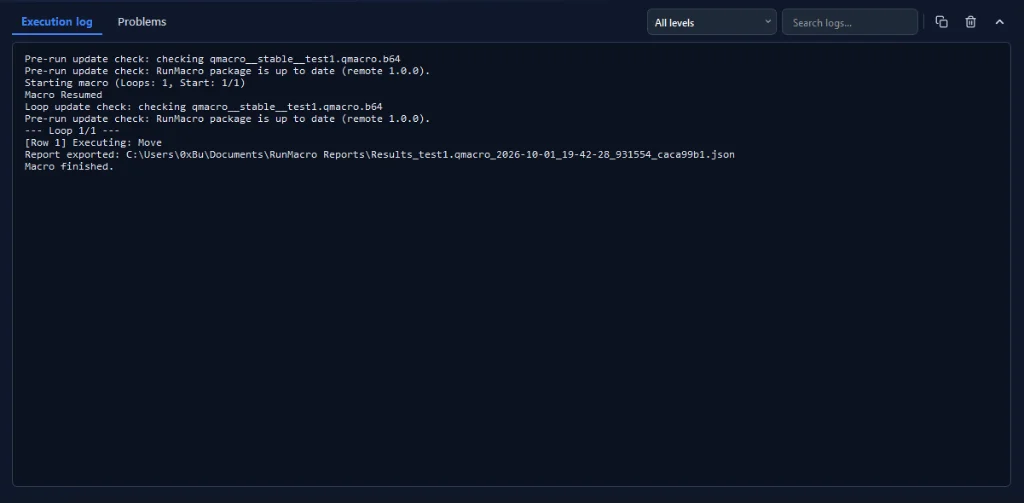
• ✅ Log every run with Log Message for live progress and an appended text or CSV row for a durable result — know exactly where a stopped run left off
• ✅ Alert on failure only via Telegram notification — silence means everything is fine
• ✅ Make jobs resumable with Mark Row — a restarted workflow can request the next unmarked row rather than intentionally beginning from the first row
• ✅ Coordinate across machines with RunMacro Manager — central scheduling and reporting for multi-machine setups
Which task should you automate first?
Start with the job that annoys your team most and needs the least judgment — usually the overnight data pull or the recurring report. Automate that one, prove it saves time, then expand. A five-minute workflow that runs itself every day pays for itself fast.
Frequently asked questions
Do scheduled workflows need the computer to stay on?
Yes — the machine (or a VM) has to be running RunMacro at the scheduled time. Many teams use an always-on PC for this.
Can it run without taking over my mouse?
Web tasks run in background Chrome over CDP, so a scheduled run will not hijack the cursor. Desktop-app steps use the real input, so schedule those for quiet hours.
What happens if a scheduled run fails?
Build logging into the workflow so each run records success or failure, and add a notification on failure. Then you can review the log and re-run only what failed.
How many tasks can I schedule?
As many as your machine's resources allow. Stagger heavy jobs so they do not all fire at once and compete for CPU, memory, or the same browser.
Can I schedule the same workflow on many computers?
Yes. For a single machine the built-in Scheduler is enough; to coordinate runs across several machines, RunMacro Manager handles scheduling and results centrally.
Is RunMacro free?
RunMacro offers a free trial. Current plan limits and pricing are listed on the pricing page.
Conclusion
Scheduling turns 'I need to remember to do this' into 'it is already done.' Pick one recurring, rule-based, time-bound task, build the workflow, and put it on a timer. Then add the next. Over a few weeks, the routine jobs that used to fill your calendar simply run themselves.
Not sure where to begin? Browse ways automation saves your team hours for more ideas.
