
Docs
RunMacro Documentation
Create your first robot, then go further as needed.
Clear step-by-step guides to create, run, and improve robots for repetitive computer work.
Declare a variable (Global/Dynamic) in RunMacro
The Declare Variable command creates a named variable to store reusable data.
Prerequisites#
- Add Declare Variable to the macro.
- Prepare the data or target that Declare Variable will use.
Supported modes#
- RunMacro Runner
What it does#
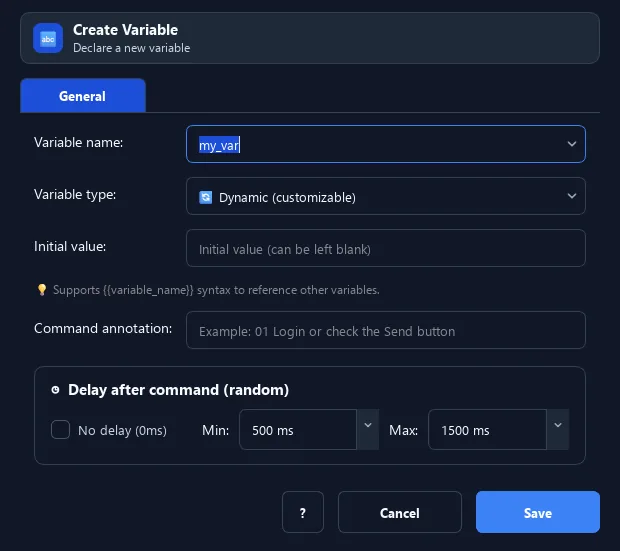
The Declare Variable command creates a named variable to store reusable data. Pick Global (kept for the session) or Dynamic (temporary, frequently changing), with an initial value.
Screenshots & video#
When to use it#
- Store a value for use in later steps (e.g. email, name).
- Prepare a variable before assigning data from a file/clipboard.
- Separate dynamic data from fixed content.
When not to use it#
- Do not use it for a one-off value when Assign Variable is enough and no explicit scope is needed.
Configuration steps#
- Add a Variables › Declare Variable command.
- Set the variable name (e.g.
email). - Choose the type: Global or Dynamic.
- (Optional) enter an initial value. Save. Reference it as
{email}.
Every option explained#
Expected result#
After execution, Declare Variable completes the described action and makes its result available to the next step.
Real example#
Example: declare a counter variable#
- Declare Variable
count, Global, value0. - In a loop, use Calculate to increment
count. - Reference
{count}where needed.
Limitations and failure cases#
- The runner manages Global/Dynamic scope; duplicate names change state and variables are not lexical scopes.
Tips & common mistakes#
Use Dynamic for per-loop data (email, password); Global for fixed config.
Verification details#
commands/variables.py
