
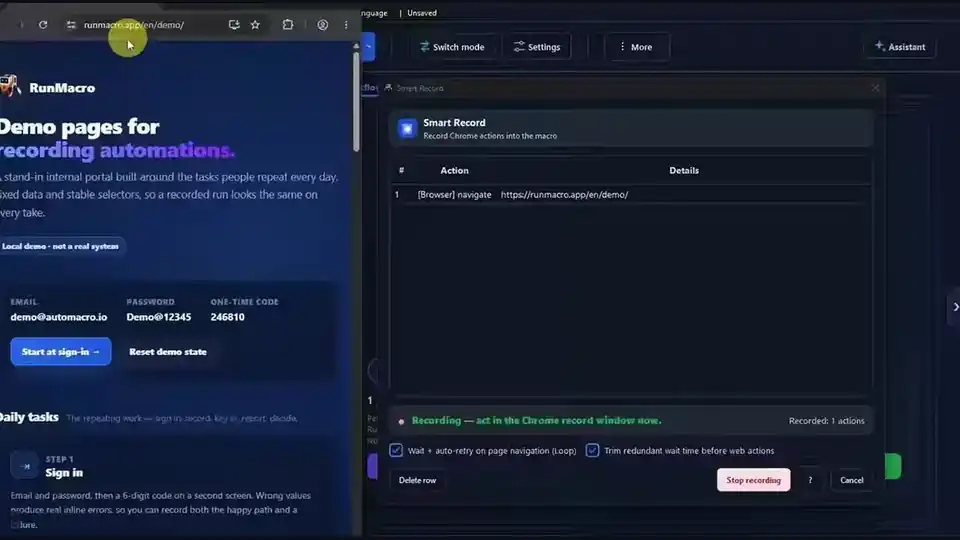

The fastest way to automate a task is often not to describe it, but to simply do it once and have the computer remember. That is what a macro recorder is for: it watches your mouse clicks and keystrokes, saves them as a sequence, and replays that sequence on demand. RunMacro includes a recorder that turns your actions into editable commands, so you can capture a task in seconds, then run it whenever you need it.
This guide explains what a macro recorder does, how to record your first macro, and then the part most guides skip: exactly how to run a macro on Windows, from a single click in Studio to a saved package that runs on a schedule.
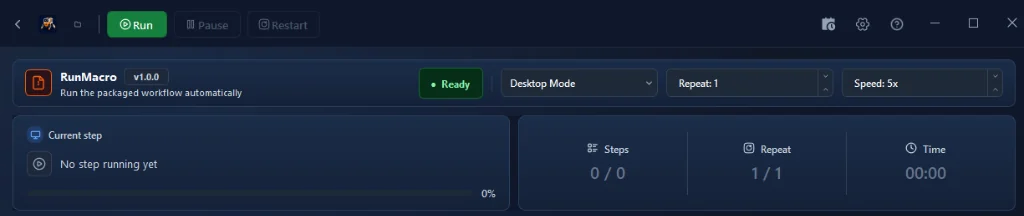
F8 to pause or resume and F9 to stop. To run a saved .qmacro package instead, open it in RunMacro Runner and press Run.What is a macro recorder?
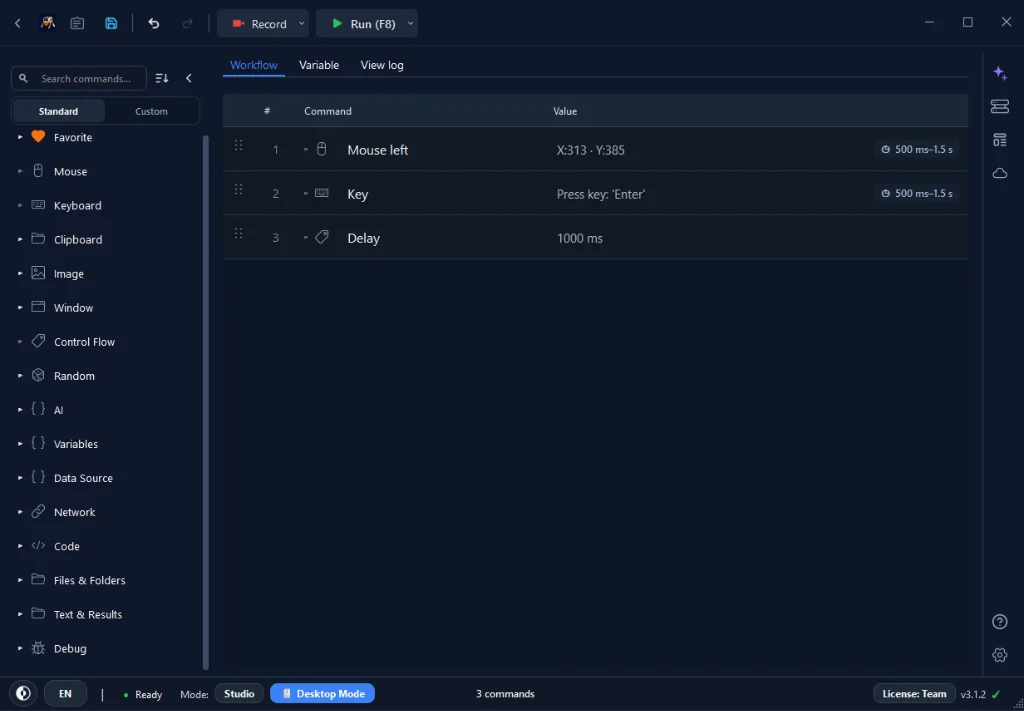
A macro recorder captures the actions you perform, where you click, what you type, which keys you press, and stores them so they can be repeated automatically. Think of it as hitting "record" on your own workflow. The value is speed: instead of adding every step by hand, you demonstrate the task once. In RunMacro, the recording does not become a locked black box; each captured action shows up as a normal command you can reorder, edit, or delete.
Record vs build manually — when to use each
Recording and manual building are two ways to reach the same result, and experienced users lean on both. Recording is best when the task is mostly linear and you would rather demonstrate than describe; it gets a rough version done in seconds. Manual building (adding commands from the sidebar, as covered in the getting started guide) is best when you want precise control or logic the recorder cannot infer. The practical habit: record the skeleton, then edit it by hand to make it solid.
| Approach | Biggest Advantage | Best Used For |
|---|---|---|
| 🔴 Smart Record | Fast, no command memorization, captures exact clicks & keystrokes | Creating the initial skeleton, multi-step repetitive sequences |
| 🛠️ Build Manually | 100% precise, easy to add conditionals (If/Else, variables) | Complex workflows, background web scraping, large pipelines |
| 🤝 Hybrid | Best practice: Record skeleton → enrich with waits & variables | The recommended standard for production RunMacro bots |
Record your first macro, step by step
Step 1 — Start recording
Begin a recording and then perform the task exactly as you normally would. RunMacro captures each click and keystroke in order.
Step 2 — Do the task once, calmly
Move at a natural pace and avoid unnecessary clicks; every stray action gets recorded too. A clean demonstration means less editing afterward.
Step 3 — Stop and review
End the recording and look at the command list. You will see your actions as individual steps: clicks with coordinates, typed text, key presses. This is your workflow, ready to run and to edit.
How to run a macro
Once a macro exists, running it is deliberately simple. There are a few ways to do it, from a quick test inside Studio to a saved package you can hand to someone else.
Run it from Studio
The everyday way to run a macro is to open the workflow in Studio and press the Run button. RunMacro replays every step in the order you recorded or built them. You can also start a run from the toolbar or from a start hotkey you assign in Settings, which is useful when the window you are automating needs to be focused. There is no fixed default start key; you pick one that does not clash with the app you are driving.
Your first run should be a watched test. Keep an eye on it and confirm each step lands where you expect before you trust it to run unattended. The first workflow walkthrough shows the build-then-Run loop end to end.
Pause and stop a run safely
Two global hotkeys control a running macro, and both work even while the pointer is busy:
• F8 pauses and resumes the run.
• F9 requests a stop.
Both are defaults and can be changed in Settings. Because F9 is global, you can stop a run that has taken over the mouse without having to click anything, which is the single most important thing to know before your first unattended run.
F8 to Pause / Resume your macro at any point · Press F9 (or customized ESC / F12 in Settings) for instant Emergency Stop · Assign any custom Start Hotkey in Settings to trigger workflows without opening Studio.Desktop Mode and Browser Mode run differently
How a macro runs depends on its mode, and the difference matters the moment you press Run:
• Desktop Mode uses your real mouse and keyboard. It takes over the machine while running, so the target window must be visible and you should not touch the computer until it finishes or you stop it.
• Browser Mode drives Chrome through the DevTools Protocol. Actions happen inside the browser without moving your physical cursor, so you can keep working while the macro runs in the background. A Browser Mode run ends if its Chrome session disconnects.
If you want a macro you can start and then walk away from while you do something else, build it in Browser Mode.
Repeat the whole run
To run a macro many times, wrap the workflow in the Studio outer Loop and set a repeat count. A count of zero runs continuously until you stop it with your hotkey. This is different from the in-workflow Loop command, which repeats one block of steps inside a single run rather than repeating the entire macro.
Run a saved package (.qmacro)
RunMacro saves editable workflows as .pmacro files and packaged, encrypted workflows as .qmacro files. A .qmacro is what you share or archive when a workflow is finished. To run one, open RunMacro Runner (its Open package button, or Ctrl+O), fill in any inputs the package asks for, choose Desktop or Browser Mode, and press Run. The Runner executes the package without touching your Studio workflow, and it has the same Pause, Resume, and Stop controls. A package from someone else starts in Safe Mode so you can review it before it runs.
You can also run a .qmacro as a step inside a larger workflow with the Insert RunMacro package command, which is how you combine several finished macros into one.
Run on a schedule or across machines
For hands-off runs, the Scheduler runs saved .qmacro files at times you define and hands each one to a Runner window. To automate the same task on many computers at once, RunMacro Manager dispatches a job to each machine, where a local Runner carries it out and reports back. Scheduling and Manager are part of RunMacro's paid plans; RunMacro offers a free trial, and current plan details are on the pricing page.
Clean up the recording
A raw recording almost always needs a little editing before it runs reliably. Remove any accidental steps. Where the recorder captured typed text, consider switching long text or IME input (accented or non-Latin characters, for example) to a paste-based approach for accuracy. Confirm that click targets make sense; see Mouse Click and Type Text to understand what each captured step does and how to adjust it.
Make your replays reliable
The number-one reason a recorded macro runs once and fails later is timing. When you recorded, the app was already loaded; on the next run, it might not be. Insert a Random Delay after steps that open programs or load pages, or, for web targets, a Wait for element so the macro pauses until the page is ready. Recording captures *what* you did; adding waits captures *when* it is safe to do it.
Real-world example: a daily login routine
Imagine you open the same app and log in every morning. Record it once: launch the app, click the username field, type it, click password, type it, click sign-in. Stop, then add a Delay after the launch step so the window is ready before the first click. Now that thirty-second routine runs itself whenever you press Run, exactly the same way each time. Assign it a start hotkey and it is one keystroke away every morning.
[WORKFLOW: MORNING LOGIN ROUTINE]
1. OPEN APP "AccountingERP.exe"
2. WAIT FOR ELEMENT "Login Window" (Timeout: 5s)
3. TYPE TEXT -> input[name="username"] = {username}
4. KEY COMBO "Enter"
5. OPEN URL "https://crm.company.com" (Background Chrome CDP)
6. LOG "Morning routine finished at {timestamp}"Common mistakes and how to fix them
| Mistake | How to Fix |
|---|---|
| ⏳ No waits after loading | Top cause of flaky replays. Insert a Delay or Wait for element after opening apps or navigating pages so the macro does not race the UI. |
| 🧹 Messy recording with stray clicks | Review the recorded step list in Studio immediately. Delete accidental clicks or re-record the sequence calmly. |
| 🪟 Fixed coordinates on moving windows | Screen coordinates break if a window moves or resolution shifts. Use Find Image for desktop controls or Smart HTML for web elements. |
| 겹 Unrelated windows covering the target | Keep the target window focused and uninterrupted during desktop runs, or switch to Browser Mode to automate Chrome in the background. |
| 🖱️ Confusing Desktop Mode and Browser Mode | Desktop Mode controls physical mouse & keyboard (do not touch the PC while running). Browser Mode runs inside Chrome via CDP without hijacking your cursor. |
Tips to run better macros
Turning a raw recording into a dependable daily tool requires a few solid operating habits:
• ✅ Keep macros short and focused: It is far easier to combine two small, reliable macros with Insert package than to debug a massive 50-step sequence.
• ✅ Trim dead time and pacing delays: Recordings capture human hesitation. Tighten delays between steps and replace blind pauses with Wait for element.
• ✅ Always test one bounded run before looping endlessly: Never start with an infinite loop. Run a single test of 1–5 cycles with the F9 stop hotkey ready before scheduling.
• ✅ Treat the recording as a first draft: Smart Record provides the 80% skeleton. The real production stability comes from fine-tuning selectors and adding condition checks.
Frequently asked questions
How do you run a macro in RunMacro?
Open the workflow in Studio and press Run, or assign a start hotkey and press that. To run a finished .qmacro package, open it in RunMacro Runner and press Run there.
How do I run a macro with a hotkey?
Assign a start hotkey in Settings, then press it to launch the workflow. While it runs, F8 pauses or resumes and F9 stops; those two are the configurable defaults.
Can I run a macro in the background while I work?
Yes, in Browser Mode. It drives Chrome through the DevTools Protocol without taking over your physical mouse or keyboard, so you can keep using the computer while the macro runs.
How do I run a saved .qmacro file?
Open it in RunMacro Runner, complete any inputs it asks for, pick Desktop or Browser Mode, and press Run. A .qmacro is a packaged, encrypted workflow, so it runs without opening your editable Studio project.
Can I run a macro on a schedule?
Yes. The Scheduler runs saved .qmacro files at times you set, and RunMacro Manager can run the same job across several machines. Both are paid features; RunMacro offers a free trial.
Does a macro recorder require coding?
No. You demonstrate the task and it becomes editable commands, then you press Run. No programming needed.
Why does my recorded macro fail on the next run?
Usually timing: the app or page was not ready. Add waits after steps that load, and prefer selectors or images over fixed coordinates for moving targets.
Conclusion
Recording is the quickest way to create a macro, and running one is a single press of the Run button or a hotkey you assign. Record small, edit for reliability, watch the first run with F9 ready, and then let it repeat, run on a schedule, or run across machines. Next, learn to build workflows from scratch for full control, or explore our dedicated Auto Clicker and Auto Keyboard guides.
