
Docs
RunMacro Documentation
Create your first robot, then go further as needed.
Clear step-by-step guides to create, run, and improve robots for repetitive computer work.
Wait a fixed time with the Delay command
Delay pauses a workflow for a fixed number of milliseconds before continuing. It suits known wait periods; for web content with variable readiness, Wait for element is usually more precise and efficient.
Prerequisites#
- Choose a reasonable duration based on the application’s observed behavior.
- Place Delay immediately after the action that creates the state to wait for.
Supported modes#
- Desktop Mode — Pauses the Desktop Mode command flow.
- Browser Mode — Pauses Browser Mode without verifying that an element is ready.
- RunMacro Runner — The runner waits for the duration before executing the next step.
What it does#
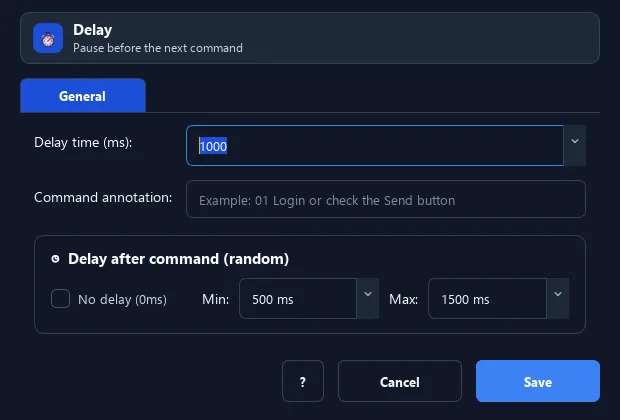
The Delay command makes the macro wait a fixed amount of time (in milliseconds) before running the next command. It is one of the most important commands: the computer runs fast but pages/apps need time to respond.
Screenshots & video#
When to use it#
- After clicking a link/button, wait for the page to load (2000–3000ms).
- After opening an app, wait for the window to appear.
- Space out actions for more stability.
When not to use it#
- You can wait for a concrete condition such as a web element or window.
- Response time varies enough that a fixed delay is sometimes too short and sometimes wasteful.
- You need the user to decide when to continue; use Pause instead.
Configuration steps#
- Add the Flow › Delay command right after the step that needs waiting.
- Enter the number of milliseconds (1000ms = 1 second).
- Save.
Every option explained#
Expected result#
The workflow does not execute the next command until the configured milliseconds have elapsed.
Real example#
Example: wait after opening a page#
- Open the login page URL.
- Delay 2500ms.
- Enter the account/password.
Limitations and failure cases#
- Delay does not verify that a page, window, or data is ready.
- A duration that is too short can break the next step; one that is too long wastes time.
- It is not a mechanism for evading detection or bypassing service rate limits.
Tips & common mistakes#
For a more natural-timing feel, use Random Delay (wait a random range) instead of a fixed Delay.
Verification details#
commands/delay.py
