
Docs
RunMacro Documentation
Create your first robot, then go further as needed.
Clear step-by-step guides to create, run, and improve robots for repetitive computer work.
Automate Google Sheets via API in RunMacro
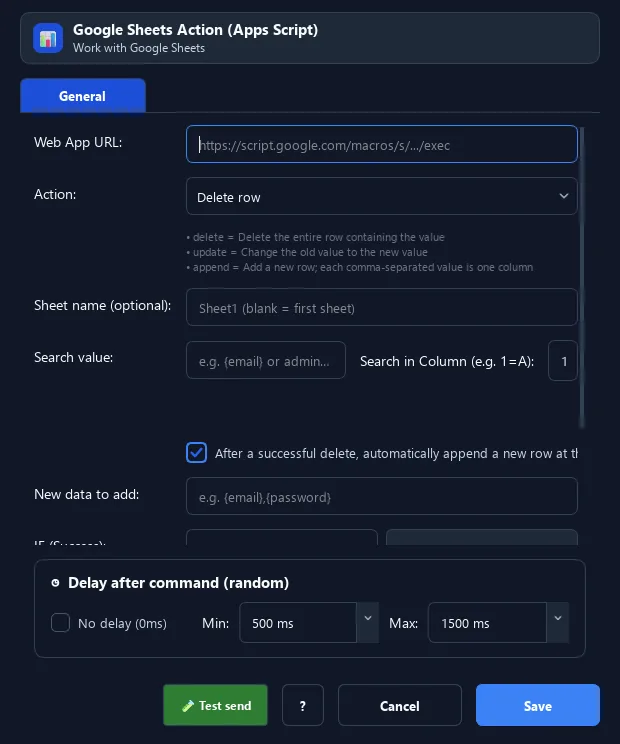
The Google Sheets Action command posts to an Apps Script Web App to delete a row, update a cell, or append a row on Google Sheets.
Prerequisites#
- Add Google Sheets Action to the macro.
- Prepare the data or target that Google Sheets Action will use.
Supported modes#
- RunMacro Runner
What it does#
The Google Sheets Action command posts to an Apps Script Web App to delete a row, update a cell, or append a row on Google Sheets. The returned result drives IF/ELSE branching.
Screenshots & video#
When to use it#
- Mark/delete a used account on the Sheet.
- Update status after processing a row.
- Write results (new accounts) to the Sheet.
When not to use it#
- Do not use it before Sheet access is granted or when multiple runners require transactional row updates.
Configuration steps#
- Create an Apps Script Web App for the Sheet and get its URL.
- Add a Network › Google Sheets Action command, paste the Web App URL.
- Choose the action: Delete / Update / Append; set the search value, columns, and new value.
- Set IF/ELSE labels. Save.
Every option explained#
Expected result#
After execution, Google Sheets Action completes the described action and makes its result available to the next step.
Real example#
Example: delete a used account from the Sheet#
- Google Sheets Action, action Delete, search
{email}in Column 1. - IF label =
deletedto continue. - ELSE =
erroron failure.
Limitations and failure cases#
- API quota, authentication, sheet/column names, and schema changes can fail or write to the wrong location.
Tips & common mistakes#
You must create an Apps Script Web App that handles the actions (delete/update/append) and returns JSON with
status: success.Combine with Random Online Text (reading the Sheet) to build a fetch → process → update account flow.
Web Manager Data Queue: You can simply paste a public Google Sheet link (with "Anyone with the link can view" access) to import rows into the queue without setting up Apps Script.
Verification details#
commands/network.py
