
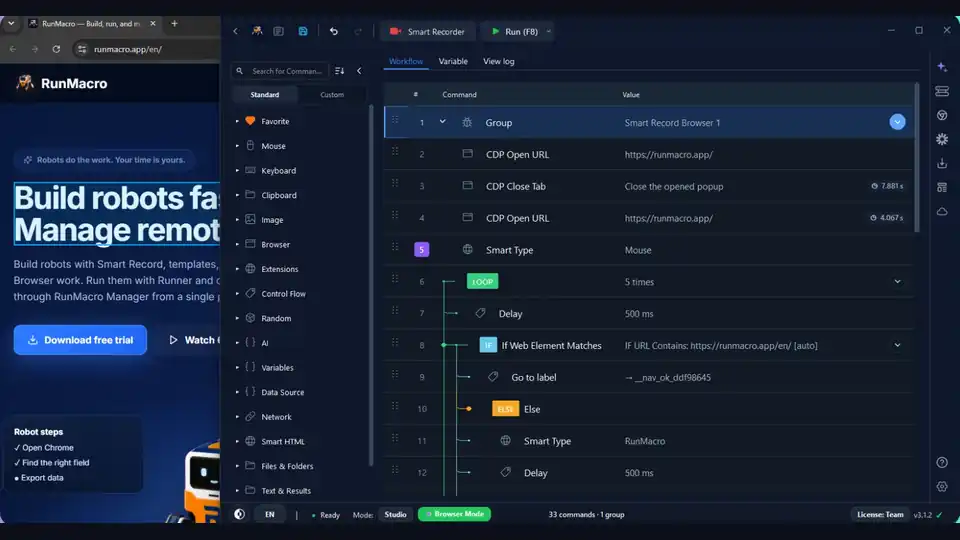

RunMacro can automate two very different worlds: the Windows desktop and the web browser. Both let you replace repetitive clicking and typing with a workflow, but they work in fundamentally different ways — and picking the wrong one is a common reason an automation feels harder than it should. This guide compares desktop automation and browser automation so you can confidently choose the right mode for each task.
You will see how each approach works, a point-by-point comparison, the strengths and weaknesses of both, and a simple rule for deciding. Most real projects end up using a mix — the skill is knowing which tool fits which part of the job.
The core difference
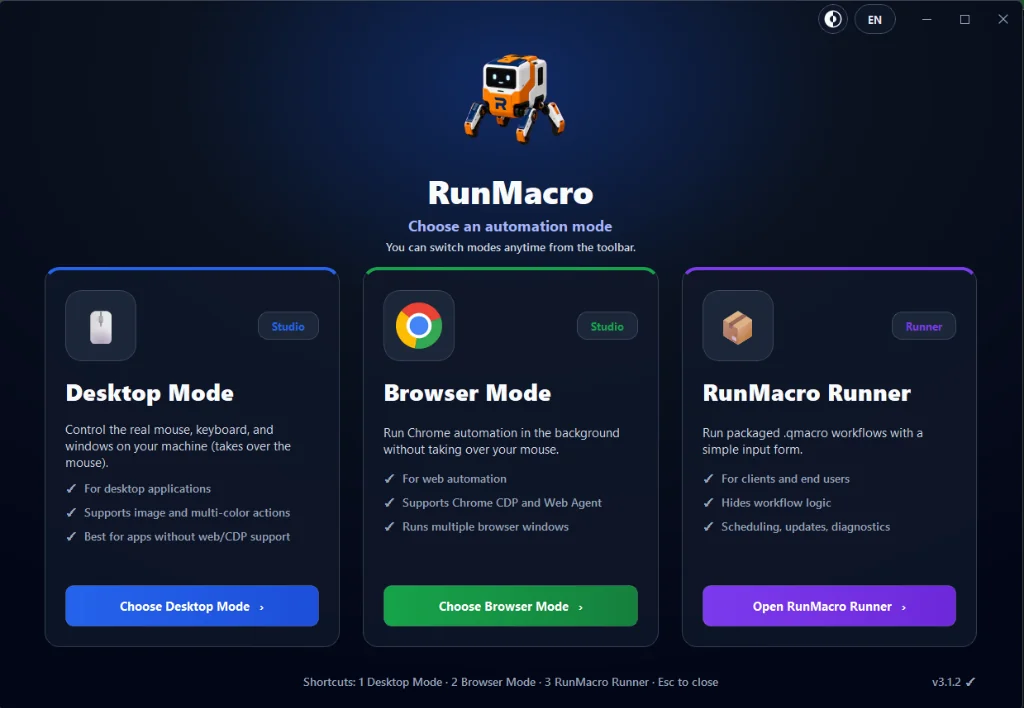
Desktop automation drives Windows applications the way a person does — moving the mouse, clicking, and typing into whatever window is in front. Browser automation drives Chrome through the DevTools Protocol (CDP), sending commands directly to the page. One acts on the screen; the other acts on the web page's structure. That single distinction explains almost every difference that follows.
How desktop automation works
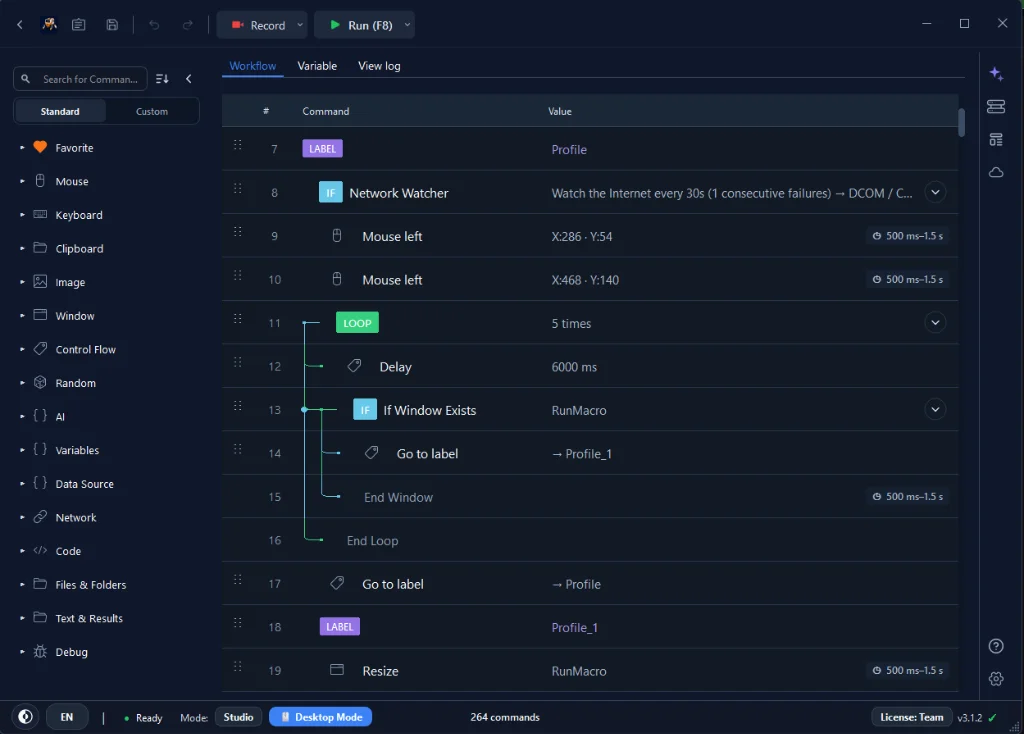
Desktop mode controls real input: it clicks coordinates or images on screen with Mouse Click and types into the focused app with Type Text. This makes it universal — it can automate any Windows program, including old software with no API, remote desktops, and installers. The trade-off is that it uses your actual mouse and keyboard, so while it runs the machine is busy, and steps can break if a window moves or the screen layout changes.
Two things make desktop steps far sturdier than raw coordinates:
• Image recognition — pairing clicks with Find Image, or confirming state with Find Color and OCR, lets a step find its target instead of trusting a fixed pixel.
• Window management — commands like Switch Window and If Window Exists ensure the right application is in front before you act, so a click never lands in the wrong place.
How browser automation works
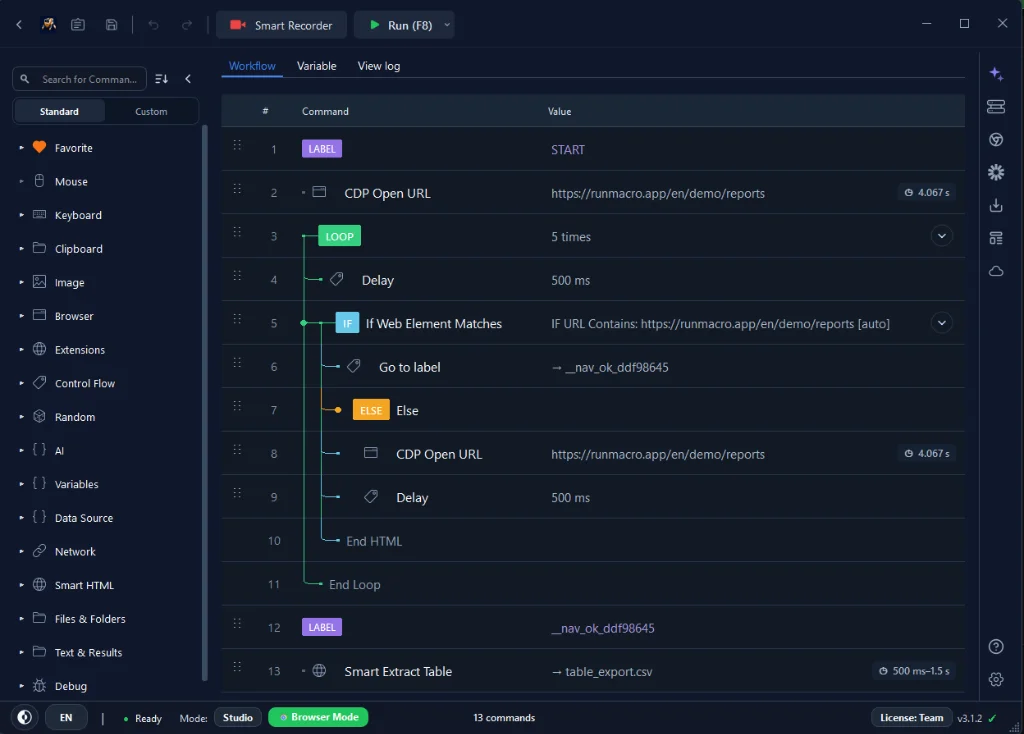
Browser mode targets web elements by their selector using Smart HTML, driven through background Chrome (CDP). Because it talks to the page structure rather than the screen, it survives layout shifts, waits for content with Wait for element, and — crucially — runs without taking over your mouse. You can start a browser workflow and keep using the computer.
Browser mode is not limited to a single plain Chrome window either. It can drive Chrome and a range of anti-detect browser profiles, which matters when a task needs separate, isolated sessions — different accounts, different fingerprints — rather than one shared browser. The automation mechanics are the same across them; only the profile differs.
Desktop vs browser, point by point
| Criterion | Desktop Automation | Browser Automation |
|---|---|---|
| Target | Any on-screen Windows app | Web pages only |
| Reliability when layout changes | More fragile (coordinates); image recognition narrows the gap | More resilient to ordinary layout movement; selectors still need maintenance when the DOM changes |
| Runs in the background | No — uses real mouse and keyboard | Yes — background Chrome over CDP, no cursor |
| Coverage | Legacy apps, installers, remote desktops | Web forms, dashboards, portals, data extraction |
| Isolation | Shares one live Windows session | Separate browser profiles for separate accounts |
| Setup | Quick to record | Selectors take a moment but last longer |
Pros and cons
Desktop automation
✅ Strengths:
• Works with any Windows software, including legacy apps with no API
• Handles remote desktops, installers, and image-based targets
• Quick to set up by recording
⚠️ Limitations:
• Uses the real mouse and keyboard — machine is busy while it runs
• Fragile without image anchoring when windows move or resolution changes
Browser automation
✅ Strengths:
• Runs in the background without the cursor — keep using the computer
• More resilient to ordinary layout movement when selected attributes remain stable
• Supports isolated profiles for multi-account workflows
• Low maintenance once selectors are set
⚠️ Limitations:
• Web pages only — cannot touch desktop apps
When a workflow spans both
Plenty of real jobs cross the boundary, and RunMacro runs desktop and browser steps in the same workflow. A typical shape: pull figures out of a desktop app that has no API using image and coordinate steps, then log into a web portal and enter them by selector in the background. Each half uses the mode built for it, and the handoff between them is just the next command in the list — no export-import dance, no second tool.
When to use which
Use desktop automation when the task lives in a Windows app: legacy line-of-business software, desktop tools, installers, or remote desktops. Use browser automation when the task lives on the web: forms, dashboards, portals, account routines, or data collection. When a workflow spans both, combine them, using each mode for the part it handles best.
Delivering a finished automation
Which mode you used barely matters once the workflow is built and you need someone else to run it. Package it so a non-technical colleague just presses play with RunMacro Runner, or start it unattended at a set time with the Scheduler. The build-time choice between desktop and browser is about reliability; the run-time experience of handing it off is the same either way.
Real-world example
A finance team pulls invoices from an old desktop accounting app, then enters totals into a web portal. One workflow, two modes:
[PHASE 1: DESKTOP MODE]
1. OPEN APP "LegacyAccounting.exe"
2. SWITCH WINDOW "Monthly Reports"
3. FIND IMAGE "Export_Button.png" → CLICK
4. SAVE TO "C:\Reports\invoices.xlsx"

[PHASE 2: BROWSER MODE (Background CDP)]
5. OPEN URL "https://portal.company.com/upload"
6. SMART HTML TYPE → input[name="username"]
7. READ "invoices.xlsx" → LOOP THROUGH ROWS
8. SMART HTML FILL FORM → SUBMIT
9. MARK ROW AS PROCESSED
Desktop automation handles the legacy app (image and coordinate steps, since it has no API); browser automation logs into the portal and fills the fields by selector in the background. Each mode does what it is best at — and once it works, it goes to the Scheduler to run itself every month.
Frequently asked questions
Can one workflow use both modes?
Yes. A single RunMacro workflow can mix desktop steps and browser steps freely, handing off from one to the other in sequence.
Which is more reliable?
For web targets, browser automation with selectors is generally sturdier. For desktop targets, image recognition makes desktop steps reliable too.
Does browser automation work while I use the computer?
Yes — background Chrome over CDP does not use the real cursor. Desktop steps do, so run those when you are away.
What if the app I need has no API?
That is exactly where desktop automation shines — it works by clicking and typing like a person, no API required.
Can browser mode run more than one account at once?
Yes. It can drive separate browser profiles, so different accounts stay isolated rather than sharing one session.
Is RunMacro free?
RunMacro offers a free trial. Current plan limits and pricing are listed on the pricing page.
Conclusion
Desktop and browser automation are not competitors — they are two tools for two kinds of target. Match the mode to where the task lives: desktop for Windows apps, browser for the web, both when a job spans the two. Get that right and every automation is easier to build and more reliable to run.
New to workflows? Start with Getting Started with the workflow builder. Want to go deeper on the web side? Explore our Chrome Extension and end-to-end web automation platform, or see how to extract data from websites and Smart HTML vs coordinate clicking.
