
Docs
RunMacro Documentation
Create your first robot, then go further as needed.
Clear step-by-step guides to create, run, and improve robots for repetitive computer work.
Switch the active window in RunMacro
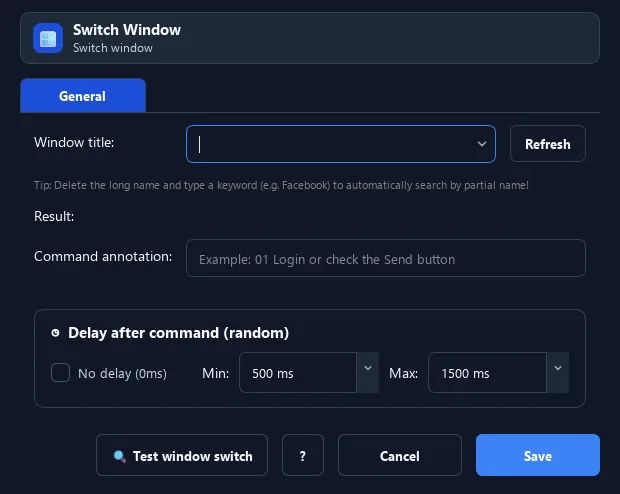
The Switch Window command finds a window by title, restores it if minimized, then brings it to the front and focuses it.
Prerequisites#
- Add Switch Window to the macro.
- Prepare the data or target that Switch Window will use.
Supported modes#
- Desktop Mode
What it does#
The Switch Window command finds a window by title, restores it if minimized, then brings it to the front and focuses it. This ensures the next type/click commands hit the right app.
Screenshots & video#
When to use it#
- Switch to the right app before typing/clicking.
- Bring a hidden or minimized window forward.
- Alternate between apps during a workflow.
When not to use it#
- Do not use it when multiple windows share a title and the intended target cannot be selected reliably.
Configuration steps#
- Add a Window › Switch Window command.
- Pick the target window (or type the title, use
*). - Place it before type/click commands to ensure correct focus. Save.
Every option explained#
Expected result#
After execution, Switch Window completes the described action and makes its result available to the next step.
Real example#
Example: focus the browser then type a URL#
- Switch Window to the one containing "Chrome".
- Key Combo Ctrl+L (or click the address bar).
- Type Text the URL then Enter.
Limitations and failure cases#
- Results depend on match criteria, minimized/elevated state, and permission to foreground the window.
Tips & common mistakes#
Always Switch Window before acting if your workflow opens several apps — it avoids typing in the wrong place.
Verification details#
commands/window.py
