


When you automate anything on screen, you have to tell the software *where* to act. There are two ways to do it: click a fixed X/Y coordinate, or target the actual element by its selector. The choice looks minor, but it is the single biggest reason a workflow either keeps running for months or breaks the next morning. This article explains how clicking a web element by selector differs from coordinate clicking, and when to use each.
You will see how each approach works under the hood, a point-by-point comparison, the pros and cons, and a simple rule for choosing. If you have ever had an automation that 'worked yesterday' and mysteriously missed today, this is almost always why.
The real problem: telling automation *where* to act
Humans find a button by reading the screen. Automation cannot 'see' like that — it needs an address. A coordinate says 'click at pixel 640, 320.' A selector says 'click the element named submit-button.' Same intent, very different reliability, because screens move but element identities usually do not.
That gap is the whole story. A coordinate is a bet that the screen will look tomorrow exactly as it did when you captured the point. A selector is a description of the thing itself, which the browser re-locates each run wherever it currently sits. Most "flaky automation" is really a coordinate that was placed against a screen that later changed.
How coordinate clicking works
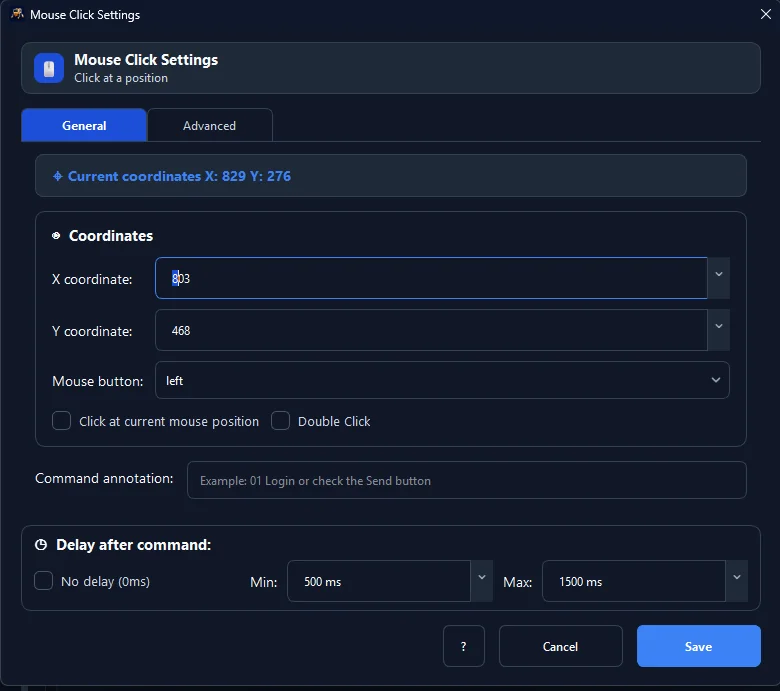
Coordinate clicking records a pixel position and clicks there. In RunMacro you capture the point with Mouse Click and the F2 picker. It is universal — it works on anything visible, including images, games, and apps with no accessible structure. But it is fragile: change the window size, resolution, scroll position, display scaling, or layout, and the target is no longer under those pixels. The click lands on empty space or the wrong control.
You can make coordinate clicking much sturdier by finding the target visually first. Find Image locates a known picture on screen and clicks relative to it, and Find Color or OCR can confirm state before acting. That turns a blind "click these pixels" into "find this thing, then click it" — the closest a screen-based approach gets to how a selector behaves.
How Smart HTML (selector-based) works
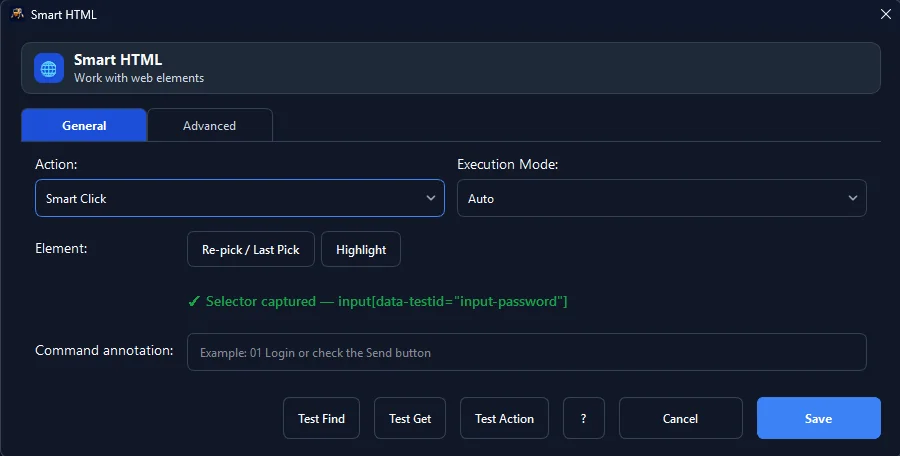
On web pages, Smart HTML targets an element by its selector instead of its position. It asks the page for the matching element and acts on it wherever it currently sits — you do not have to write the selector by hand, the element picker captures it when you click the target once.
Combined with companion commands, it becomes even more robust:
• Wait for element — pause until content loads before acting.
• IF element — branch when something is missing.
• Assert — verify a value before continuing.
The page can shift and the workflow still finds its target.
Because Smart HTML drives Chrome through the DevTools Protocol, it also reads the live, rendered page — so it works on sites whose content appears only after JavaScript runs, and it does all of this without moving your physical mouse.
Smart HTML vs coordinate clicking, point by point
| Criterion | Smart HTML (Selector) | Coordinate Clicking |
|---|---|---|
| Stability when layout changes | Keeps working — targets the element, not its position | Breaks the moment the target moves |
| Works on non-web targets | Web pages only | Anywhere on screen — desktop apps, games, remote desktops |
| Handles dynamic loading | Waits for elements with Wait for element; checks existence with IF element | Fires blindly on a timer |
| Setup effort | Takes a moment to pick the right selector; pays off over months | Quick to capture a pixel position |
| Runs in the background | Drives background Chrome over CDP without the real cursor | Uses the physical mouse — machine is busy while it runs |
| Verifies success | Can assert on real page state with Assert | Only knows it fired, not whether it worked |
What makes a selector durable
Not every selector is equally sturdy:
MORE RESILIENT TO ORDINARY LAYOUT MOVEMENT:
   Use selector profiles tied to stable attributes; re-capture them when the DOM, labels, frames, or components change.
   #submit-order
   [data-testid="checkout-btn"]
   input[name="email"]
   button[aria-label="Save changes"]

❌ FRAGILE (breaks on next deploy):
   .btn-v8a1b2_xyz
   .css-1a2b3c
   /html/body/div[2]/div[1]/div/button[3]
When you pick an element, prefer the stable handle. If a heavy redesign moves things, re-pick the affected element rather than fighting the old selector. This small habit is the difference between an automation you set and forget and one you patch every few weeks.
When coordinates are still the right call
Selectors only exist for web content. For everything else, coordinate clicking — usually paired with image recognition — is not a fallback, it is the correct tool:
• Desktop applications with no accessible structure, including old line-of-business software.
• Games and canvas-based UIs that draw to a single surface with no addressable elements.
• Remote desktops and virtual machines, where the far side is just pixels to the local machine.
• Image or PDF content where the target is a picture, not an element.
In these cases, lean on Find Image to locate the target before clicking so the workflow tolerates small movements instead of trusting a raw pixel.
When to use which
The simple rule: if it is a web page, use Smart HTML; if it is not, use coordinates. For websites, forms, dashboards, and portals, selectors give you durability and background execution. For desktop software, games, or image-based targets with no structure to grab, coordinate clicking — often paired with image recognition — is the right tool. Many real workflows combine both: a browser section by selector, a desktop section by image and coordinate, in one file.
Real-world example
Imagine a workflow that logs into a web dashboard and clicks 'Export':
• With coordinates: works until the site adds a banner that pushes everything down 60 pixels — now it clicks the wrong thing.
• With Smart HTML: targets the Export element by selector, so the banner does not matter and the click lands every time.
Swap the target for a legacy desktop app with no web structure, and the calculus flips: there, an image-anchored coordinate click is the reliable choice, because there is no element to select.
Troubleshooting the 'worked yesterday' break
| Problem | Cause | Solution |
|---|---|---|
| Coordinate click misses after update | Window moved, resolution/scaling changed, or new banner shifted the layout | Switch to a selector or image anchor so it no longer depends on exact geometry |
| Selector stops matching | Site redesign changed the element's stable handle | Re-pick the element; prefer a more durable anchor (id, data-testid, aria-label) |
| Click lands on wrong element | Page scrolled or layout shifted since capture | Add Wait for element before acting; use selectors instead of coordinates |
| Workflow works locally but fails on another machine | Different display scaling or resolution | Use selectors (resolution-independent) or recalibrate image recognition per machine |
Frequently asked questions
Is Smart HTML always better than coordinates?
Only for web pages. For desktop apps, games, or anything without web structure, coordinates or image matching are the way to go.
Do I need to know CSS to use Smart HTML?
No. RunMacro captures the selector for you when you pick the element, so you do not have to write it by hand.
Can I mix both in one workflow?
Yes. Use Smart HTML for the web parts and coordinate or image steps for the desktop parts of the same workflow.
Why did my coordinate-based automation suddenly break?
Usually a change in window size, resolution, display scaling, scroll, or layout moved the target. This is exactly the fragility selectors avoid.
How is Smart HTML different from image recognition?
Smart HTML reads the page's structure and is web-only. Image recognition matches what is drawn on screen and works anywhere, including desktop apps — it is the sturdier way to do coordinate clicking off the web.
Does Smart HTML work on pages that load with JavaScript?
Yes. It reads the rendered DOM in real Chrome, so it sees content that appears after scripts run — add a Wait for element so that content is present before you act.
Conclusion
Coordinate clicking is universal but brittle; Smart HTML is web-only but durable and background-friendly. Match the tool to the target: selectors for the web, coordinates (with image recognition) for everything else. Get that choice right and your automations stop mysteriously breaking overnight.
Learn how our Chrome Extension and web automation engine leverage element selectors. To put selectors to work, see how to extract data from websites or auto-fill Google Forms in the background. Want the bigger picture? Compare desktop vs browser automation.
