
Docs
RunMacro Documentation
Create your first robot, then go further as needed.
Clear step-by-step guides to create, run, and improve robots for repetitive computer work.
Automate color detection on screen in RunMacro
Multi Color scans a screen region for configured colors, applies tolerance, and handles the match result.
Prerequisites#
- The target color values are known.
- The target screen region is visible.
Supported modes#
- Desktop Mode
- Browser Mode — Runs in the background through Chrome CDP: RunMacro captures a page screenshot and scans that image, so it only sees content inside the page, not the rest of the screen. Search regions are converted from CSS coordinates to screenshot pixels.
What it does#
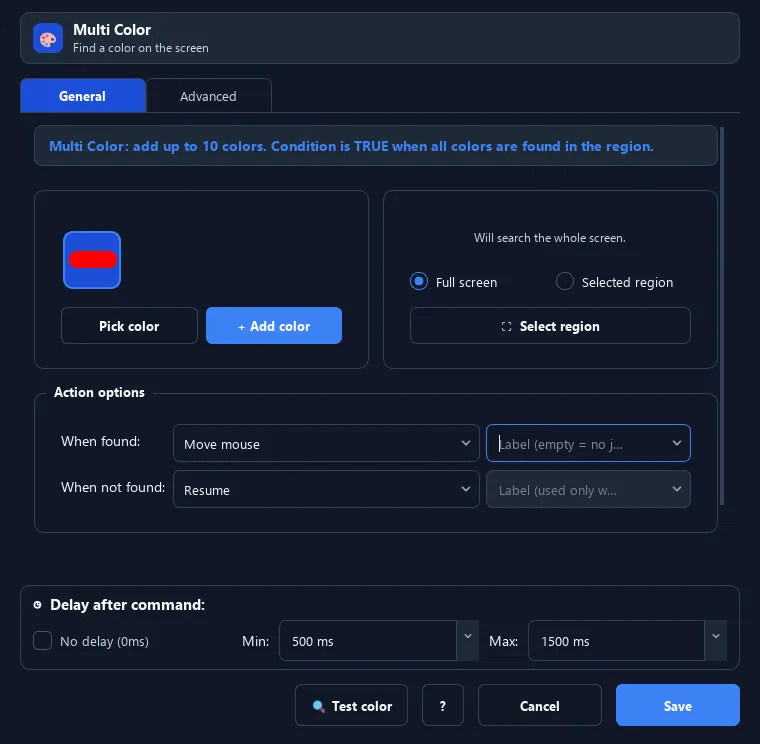
The Multi Color command scans the screen for pixels matching hex colors you specify (one or several). If found, RunMacro can move/click there or branch — handy when state is shown by color.
Screenshots & video#
When to use it#
- Detect state by color (green = ready, red = error).
- Find a button/bar with a distinctive color.
- Check if a region changed color before acting.
- Automate games based on color (health, mana...).
When not to use it#
- Colors change heavily with theme or brightness and no useful tolerance can be set.
- The element should be identified by HTML structure.
Configuration steps#
- Add an Image › Multi Color command.
- Enter one or more hex colors (e.g.
#FF0000). Up to 10. - Adjust tolerance to accept near shades.
- (Optional) draw a region for faster scanning.
- Choose the action when found and set IF/ELSE labels. Save.
Every option explained#
Expected result#
The command reports whether a color matched and performs the selected action or IF/ELSE branch.
Real example#
Example: wait for a green light then continue#
- Get the green status color (e.g.
#22C55E). - Add Multi Color, enter the hex, moderate tolerance.
- Action none, IF label =
ready. - Put the next steps under the
readylabel.
Limitations and failure cases#
- Displayed colors can shift with theme, brightness, or effects.
- Large regions and many colors can take more time to scan.
Tips & common mistakes#
Grab the exact color with a color picker first, then paste it into the command.
On-screen colors can drift due to theme/brightness — raise tolerance slightly if it misses.
Verification details#
commands/capture.py
