
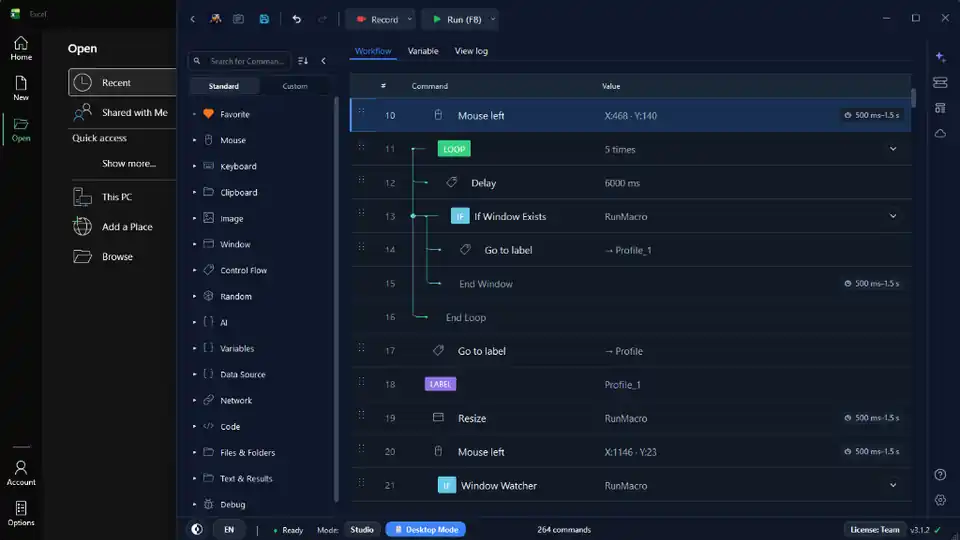

Every Windows user has a handful of tasks they do the same way, every day: opening the same apps, copying the same data, clicking through the same screens. None of it is hard — it is just repetitive, and repetitive work is where hours quietly disappear and small mistakes creep in. Windows automation with RunMacro lets you hand those tasks to your computer: you build a workflow once, press run, and the software does the clicking, typing, and waiting for you.
This guide shows what is worth automating on Windows, how RunMacro does it without code, the steps to build your first automation, and the mistakes to avoid so it keeps working. Whether you are automating a desktop app, a website, or both, the approach is the same.
Why automate repetitive Windows tasks?
Manual work has three costs. It is slow — minutes per task, multiplied across a day and a team. It is inconsistent — the same job done slightly differently each time. And it does not scale — twice the volume means twice the hours. Automation fixes all three: a workflow runs at the same speed and in the same way every time, and once it exists, running it a hundred times costs no more effort than running it once.
Automate tasks that are repetitive, rule-based, and predictable — the same steps, in the same order, on a regular basis. Keep manual anything that needs real judgment or changes every time; automating those costs more in maintenance than it saves. The sweet spot is the boring, daily routine that never really changes, which is exactly the work most people never think to automate.
What RunMacro can automate on Windows
| Target Type | What It Does | Key Commands |
|---|---|---|
| 🖥️ Desktop Apps | Click buttons, type into fields, move between windows in any Windows program — including legacy software with no API | Mouse Click, Type Text, Key Combo |
| 🌐 Websites | Fill forms, click elements, read data in Chrome — driven in the background without taking your mouse | Smart HTML, Background Chrome (CDP) |
| 🖼️ Images & Screen | Find and click targets by visual matching when there is no underlying structure | Find Image, OCR |
| 📁 Files & Folders | Open, rename, move, sort, and clean up files as part of a larger routine | Open File / App, file management commands |
| 📦 Packaged Runners | Bundle a finished workflow so a non-technical colleague runs it with one click | RunMacro Runner |
How to build your first Windows automation
Step 1 — Pick one small, repetitive task
Start with a single task you do often — not your most complex process. A narrow first win teaches you the tool and builds momentum, and it is easy to verify because you already know exactly what the correct result looks like.
Step 2 — Record or add commands
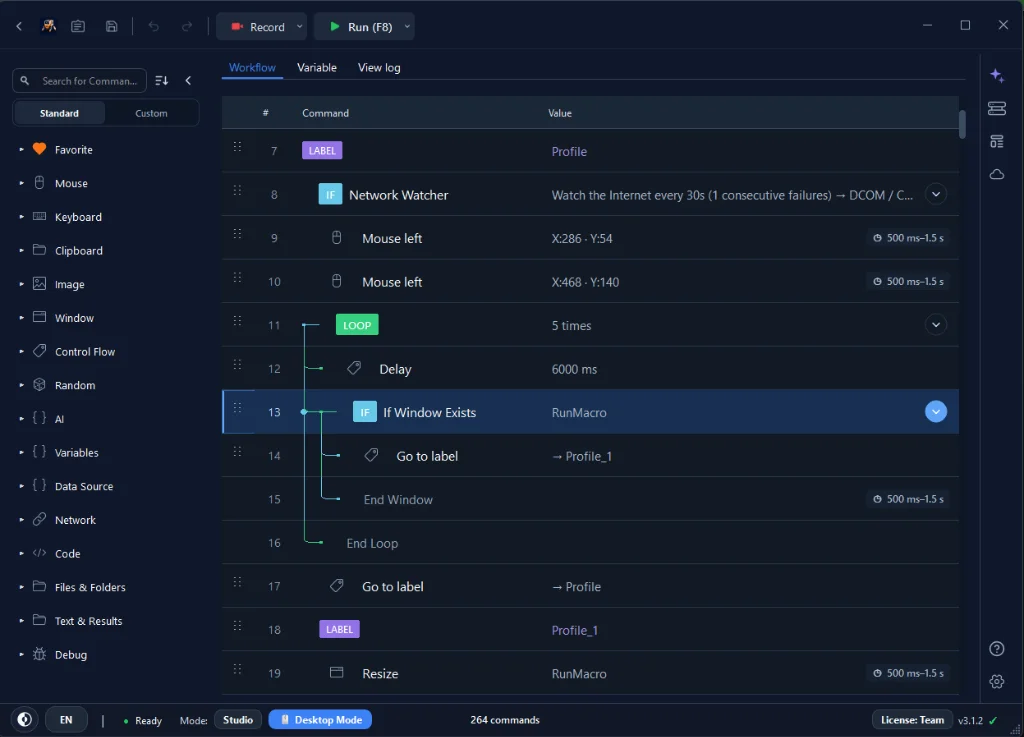
Either record yourself doing the task once with Smart Record and let RunMacro capture it as editable steps, or add commands by hand from the sidebar: Open File / App, Type Text, Mouse Click. Most people record the rough flow, then clean it up — deleting a stray click, tightening a target, adding a wait.
Step 3 — Add waits so it does not race the app
Computers are faster than the apps they control. Add a Delay or, better, wait for a visual cue after anything that loads, so the workflow never clicks before a button exists. This single habit prevents the most common kind of failure.
Step 4 — Test on a small run
Run it, watch it, and fix the step that misbehaves. Repeat. This tight loop — run, observe, fix — is the whole skill, and it is far faster than building the entire thing and then debugging it all at once.
Step 5 — Add logic and reuse
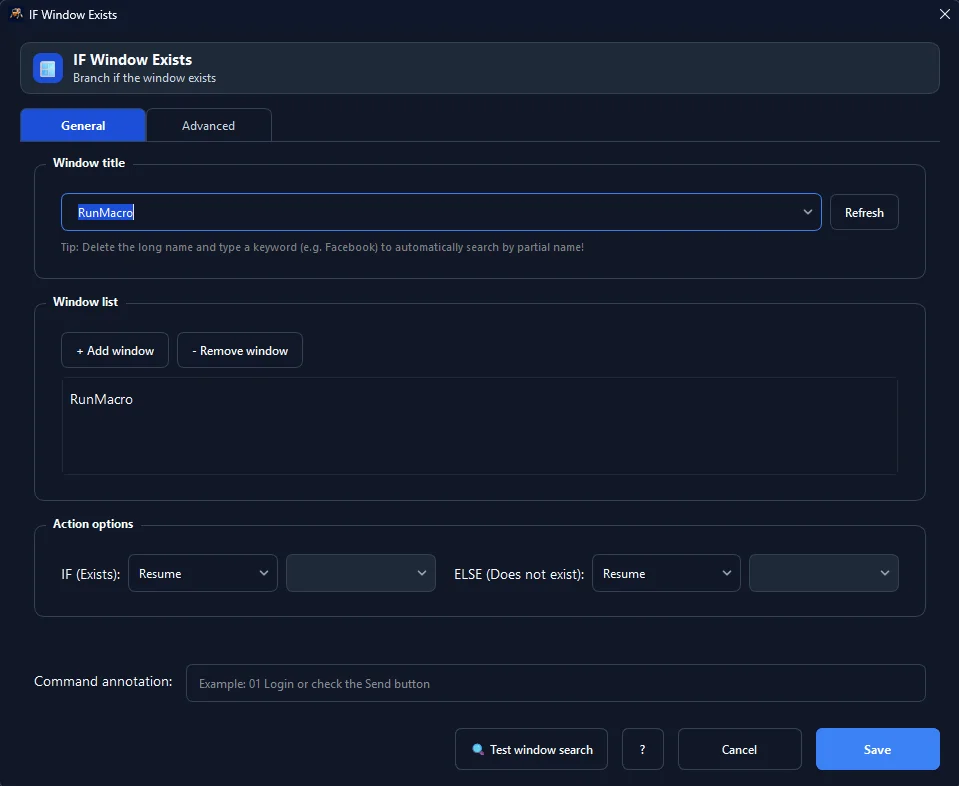
Store inputs in variables and add conditions with IF element so one workflow handles many cases instead of being rebuilt each time. When it is solid, put it on the Scheduler or hand it to a colleague with the Runner.
Real-world examples
🎧 Support Agent — Morning Ticket Triage
Opens three apps, pastes yesterday's ticket numbers into a portal, exports a report. A single workflow opens all three apps in order, reads the numbers from a file, enters each one, and saves the export — a repeated manual routine launched from one tested workflow.
📊 Bookkeeper — Invoice Organization
Renames and files dozens of downloaded invoices each week. One workflow reads each file, pulls the date and vendor, renames it to a consistent pattern, and moves it into the right folder — reducing the repetitive filing work once the workflow has been tested.
⚙️ Operations Lead — Desktop to Web Dashboard
Copies figures from a desktop tool into a web dashboard. Desktop steps read the numbers; browser steps enter them by selector in the background while the machine stays usable. One workflow, both worlds.
Common mistakes and how to fix them
| Mistake | Fix |
|---|---|
| No waits | The top cause of flaky automation — add a Delay or Wait for element after anything that loads |
| Clicking fixed coordinates for everything | Prefer image or selector targets so a moved window does not break the run |
| Building big before testing | Add a few steps, run, then continue — tight build-run-fix loop |
| No error handling | Use IF element to check state before acting; decide skip, retry, or stop |
Tips for reliable Windows automation
• ✅ Prefer stable, recognizable targets over tiny or shifting ones
• ✅ Keep short notes in the workflow so it is understandable months later
• ✅ Log results for long runs so you can see where something stopped
• ✅ Reuse one well-built workflow with variables instead of copying it into near-identical versions
Frequently asked questions
Do I need to know how to code?
No. You assemble visual commands like building blocks — no programming required.
Can it automate old Windows software with no API?
Yes. RunMacro drives apps the way a person does — clicks and keystrokes — plus image recognition for targets with no structure.
Will automation take over my computer while it runs?
Desktop steps use the real mouse and keyboard, but web steps run in background Chrome without the cursor, so you can keep working during those.
What should I automate first?
The single repetitive, rule-based task that annoys you most. A small win proves the value fast and teaches you the tool.
Can I share a finished automation with a teammate?
Yes. Package it so a non-technical colleague runs it with a click using RunMacro Runner, no building required on their side.
Is RunMacro free?
RunMacro offers a free trial. Current plan limits and pricing are listed on the pricing page.
Conclusion
Repetitive Windows tasks are the easiest hours to win back. Pick one, record or build it, add waits, test small, then grow it with variables and conditions. Start with something narrow and let your automations expand from there.
For dedicated desktop routines, learn how our Windows macro recorder captures user actions, or automate keystrokes with auto keyboard. New to building workflows? Read Getting Started with the workflow builder. Not sure whether a task belongs in a desktop or browser workflow? See desktop vs browser automation.
