
Docs
RunMacro Documentation
Create your first robot, then go further as needed.
Clear step-by-step guides to create, run, and improve robots for repetitive computer work.
Automatically open a file or app in RunMacro
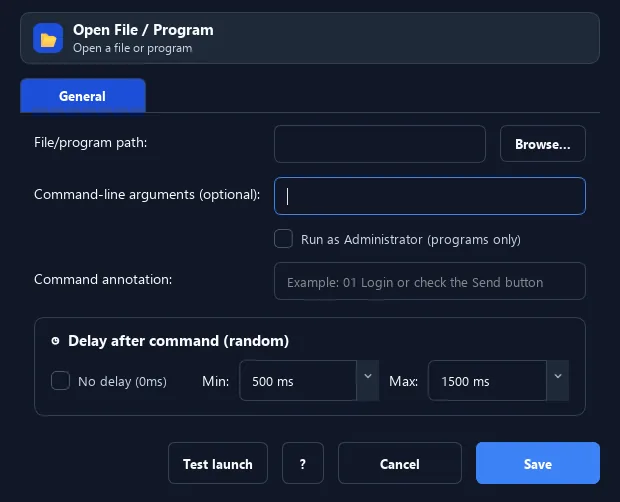
The Open File command launches an app, opens a document or a path — like double-clicking it.
Prerequisites#
- Add Open File / App to the macro.
- Prepare the data or target that Open File / App will use.
Supported modes#
- RunMacro Runner
What it does#
The Open File command launches an app, opens a document or a path — like double-clicking it. It can pass command-line arguments and run as Administrator.
Screenshots & video#
When to use it#
- Open an app to work with at the start of a workflow (e.g. Notepad, Chrome).
- Open a document/data file to process.
- Run a program with command-line arguments.
When not to use it#
- Do not use Open File when application readiness must be confirmed; add a window or state check after launch.
Configuration steps#
- Add a Flow › Open File / App command.
- Enter the path to the file/app (e.g.
notepad.exe). - (Optional) enter arguments and enable run as Admin.
- Add a Wait afterward so the app can open. Save.
Every option explained#
Expected result#
After execution, Open File / App completes the described action and makes its result available to the next step.
Real example#
Example: open Notepad then type#
- Open File with
notepad.exe. - Wait 1000ms for Notepad to open.
- Type Text the desired content.
Limitations and failure cases#
- A successful launch does not mean the program is ready; file associations, arguments, permissions, and UAC are Windows-dependent.
Tips & common mistakes#
Always add a Wait after opening so the app is ready before the next step.
Run as Admin may show a UAC prompt that needs manual confirmation.
Verification details#
commands/control_flow.py
