
Docs
RunMacro Documentation
Create your first robot, then go further as needed.
Clear step-by-step guides to create, run, and improve robots for repetitive computer work.
Extract the username from an email in RunMacro
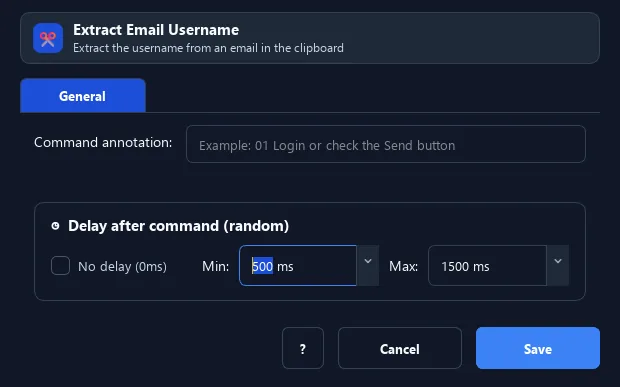
The Extract Email Username command reads the email in the clipboard, takes the part before @ (the username), and writes the result back to the clipboard.
Prerequisites#
- Add Extract Email Username to the macro.
- Prepare the data or target that Extract Email Username will use.
Supported modes#
- Desktop Mode
What it does#
The Extract Email Username command reads the email in the clipboard, takes the part before @ (the username), and writes the result back to the clipboard. E.g. user@gmail.com → user.
Screenshots & video#
When to use it#
- Generate usernames from a list of emails.
- Process bulk email data in a sign-up workflow.
- Take the name part to fill a "username" field.
When not to use it#
- Do not use it for full email parsing, multiple addresses, display names, or plus-addressing that must be preserved.
Configuration steps#
- Put the email in the clipboard (Copy Text from the email field, or Set Clipboard).
- Add a Keyboard › Extract Email Username command.
- Save. After running, the clipboard holds the username; use Paste from Clipboard to fill it.
Expected result#
After execution, Extract Email Username completes the described action and makes its result available to the next step.
Real example#
Example: fill a username from an email#
- Set Clipboard =
john@gmail.com. - Extract Email Username → clipboard becomes
john. - Click the username field, Paste from Clipboard.
Limitations and failure cases#
- It takes the part before @ and overwrites the clipboard; empty or malformed input can produce an empty username.
Tips & common mistakes#
If the clipboard has no
@, the command leaves the content as-is and logs a note.Verification details#
commands/keyboard.py
