
Docs
RunMacro Documentation
Create your first robot, then go further as needed.
Clear step-by-step guides to create, run, and improve robots for repetitive computer work.
Automate mouse movement in RunMacro
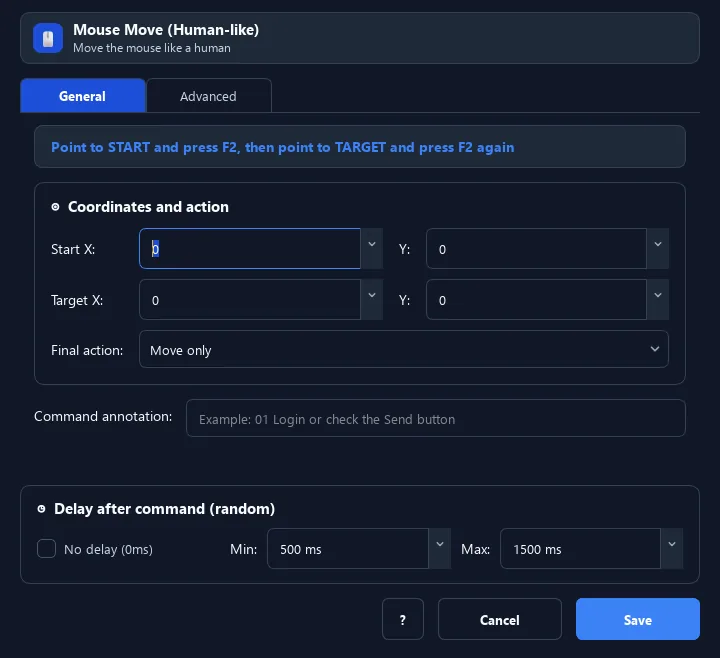
Mouse Move moves the pointer from A to B using the configured duration and arrival action.
Prerequisites#
- The start and destination coordinates are known.
- The target application is visible in the intended position.
Supported modes#
- Desktop Mode
- Browser Mode — Runs in the background through Chrome CDP: the pointer is moved straight to the destination inside the page instead of tracing the step-by-step path used on the desktop.
What it does#
The Mouse Move command glides the cursor from point A to point B along a natural, natural-timing curve (not an instant jump), and can click on arrival. It makes automation look like a real user.
Screenshots & video#
When to use it#
- Move the cursor smoothly to a target before acting.
- Test interfaces that require a sequence of pointer-move events instead of an instant jump.
- Hover over an element to reveal a menu or tooltip.
- Click left/right the moment the cursor reaches the target.
When not to use it#
- The layout or window position changes frequently.
- The element should be located by content rather than screen coordinates.
Configuration steps#
- Add a Mouse › Mouse Move command.
- Set the start (A) and end (B) points — press
F2to pick each one. - Choose the move duration (ms): larger means slower and smoother.
- Choose the action on arrival: move only / left click / right click.
- Click Save.
Every option explained#
Expected result#
The pointer moves from the start point to the destination and performs the selected arrival action.
Real example#
Example: hover to reveal a menu, then click#
- Add a Mouse Move, set A to the current spot and B to the menu item.
- Choose "move only" to hover.
- Set duration to 800ms for smoothness.
- Add a second Mouse Move to the submenu item and choose "left click".
Limitations and failure cases#
- Results depend on resolution, DPI, and window position.
- The command does not relocate the target when the interface changes.
Tips & common mistakes#
If you only need a quick click, use Mouse Click; Mouse Move is for smooth, natural-timing paths.
Increase wiggle and enable Overshoot when testing interfaces that require pointer movement; always follow the target application’s terms.
Coordinates depend on screen resolution — re-check on a different machine.
Verification details#
commands/mouse.py
