
Docs
RunMacro Documentation
Create your first robot, then go further as needed.
Clear step-by-step guides to create, run, and improve robots for repetitive computer work.
Auto-copy text (Ctrl+C) in RunMacro
The Copy Text command auto-copies (Ctrl+C) the current selection to the clipboard for later steps to reuse.
Prerequisites#
- Add Copy Text to the macro.
- Prepare the data or target that Copy Text will use.
Supported modes#
- Desktop Mode
What it does#
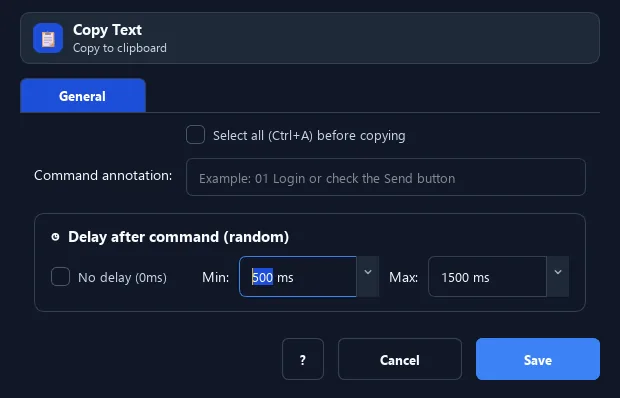
The Copy Text command auto-copies (Ctrl+C) the current selection to the clipboard for later steps to reuse. It can select all (Ctrl+A) first.
Screenshots & video#
When to use it#
- Grab content from a field to paste elsewhere.
- Extract data then check it with IF Clipboard.
- Copy a result to save into a file/variable.
When not to use it#
- Do not use it for background text extraction from a CDP tab; use CDP Copy Text or Smart HTML.
Configuration steps#
- Select the content, or enable Select all (Ctrl+A).
- Add a Keyboard › Copy Text command.
- Save. The content lands in the clipboard after running.
Every option explained#
Expected result#
After execution, Copy Text completes the described action and makes its result available to the next step.
Real example#
Example: copy the whole field then check#
- Click the field to read.
- Copy Text with Select all on.
- Use IF Clipboard to branch based on the copied content.
Limitations and failure cases#
- Copy depends on selection/focus; Browser/CDP support is incomplete and another application can change the real clipboard.
Tips & common mistakes#
In Browser Mode (Chrome/CDP), copy text is not fully supported — use Desktop Mode.
Verification details#
commands/keyboard.py
