
Docs
RunMacro Documentation
Create your first robot, then go further as needed.
Clear step-by-step guides to create, run, and improve robots for repetitive computer work.
Move & resize an extension popup (CDP)
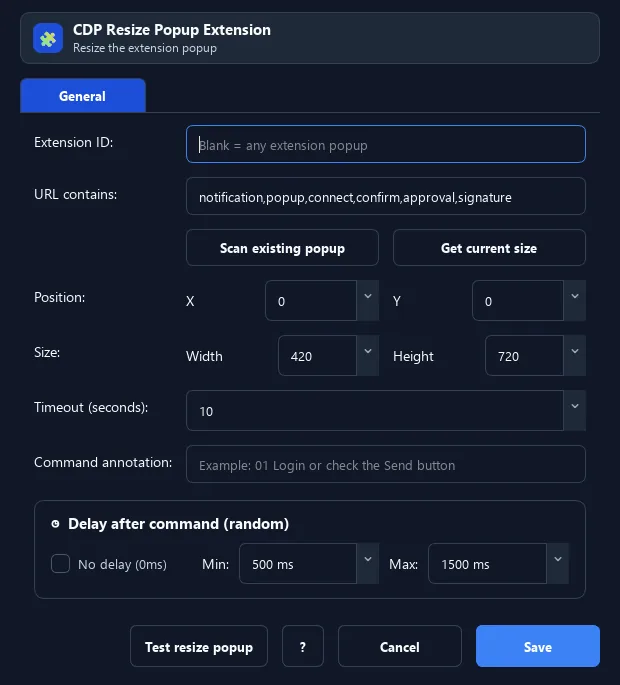
The Resize Extension Popup command finds the extension popup window (by ID and keywords like notification/popup/confirm) then sets its position (X, Y) and size (width × height).
Prerequisites#
- Add Resize Extension Popup to the macro.
- Prepare the data or target that Resize Extension Popup will use.
Supported modes#
- Browser Mode
What it does#
The Resize Extension Popup command finds the extension popup window (by ID and keywords like notification/popup/confirm) then sets its position (X, Y) and size (width × height). This keeps click coordinates on the popup stable across runs.
Screenshots & video#
When to use it#
- Fix the popup position/size before coordinate-based Click Popup.
- Bring the popup into view to capture/read.
- Normalize a wallet popup before a sequence of actions.
When not to use it#
- Do not use it when the extension fixes its own size or the popup closed before resizing.
Configuration steps#
- Add Browser › Resize Extension Popup.
- Enter the extension ID and (optionally) keywords to match the popup.
- Set X, Y, Width, Height and a timeout. Save.
Every option explained#
Expected result#
After execution, Resize Extension Popup completes the described action and makes its result available to the next step.
Real example#
Example: normalize popup then click#
- Resize Extension Popup: wallet ID, X=0, Y=0, 420×720.
- Click Extension Popup at a fixed coordinate.
Limitations and failure cases#
- Chrome/extension can constrain width/height; the popup is short-lived and resizing does not ensure internal layout adapts.
Tips & common mistakes#
Resize first, then use coordinate-based Click Popup — coordinates stay correct because the popup is always at the same place/size.
Verification details#
commands/browser.py
