
Docs
RunMacro Documentation
Create your first robot, then go further as needed.
Clear step-by-step guides to create, run, and improve robots for repetitive computer work.
Show a message at run time for debugging in RunMacro
The Show Message Box command displays a variable-aware popup and waits for dismissal before the workflow continues.
Prerequisites#
- Add Show Message Box to the macro.
- Run the workflow in an interactive Studio or RunMacro Runner session.
Supported modes#
- Desktop Mode
- Browser Mode
- RunMacro Runner
What it does#
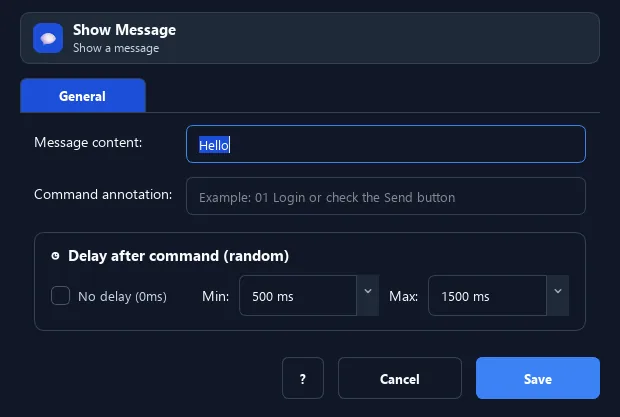
The Show Message Box command opens a popup when the workflow reaches this step, resolves {...} variables, and pauses that workflow until you dismiss the message. When several Browser profiles request messages together, RunMacro queues the popups and identifies the profile in the title.
Screenshots & video#
When to use it#
- Confirm the script reached a certain point.
- Display a value/variable for a quick check.
- Debug when a workflow does not behave as expected.
When not to use it#
- Do not use it in unattended Scheduler or Manager runs because a person must dismiss the popup; use Log Message or Telegram Notification.
Configuration steps#
- Add a Debug › Show Message Box command.
- Enter the message; variables such as
{username}are supported. - Save and run — the popup opens at that step and the workflow waits for dismissal.
- To cancel the run, press Stop; the popup closes and the workflow stops.
Every option explained#
Expected result#
A popup displays the resolved message, and the workflow advances only after the popup is dismissed.
Real example#
Example: signal reaching the login step#
- Show Message Box "Reached the login step".
- Run to confirm the flow is correct.
Limitations and failure cases#
- An interactive Studio/Runner session is required. Pressing Stop while the popup is open closes it and stops the workflow.
Tips & common mistakes#
For a non-blocking record, use Log Message; for remote or unattended notification, use Telegram Notification.
In multi-profile Browser runs, popups are shown sequentially so they do not overlap.
Verification details#
commands/debug.py
