
Docs
RunMacro Documentation
Create your first robot, then go further as needed.
Clear step-by-step guides to create, run, and improve robots for repetitive computer work.
Load account data from the Dulieu tool in RunMacro
The Data command works with the companion Dulieu tool (an SQLite account store).
Prerequisites#
- Add Data (Dulieu) to the macro.
- Prepare the data or target that Data (Dulieu) will use.
Supported modes#
- RunMacro Runner
What it does#
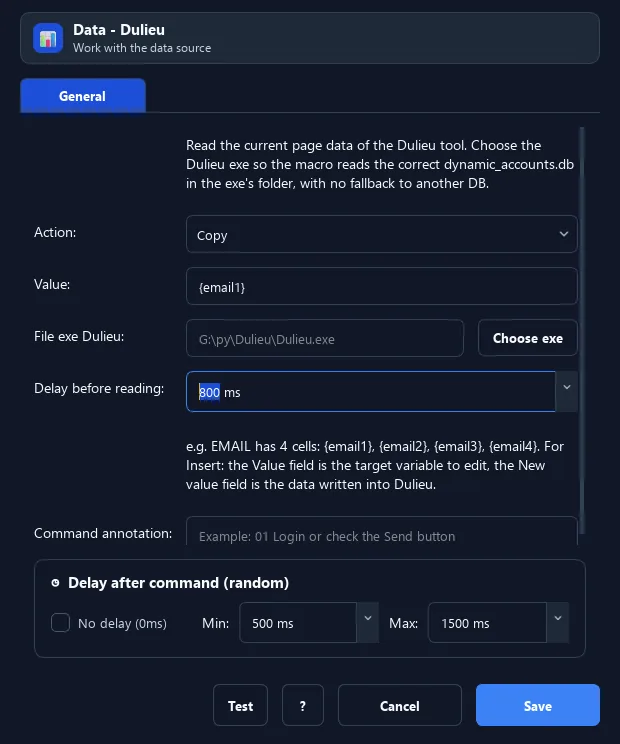
The Data command works with the companion Dulieu tool (an SQLite account store). It Reads the current page data into variables, Copies a value to the clipboard, or Inserts a value back into a data field.
Screenshots & video#
When to use it#
- Load account info (email, password...) from Dulieu to fill forms.
- Copy a data field to the clipboard to paste.
- Write a result (e.g. a token) back into Dulieu.
When not to use it#
- Do not use it before verifying source encoding, headers, and column format.
Configuration steps#
- Add a File › Data command and choose the Dulieu.exe path.
- Choose the action: Read / Copy / Insert.
- Enter the variable to use (e.g.
{email1}); for Insert, also enter the value to write. - Save.
Every option explained#
Expected result#
After execution, Data (Dulieu) completes the described action and makes its result available to the next step.
Real example#
Example: load email/password then log in#
- Data Read with
{email1}and{password1}. - Type Text
{email1},{password1}into the form. - Click login.
Limitations and failure cases#
- Schema/path changes or locked files can prevent loading; large datasets increase memory and processing time.
Tips & common mistakes#
This needs the companion Dulieu tool; variable names are normalized from column titles (e.g. "Email" →
email1).Verification details#
commands/data_source.py
