
Docs
RunMacro Documentation
Create your first robot, then go further as needed.
Clear step-by-step guides to create, run, and improve robots for repetitive computer work.
Run a .BAT (batch) file in RunMacro
The Run .BAT File command executes a Windows batch (.bat) file.
Prerequisites#
- Add Run .BAT File to the macro.
- Prepare the data or target that Run .BAT File will use.
Supported modes#
- RunMacro Runner
What it does#
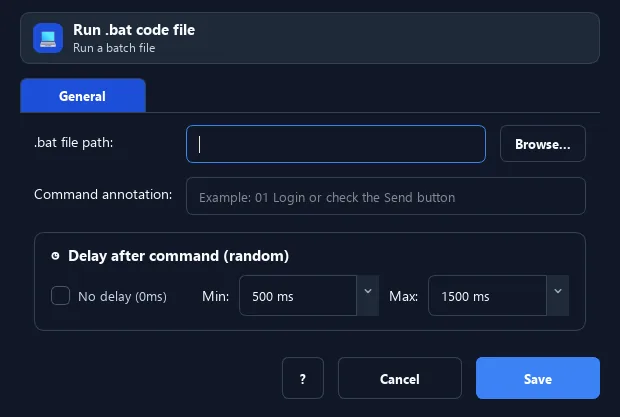
The Run .BAT File command executes a Windows batch (.bat) file. Use it to run system commands or existing scripts within your workflow.
Screenshots & video#
When to use it#
- Run an existing .bat to clean up/start a service.
- Call Windows system commands in a workflow.
- Integrate existing command-line tools.
When not to use it#
- Do not run BAT from an untrusted source or commands requiring a different shell/privilege context.
Configuration steps#
- Add a Code › Run .BAT File command.
- Choose the path to the
.batfile. - Save. On run, it is executed via cmd.
Every option explained#
Expected result#
After execution, Run .BAT File completes the described action and makes its result available to the next step.
Real example#
Example: run a cleanup script#
- Run .BAT File pointing to
C:\Scripts\clean.bat. - The script runs your cleanup commands.
Limitations and failure cases#
- Quoting, working directory, environment variables, and cmd exit codes affect results; scripts can modify the system.
Tips & common mistakes#
Only run .bat files you trust — batch can perform powerful system actions.
Verification details#
commands/code.py
