
Docs
RunMacro Documentation
Create your first robot, then go further as needed.
Clear step-by-step guides to create, run, and improve robots for repetitive computer work.
Move a file or folder automatically in RunMacro
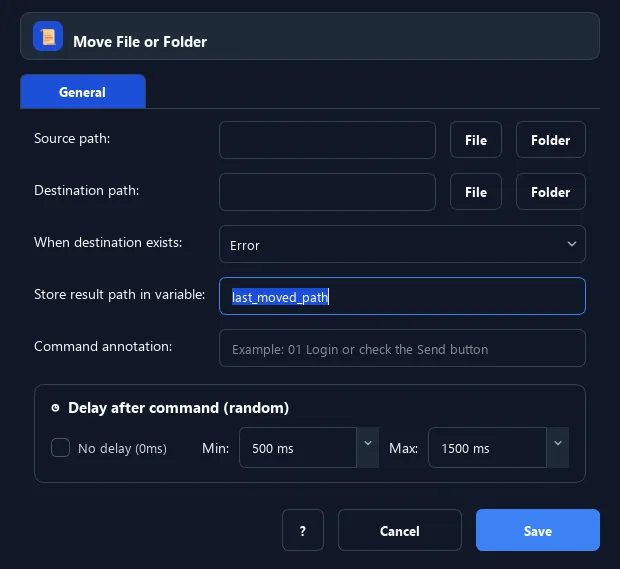
Move File or Folder relocates source to destination (leaving the old spot), with a conflict policy, and saves the final path to a variable.
Prerequisites#
- Source exists; write access at both source and destination.
Supported modes#
- Desktop Mode — Operates on the local file system.
- Browser Mode
What it does#
The Move File or Folder command relocates content from a source to a destination (the original no longer stays in place). You choose how to handle an existing destination. The final path is saved to a variable.
Screenshots & video#
When to use it#
- Sort processed files into a "done" folder.
- Relocate an output file.
- Consolidate and move data between folders.
When not to use it#
- You want to keep the original — use Copy File or Folder.
Configuration steps#
- Add a File › Move File or Folder command.
- Enter the source path and destination path.
- Choose a conflict policy. Save.
Every option explained#
Expected result#
Content appears at the destination and is gone from the source; the output variable holds the final path.
Real example#
Example: move a processed file#
- Move: source
{current_file}, destinationdone\, conflict = unique name.
Limitations and failure cases#
- Cannot move a folder into itself.
Tips & common mistakes#
Moving does not keep the original. Verify the destination before running in bulk.
Verification details#
commands/filesystem.py
