
Docs
RunMacro Documentation
Create your first robot, then go further as needed.
Clear step-by-step guides to create, run, and improve robots for repetitive computer work.
Auto mouse scroll in RunMacro
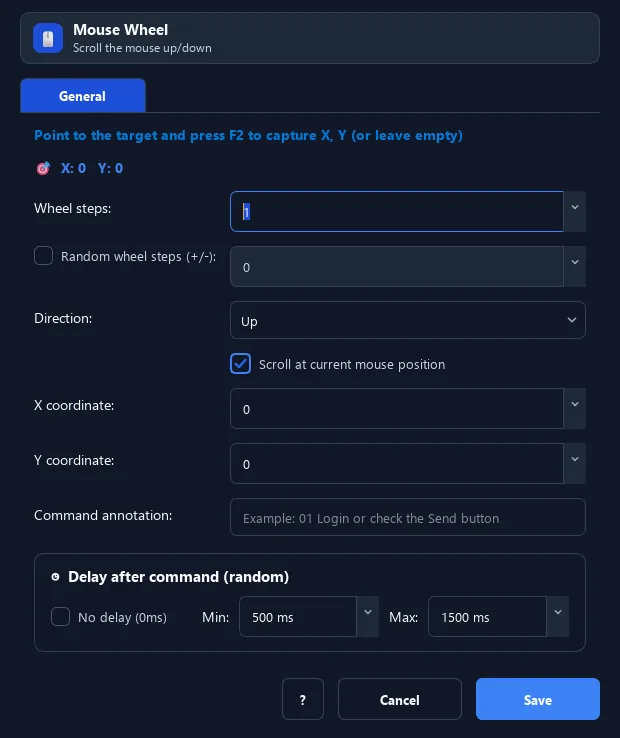
Mouse Wheel sends the configured number of scroll notches in the selected direction at the cursor or configured coordinates.
Prerequisites#
- The page or scrollable region is visible.
- The cursor or coordinates are inside the region that receives scrolling.
Supported modes#
- Desktop Mode
- Browser Mode
What it does#
The Mouse Wheel command auto-scrolls the wheel up or down by a number of notches at a position you choose (or the current cursor spot).
Screenshots & video#
When to use it#
- Scroll a page or long list to reveal content to act on.
- Scroll down to trigger lazy-loading before finding/clicking.
- Scroll inside a specific area (chat box, table) instead of the whole page.
When not to use it#
- An exact jump to a specific element is required.
- The target region does not accept scrolling at the selected position.
Configuration steps#
- Add a Mouse › Mouse Wheel command.
- Choose the direction: Up or Down.
- Enter the number of notches.
- (Optional) set the scroll point with
F2; leave empty to scroll at the current position. - Save.
Every option explained#
Expected result#
The target region scrolls in the configured direction by the selected notch count.
Real example#
Example: scroll to the bottom to load more#
- Add a Mouse Wheel, direction Down, 10 notches.
- Set a 500ms delay so the page can load.
- Repeat a few times for infinite-scroll pages.
Limitations and failure cases#
- Actual distance per notch depends on the application and scroll region.
- Dynamically loaded content may require an additional wait after scrolling.
Tips & common mistakes#
To scroll precisely to an element, pair with Find Image after scrolling to confirm it is visible.
In Browser Mode, the scroll is sent via Chrome/CDP so it does not take over your real mouse.
Verification details#
commands/mouse.py
