
Docs
RunMacro Documentation
Create your first robot, then go further as needed.
Clear step-by-step guides to create, run, and improve robots for repetitive computer work.
Auto-capture a screenshot in RunMacro
The Screenshot command captures the full screen or a region and saves a PNG to a folder with a sequential or random name.
Prerequisites#
- Add Screenshot to the macro.
- Prepare the data or target that Screenshot will use.
Supported modes#
- Desktop Mode
- Browser Mode — Runs in the background through Chrome CDP: the command captures the page inside Chrome instead of the whole screen.
- RunMacro Runner
What it does#
The Screenshot command captures the full screen or a region and saves a PNG to a folder with a sequential or random name. In Browser Mode, it captures from the Chrome page.
Screenshots & video#
When to use it#
- Save step-by-step evidence during a run.
- Capture results/state to review later.
- Grab a specific region for image processing.
When not to use it#
- Do not use it when the screen contains sensitive data or only a specific browser element should be captured.
Configuration steps#
- Add a Code › Screenshot command.
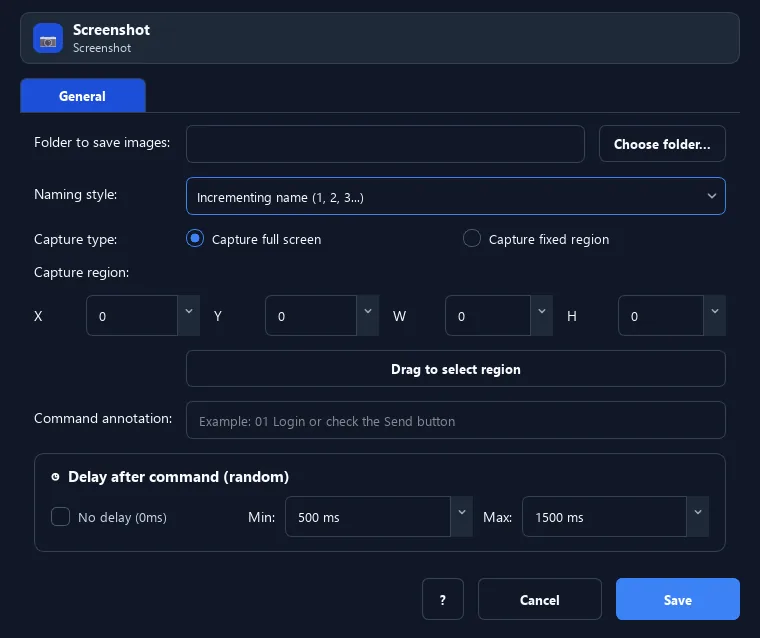
- Choose the save folder and capture mode (full / region).
- For region: enter X, Y and width, height.
- Choose the naming mode (sequential / random). Save.
Every option explained#
Expected result#
After execution, Screenshot completes the described action and makes its result available to the next step.
Real example#
Example: capture the full screen each step#
- Screenshot, folder
C:\Shots, full screen, sequential naming. - Place after key steps to save evidence.
Limitations and failure cases#
- Output depends on current screen, DPI, multiple monitors, and capture permission; covered windows appear as displayed.
Tips & common mistakes#
In normal mode, the RunMacro window is briefly hidden so it does not appear in the shot.
Verification details#
commands/code.py
