
Docs
RunMacro Documentation
Create your first robot, then go further as needed.
Clear step-by-step guides to create, run, and improve robots for repetitive computer work.
Move or click at a random position in RunMacro
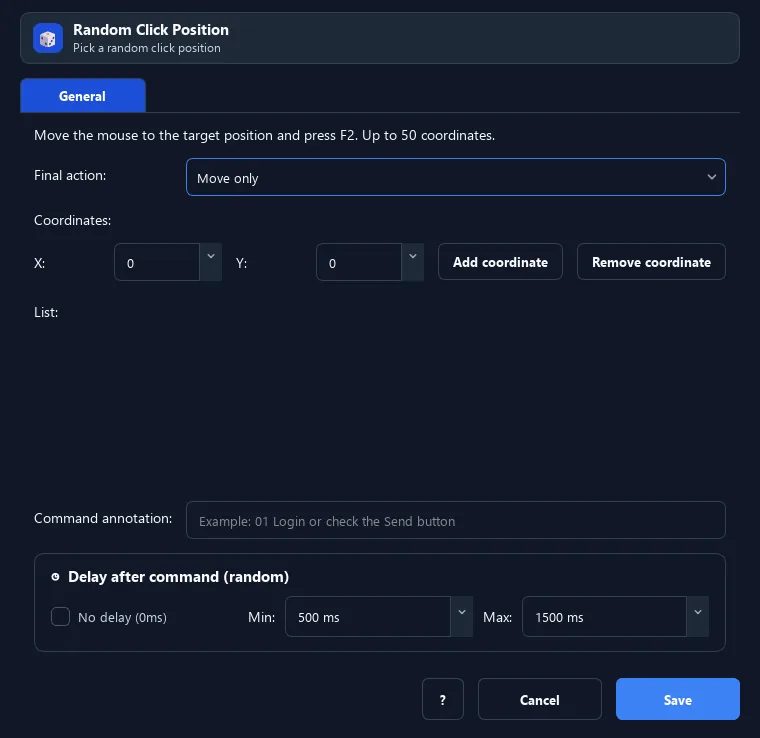
The Random Click Position command picks one of up to 50 coordinates, then moves, left-clicks, or right-clicks there; the default is move only.
Prerequisites#
- Add Random Click Position to the macro.
- Prepare the data or target that Random Click Position will use.
Supported modes#
- RunMacro Runner
What it does#
The Random Click Position command randomly picks one of several coordinates you saved (up to 50), then performs the selected action: move only, left click, or right click. The default is move only.
Screenshots & video#
When to use it#
- Test multiple valid positions within the same target area.
- Spread actions over several points when the test scenario requires it.
- Do not use this command to bypass abuse controls in games or websites.
When not to use it#
- Do not use it when a stable selector/image target exists or DPI changes between runs.
Configuration steps#
- Add a Random › Random Click Position command.
- Add coordinates with
F2(up to 50). - Choose the action after reaching the position: move only, left click, or right click. Save.
Every option explained#
Expected result#
After execution, Random Click Position completes the described action and makes its result available to the next step.
Real example#
Example: click a random one of 3 buttons#
- Random Click Position with 3 button coordinates.
- Select the Left click action.
- Each run clicks a different button.
Limitations and failure cases#
- Saved points depend on the layout, resolution, and DPI, so they can become invalid when the environment changes.
Tips & common mistakes#
Keep the default Move only action when the next command needs to handle the selected position separately.
Verification details#
commands/random_cmd.py
