
Docs
RunMacro Documentation
Create your first robot, then go further as needed.
Clear step-by-step guides to create, run, and improve robots for repetitive computer work.
Download images from a page by selector (Smart Download Images)
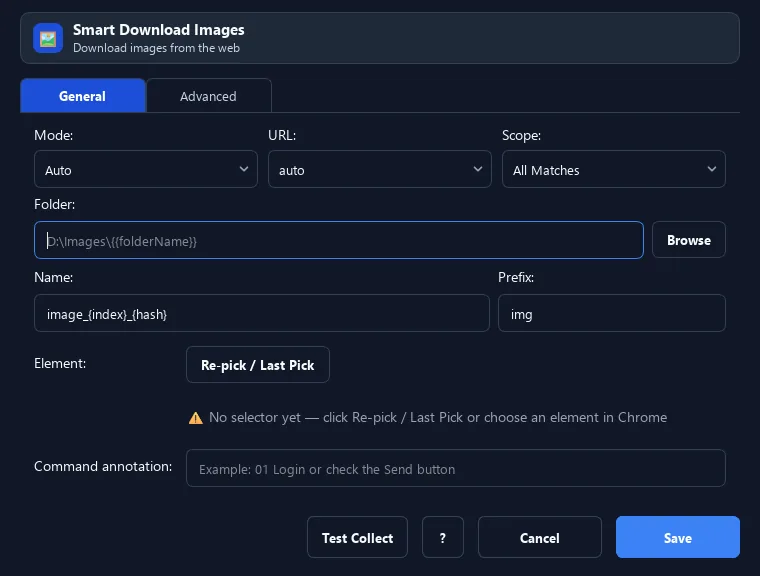
The Smart Download Images command collects images inside an element (or the whole page) by selector and downloads them to a folder.
Prerequisites#
- Add Smart Download Images to the macro.
- Prepare the data or target that Smart Download Images will use.
Supported modes#
- Browser Mode
What it does#
The Smart Download Images command collects images inside an element (or the whole page) by selector and downloads them to a folder. It filters by minimum size, caps the count, and auto-skips duplicates (by URL and content).
Screenshots & video#
When to use it#
- Download a product/gallery image set from a page.
- Collect images from a specific page region.
- Save images locally for another workflow.
When not to use it#
- Do not use it for blob/canvas images, content requiring another authenticated session, or unauthorized sources.
Configuration steps#
- Pick the selector of the region/images to download.
- Add a Smart Download Images command, choose the save folder.
- Set the min size, max count, and filename pattern.
- Save.
Every option explained#
Expected result#
After execution, Smart Download Images completes the described action and makes its result available to the next step.
Real example#
Example: download a product gallery#
- Pick the gallery container selector.
- Smart Download Images, folder
C:\Images, min 300x300, max 50. - Run — images are saved, duplicates/small ones skipped.
Limitations and failure cases#
- Lazy loading, CORS/auth, data/blob URLs, and duplicate filenames can cause missing, failed, or overwritten downloads.
Tips & common mistakes#
It remembers downloaded images (by URL and content), so re-running will not re-download duplicates.
Verification details#
commands/smart_html.py
