
Docs
RunMacro Documentation
Create your first robot, then go further as needed.
Clear step-by-step guides to create, run, and improve robots for repetitive computer work.
Clean clipboard text formatting in RunMacro
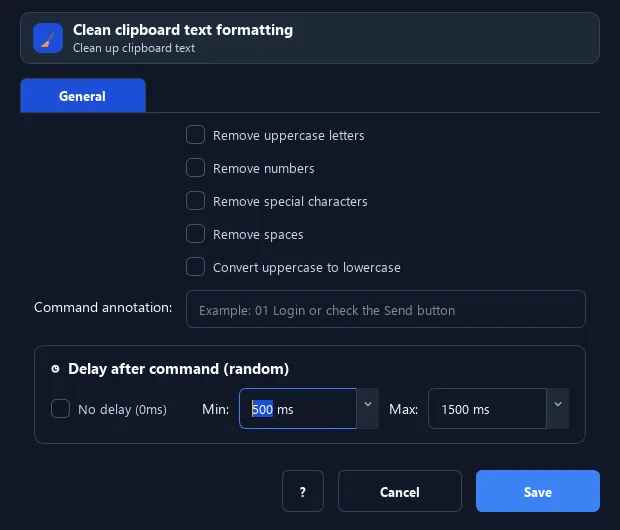
The Clean Text Format command edits the current clipboard content by options: remove uppercase, remove digits, remove special characters, remove spaces, or convert all to lowercase.
Prerequisites#
- Add Clean Text Format to the macro.
- Prepare the data or target that Clean Text Format will use.
Supported modes#
- RunMacro Runner
What it does#
The Clean Text Format command edits the current clipboard content by options: remove uppercase, remove digits, remove special characters, remove spaces, or convert all to lowercase. The result is written back to the clipboard.
Screenshots & video#
When to use it#
- Normalize data before filling a form.
- Strip extra characters from copied content.
- Build a clean string (letters/digits only) for usernames, codes...
When not to use it#
- Do not use it when original whitespace, special characters, or formatting must be preserved.
Configuration steps#
- Make sure the clipboard has the text to clean.
- Add a Code › Clean Text Format command.
- Enable the options: remove uppercase/digits/special/spaces, or to lowercase. Save.
Every option explained#
Expected result#
After execution, Clean Text Format completes the described action and makes its result available to the next step.
Real example#
Example: build a lowercase no-space string#
- Copy "John Doe 123".
- Clean Text Format: to lowercase, remove numbers, remove spaces.
- Clipboard becomes
johndoe.
Limitations and failure cases#
- Cleaning rules can remove meaningful data; inspect output before overwriting a source variable/file.
Tips & common mistakes#
Chain it before Paste from Clipboard to fill normalized data.
Verification details#
commands/code.py
