
Docs
RunMacro Documentation
Create your first robot, then go further as needed.
Clear step-by-step guides to create, run, and improve robots for repetitive computer work.
Automatically close a window in RunMacro
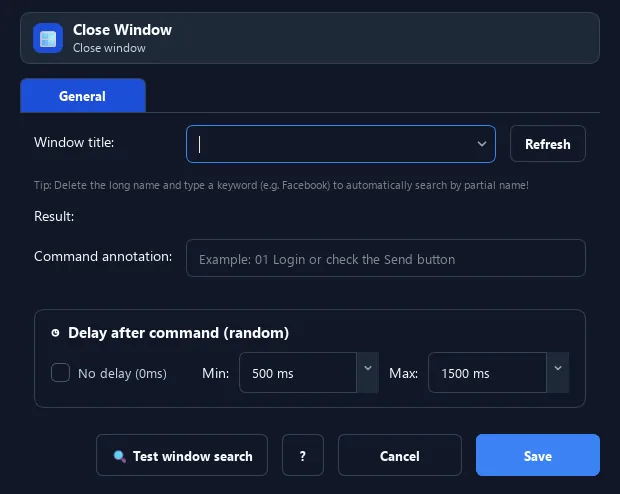
The Close Window command finds a window by its title and sends a close request (like clicking the X).
Prerequisites#
- Add Close Window to the macro.
- Prepare the data or target that Close Window will use.
Supported modes#
- Desktop Mode
What it does#
The Close Window command finds a window by its title and sends a close request (like clicking the X). Use it to tidy up windows or shut an app during a workflow.
Screenshots & video#
When to use it#
- Close a pop-up ad/notification window.
- Shut an app after finishing.
- Clear an old window before opening a new one.
When not to use it#
- Do not use it while the window has unsaved data or requires a separate confirmation flow.
Configuration steps#
- Add a Window › Close Window command.
- Pick the target window from the list (or type the title, use
*for partial matches). - Save. On run, RunMacro sends a close request to that window.
Every option explained#
Expected result#
After execution, Close Window completes the described action and makes its result available to the next step.
Real example#
Example: close a Notepad window#
- Add Close Window.
- Choose the window whose title contains "Notepad".
- Save and run — the Notepad window closes.
Limitations and failure cases#
- The application can block the close request, show a confirmation dialog, or fail to match the target title.
Tips & common mistakes#
Use
* when the title varies, e.g. *Notepad to match any open file.If the app asks to save on close, add a dialog-handling step (Click/Key) after this command.
Verification details#
commands/window.py
