
Docs
RunMacro Documentation
Create your first robot, then go further as needed.
Clear step-by-step guides to create, run, and improve robots for repetitive computer work.
Go forward in background Chrome (CDP)
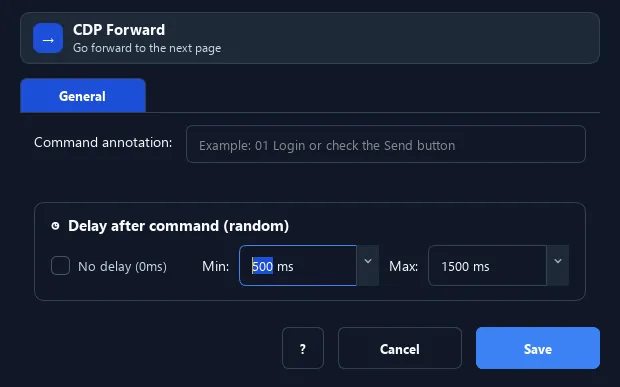
The Forward command moves the background Chrome tab to the next page in history — like the browser Forward button (typically used after Back).
Prerequisites#
- Add Forward to the macro.
- Prepare the data or target that Forward will use.
Supported modes#
- Browser Mode
What it does#
The Forward command moves the background Chrome tab to the next page in history — like the browser Forward button (typically used after Back).
Screenshots & video#
When to use it#
- Return to a page you just navigated Back from.
- Move back and forth between two pages in history.
When not to use it#
- Do not use Forward without a known forward entry or after new navigation cleared forward history.
Configuration steps#
- In Browser Mode (CDP), add the Browser › Forward command.
- Add a Delay if the page needs to load.
- Save.
Expected result#
After execution, Forward completes the described action and makes its result available to the next step.
Real example#
Example: back then forward#
- Go Back to the list.
- Check a condition.
- Go Forward to the detail page again if needed.
Limitations and failure cases#
- Forward can be a no-op; redirects/SPAs and readiness still depend on the current session.
Tips & common mistakes#
Only works when you previously went Back (there is a forward entry in history).
Verification details#
commands/browser.py
