
RunMacro Documentation
Create your first robot, then go further as needed.
Clear step-by-step guides to create, run, and improve robots for repetitive computer work.
Play a beep sound in RunMacro
Beep attempts a Windows tone with the configured frequency and duration; if playback fails, RunMacro ignores the error and continues.
Prerequisites#
- The workflow is running on Windows.
- The target computer has audible output enabled when the cue matters.
- Choose a frequency and duration and test them first.
Supported modes#
- RunMacro Runner
What it does#
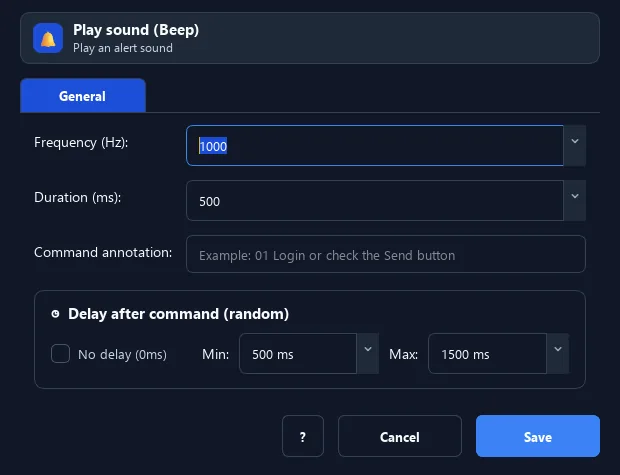
The Beep command calls Windows winsound.Beep to play an alert with the configured frequency (Hz) and duration (ms). It is a best-effort sound cue: if Windows rejects the values or the device cannot play it, RunMacro catches the error, shows no failure, and continues to the next step.
Screenshots & video#
When to use it#
- Play an audible cue when a workflow reaches the end or a key milestone.
- Call you back to the computer before a manual step begins.
- Distinguish branches with different frequencies or durations.
- Add a secondary cue beside a Log Message or another verifiable notification.
When not to use it#
- Do not use Beep as proof that a task succeeded or that a person received a notification.
- Do not use it on a computer without audible output or when another system needs structured data.
Configuration steps#
- Add Debug › Beep where the cue should occur.
- Set the frequency (Hz) to choose the pitch.
- Set the duration (ms) to choose how long it plays.
- Run a short test on the actual target computer to confirm that the sound is audible.
- Save the workflow; at this command, RunMacro attempts the sound and always continues afterward.
Every option explained#
Expected result#
RunMacro asks Windows to play the cue, waits for its duration when playback works, and continues. If Windows raises an error, the command still succeeds and the workflow continues without sound.
Real example#
Example: beep on completion#
- Place Beep at the end of the workflow with 1000Hz and 500ms.
- Add a "Completed" Log Message immediately before or after Beep.
- If the computer can play it, you hear the cue; if not, the workflow still finishes normally and the log remains evidence.
Example: different cues for two branches#
- Use a short Beep on the success branch and a longer one on the branch that needs attention.
- Test both branches on the target computer before relying on the cue.
Limitations and failure cases#
- Playback and audibility are not guaranteed, and playback errors are not logged.
- Volume depends on Windows and the device, while the duration delays the flow by the same interval.
- The command returns no data and cannot confirm that a user noticed the cue.
Tips & common mistakes#
Verification details#
commands/debug.py
