
Docs
RunMacro Documentation
Create your first robot, then go further as needed.
Clear step-by-step guides to create, run, and improve robots for repetitive computer work.
Auto-paste text into a field in RunMacro
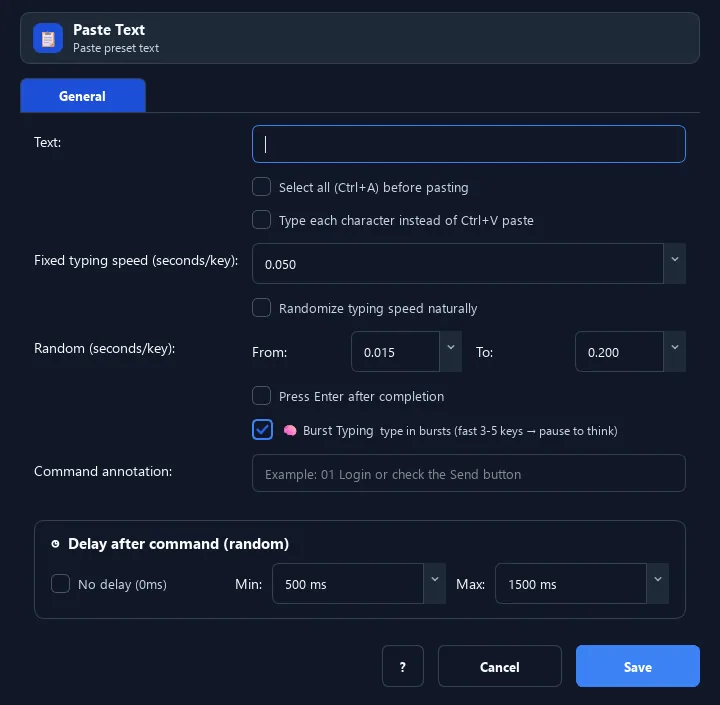
The Paste Text command drops a predefined text into the focused field instantly (paste instead of typing key by key).
Prerequisites#
- An editable Desktop field or web element has focus.
- The content and any referenced variables are prepared.
- Browser Mode has an active Chrome/CDP connection.
Supported modes#
- Desktop Mode — Can press Ctrl+A, type directly, or paste through the Windows clipboard, then optionally press Enter.
- Browser Mode — Uses CDP to select all, type, or paste into the focused web element, which must be editable.
What it does#
The Paste Text command drops a predefined text into the focused field instantly (paste instead of typing key by key). It is faster than Type Text and great for long values.
Screenshots & video#
When to use it#
- Fill long values (address, description, code) into a form fast.
- Enter sensitive data without revealing a typing speed.
- Replace old content: enable Select all (Ctrl+A) before pasting.
When not to use it#
- The focused input cannot be guaranteed.
- Existing content must be preserved while Select all before paste is enabled.
- No editable web element is active; use Smart HTML with an explicit selector.
Configuration steps#
- Click the input field to place the cursor.
- Add a Keyboard › Paste Text command and enter the content.
- (Optional) enable Select all before paste, Type instead of paste, or Press Enter after.
- Save.
Every option explained#
Expected result#
The configured content is typed or pasted into the focused field, followed by Enter when enabled.
Real example#
Example: replace a note field#
- Click the note field.
- Paste Text, enable Select all before paste, enter the new content.
- Save and run — the old content is replaced.
Limitations and failure cases#
- Some applications block paste, requiring Type instead of paste.
- Ctrl+A or Enter can affect the wrong content if focus changes.
- In Browser Mode, a non-editable target or unchanged value can produce a warning or failure.
Tips & common mistakes#
If a field blocks paste (some apps do), enable Type instead of paste.
In Browser Mode, it uses Chrome/CDP paste to fill the focused field.
Verification details#
commands/keyboard.py
