
Docs
RunMacro Documentation
Create your first robot, then go further as needed.
Clear step-by-step guides to create, run, and improve robots for repetitive computer work.
Auto-change IP via DCOM/mobile network in RunMacro
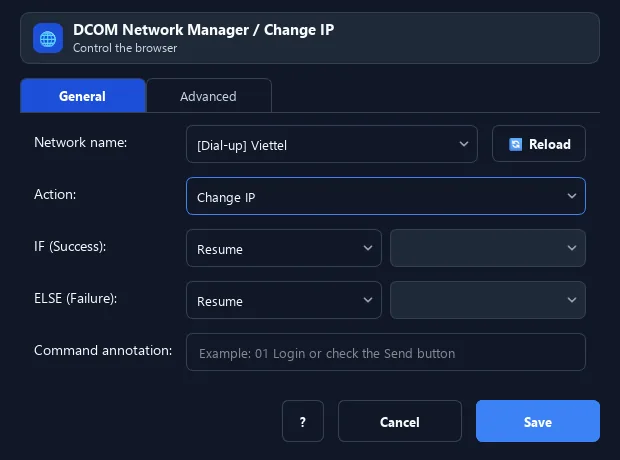
The DCOM / Change IP command controls a cellular or dialup network to change IP, connect, disconnect, or check the Internet.
Prerequisites#
- Add DCOM / Change IP to the macro.
- Prepare the data or target that DCOM / Change IP will use.
Supported modes#
- RunMacro Runner
What it does#
The DCOM / Change IP command controls a cellular or dialup network to change IP, connect, disconnect, or check the Internet. After changing IP it can verify with a ping/public IP and branch IF/ELSE.
Screenshots & video#
When to use it#
- Rotate IP between sessions to avoid IP limits.
- Check the Internet before continuing.
- Reconnect the network after a drop.
When not to use it#
- Do not use it when the device/Dcom is not managed by you or IP changes violate network policy.
Configuration steps#
- Add a Network › DCOM / Change IP command.
- Choose the network name and type (cellular/dialup).
- Choose the action: Change IP / Connect / Disconnect / Check Internet.
- (Optional) set retries, delay, and IF/ELSE labels. Save.
Every option explained#
Expected result#
After execution, DCOM / Change IP completes the described action and makes its result available to the next step.
Real example#
Example: change IP before continuing#
- DCOM / Change IP, pick the cellular network, action Change IP.
- IF label =
new_ipfor the next steps. - ELSE =
retryto handle failure.
Limitations and failure cases#
- Success depends on modem, driver, carrier, and reconnect timing; a new IP is not guaranteed immediately.
Tips & common mistakes#
It uses Windows netsh/rasdial — you need a configured DCOM/mobile network device.
Verification details#
commands/network.py
