
Docs
RunMacro Documentation
Create your first robot, then go further as needed.
Clear step-by-step guides to create, run, and improve robots for repetitive computer work.
Set a Label to navigate a workflow in RunMacro
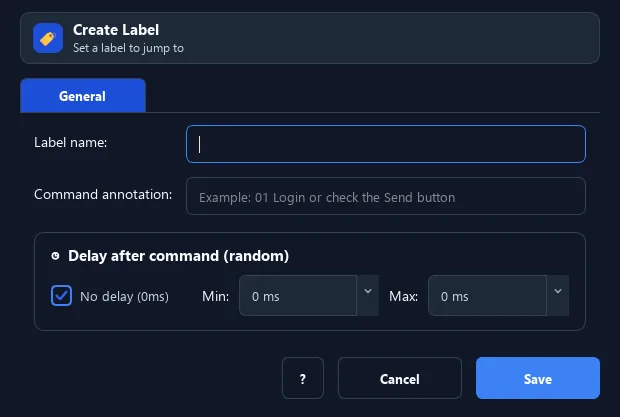
The Label command places a named marker in the script.
Prerequisites#
- Add Label to the macro.
- Prepare the data or target that Label will use.
Supported modes#
- RunMacro Runner
What it does#
The Label command places a named marker in the script. It does nothing on its own, but it is the target that Goto, Random Goto, and IF/ELSE jumps aim at. It is the foundation for loops and branching.
Screenshots & video#
When to use it#
- Mark a return point to build a loop with Goto.
- Create a destination for the IF/ELSE branches of condition commands.
- Split a script into easy-to-navigate markers.
When not to use it#
- Use Label only for a jump target; Group is better for visual organization.
Configuration steps#
- Add a Flow › Label command.
- Give it a memorable, unique label name (e.g.
start). - In Goto or condition commands, choose this label as the target. Save.
Every option explained#
Expected result#
After execution, Label completes the described action and makes its result available to the next step.
Real example#
Example: an endless loop with Label + Goto#
- Place a Label named
loopat the top. - Add the action commands.
- End with a Goto to
loopto repeat.
Limitations and failure cases#
- Label performs no action; duplicate or misspelled names can make jumps ambiguous or leave the target unresolved.
Tips & common mistakes#
If a Goto points to a missing label, RunMacro pauses and reports an error — check the label name.
Verification details#
commands/control_flow.py
