
Docs
RunMacro Documentation
Create your first robot, then go further as needed.
Clear step-by-step guides to create, run, and improve robots for repetitive computer work.
Branch on clipboard content in RunMacro
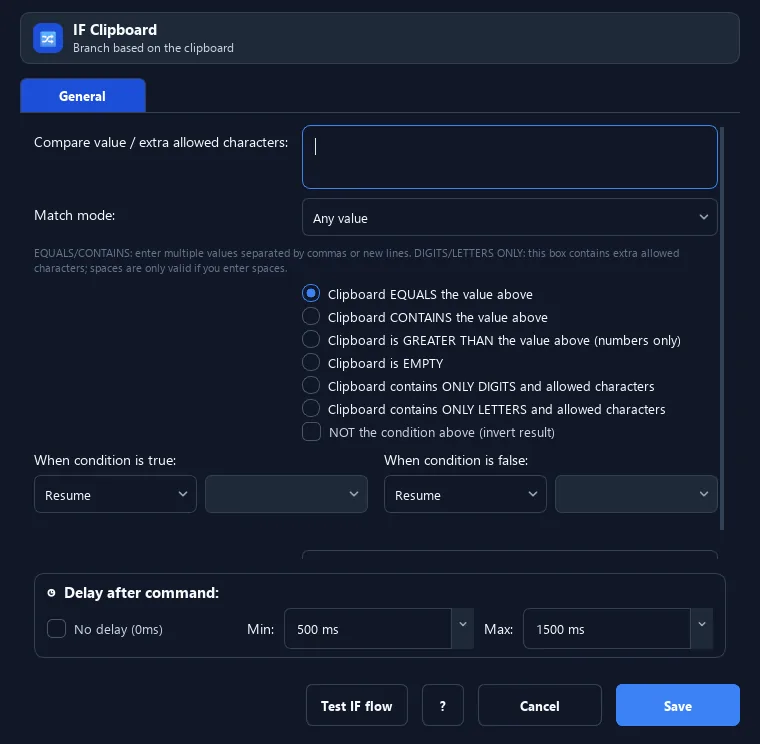
The IF Clipboard command checks the clipboard against a condition and steers the workflow: if true it jumps to one label, if false to another.
Prerequisites#
- Add IF Clipboard to the macro.
- Prepare the data or target that IF Clipboard will use.
Supported modes#
- Desktop Mode
What it does#
The IF Clipboard command checks the clipboard against a condition and steers the workflow: if true it jumps to one label, if false to another. It is a branching tool based on copied data.
Screenshots & video#
When to use it#
- Only continue when the clipboard contains a certain string.
- Skip/stop when the clipboard is empty.
- Classify data: digits-only, letters-only, equals a value...
When not to use it#
- Do not use it when the value belongs in a stable variable or IF/ELSE labels are not defined.
Configuration steps#
- Make sure the clipboard has data (Copy Text or Set Clipboard first).
- Add a Keyboard › IF Clipboard command.
- Choose the comparison (equals, contains, greater, empty, digits, letters) and enter the target value.
- Set the IF label (if true) and ELSE label (if false).
- Place the commands to run under the matching label. Save.
Every option explained#
Expected result#
After execution, IF Clipboard completes the described action and makes its result available to the next step.
Real example#
Example: continue only if clipboard contains "OK"#
- Copy the status text into the clipboard.
- IF Clipboard, mode Contains, target "OK", IF label =
continue, ELSE label =finish. - Put the handling steps under the
continuelabel.
Limitations and failure cases#
- External clipboard contents can change between steps; Browser virtual clipboard differs from OS clipboard and comparison mode controls conversion.
Tips & common mistakes#
Combine Copy Text → IF Clipboard to read on-screen status then decide the flow.
You must create the matching Label for the jump to work.
Verification details#
commands/keyboard.py
