
Docs
RunMacro Documentation
Create your first robot, then go further as needed.
Clear step-by-step guides to create, run, and improve robots for repetitive computer work.
Auto hold click in RunMacro
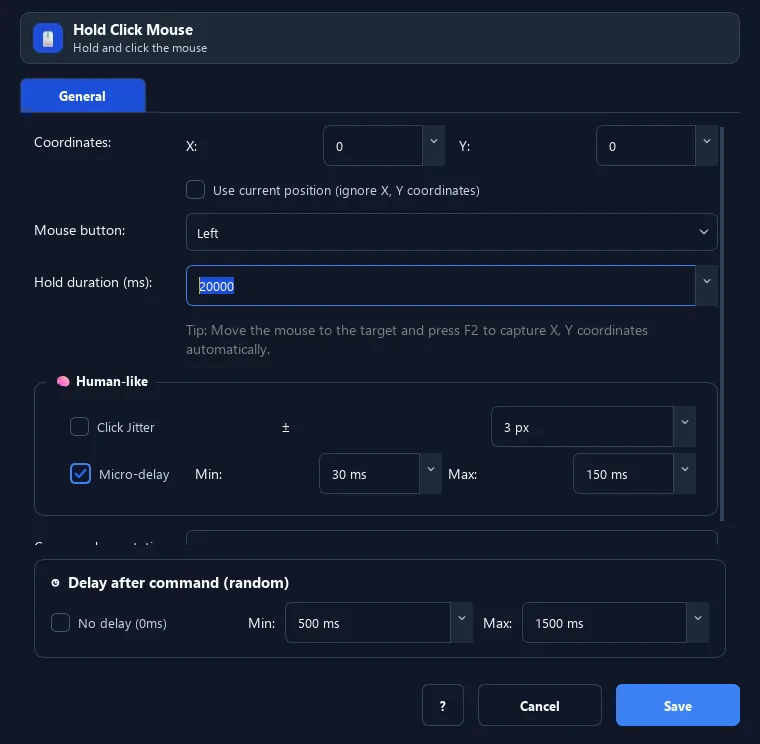
Hold Click keeps the selected button pressed at configured coordinates or the current position, then releases it automatically.
Prerequisites#
- The target application is ready for a held mouse action.
- The position, button, and hold duration are configured.
Supported modes#
- Desktop Mode
What it does#
The Hold Click command auto-holds a mouse button at a set position for a duration you choose (e.g. 2 seconds), then releases it automatically.
Screenshots & video#
When to use it#
- Games that need a held button to charge or keep moving.
- Hold to trigger a long-press menu.
- Any action that needs press-and-hold for a while.
When not to use it#
- A drag must pass through multiple coordinates; use Mouse Button Down/Up with Mouse Move.
- Press and release events need separate control.
Configuration steps#
- Add a Mouse › Hold Click command.
- Set coordinates with
F2, or enable Use current position. - Choose the mouse button.
- Enter the hold time (ms) — e.g.
2000= 2 seconds. - Save.
Every option explained#
Expected result#
The selected mouse button is held for the configured duration and then released.
Real example#
Example: hold left click for 3 seconds in a game#
- Add a Hold Click, aim at the target with
F2. - Choose the Left button.
- Enter hold time
3000(3 seconds). - Save and run — RunMacro holds for 3 seconds then releases.
Limitations and failure cases#
- The action depends on window state and pointer position.
- The hold duration does not guarantee that the target application has finished processing its response.
Tips & common mistakes#
Time is in milliseconds:
2000 = 2 seconds. Press the RunMacro stop hotkey to interrupt.For drag-and-drop (hold then move), use Mouse Button (Down/Up) with Mouse Move instead of Hold Click.
Verification details#
commands/mouse.py
