
Docs
RunMacro Documentation
Create your first robot, then go further as needed.
Clear step-by-step guides to create, run, and improve robots for repetitive computer work.
Branch on a variable value in RunMacro
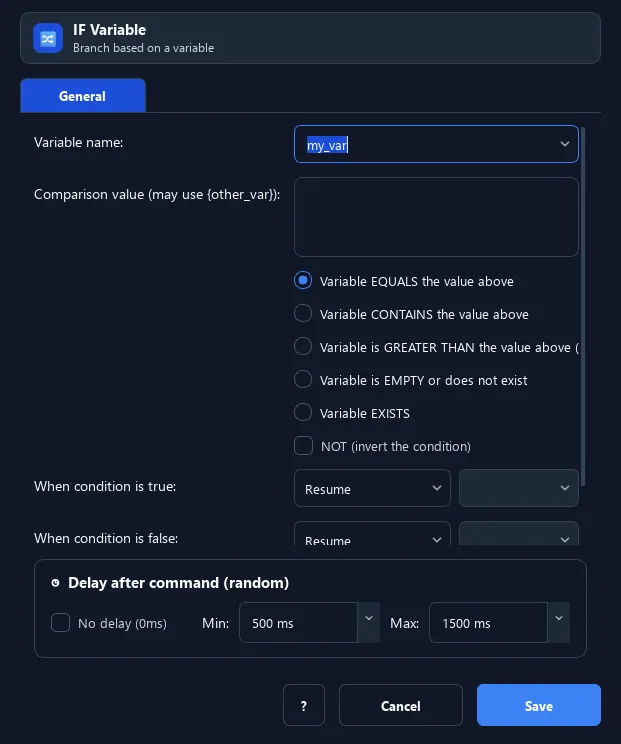
The IF Variable command checks a variable against a condition (equals, contains, greater, empty, exists) and steers the workflow: true jumps to IF, false to ELSE.
Prerequisites#
- Add IF Variable to the macro.
- Prepare the data or target that IF Variable will use.
Supported modes#
- RunMacro Runner
What it does#
The IF Variable command checks a variable against a condition (equals, contains, greater, empty, exists) and steers the workflow: true jumps to IF, false to ELSE.
Screenshots & video#
When to use it#
- Only proceed when a variable meets a condition.
- Handle differently based on a variable value.
- Check whether a variable has data (exists/empty).
When not to use it#
- Do not use it when a structural condition is clearer or string, numeric, and existence checks are mixed.
Configuration steps#
- Add a Variables › IF Variable command.
- Choose the variable, the comparison, and the target value.
- (Optional) enable negate (NOT).
- Set IF/ELSE labels. Save.
Every option explained#
Expected result#
After execution, IF Variable completes the described action and makes its result available to the next step.
Real example#
Example: continue only when OTP exists#
- IF Variable
otp, mode Empty, NOT on (i.e. not empty). - IF label =
has_otpfor the fill step. - ELSE =
retry_otpto try again.
Limitations and failure cases#
- Results depend on conversion mode; missing variables, wrong labels, or negation can choose an unexpected branch.
Tips & common mistakes#
Use the Exists mode to ensure a variable was declared before using it.
Verification details#
commands/variables.py
