
Docs
RunMacro Documentation
Create your first robot, then go further as needed.
Clear step-by-step guides to create, run, and improve robots for repetitive computer work.
Write variables to CSV/Excel/TXT/Google Sheet in RunMacro
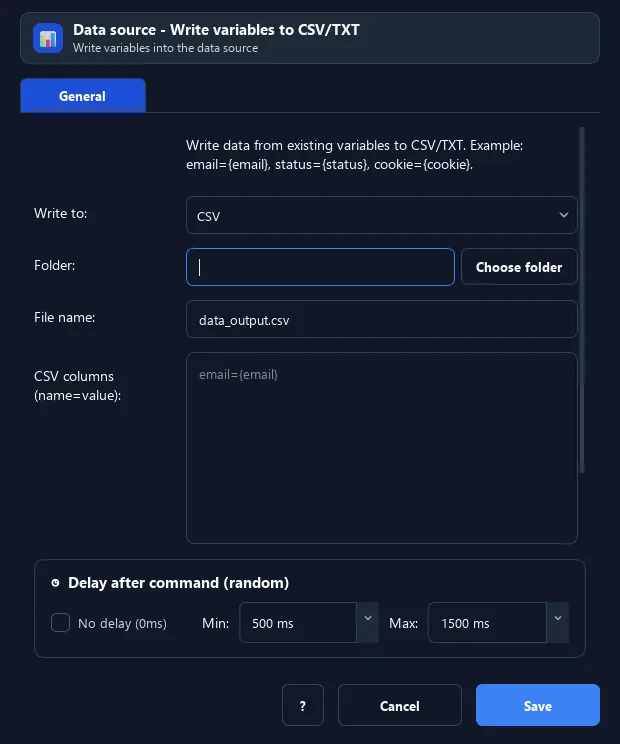
The Data Source - Write Variables command writes variable values as a new row into a CSV, Excel, TXT (by template), or Google Sheet.
Prerequisites#
- Add Data Source - Write Variables to the macro.
- Prepare the data or target that Data Source - Write Variables will use.
Supported modes#
- RunMacro Runner
What it does#
The Data Source - Write Variables command writes variable values as a new row into a CSV, Excel, TXT (by template), or Google Sheet. Use it to save results after processing.
Screenshots & video#
When to use it#
- Save results (created accounts, tokens...) to a file.
- Export aggregated data to Excel/Google Sheet.
- Log data per loop iteration.
When not to use it#
- Do not use it when variable names do not match target columns or strict type/schema conversion is required.
Configuration steps#
- Add a File › Data Source - Write Variables command.
- Choose the target format (CSV/Excel/TXT/Google Sheet) and the file/URL.
- Define the column = variable pairs (or a TXT template).
- Save.
Every option explained#
Expected result#
After execution, Data Source - Write Variables completes the described action and makes its result available to the next step.
Real example#
Example: save created accounts to CSV#
- Write Variables, CSV target
results.csv. - Columns:
email={email},password={password}. - Each run appends a result row.
Limitations and failure cases#
- Missing variables, renamed columns, and invalid text values can create blanks or wrong types.
Tips & common mistakes#
Writing to Google Sheet lets you track results remotely; it needs an Apps Script Web App like the Google Sheets Action command.
Verification details#
commands/data_source.py
