
Docs
RunMacro Documentation
Create your first robot, then go further as needed.
Clear step-by-step guides to create, run, and improve robots for repetitive computer work.
Hold and release a key in RunMacro
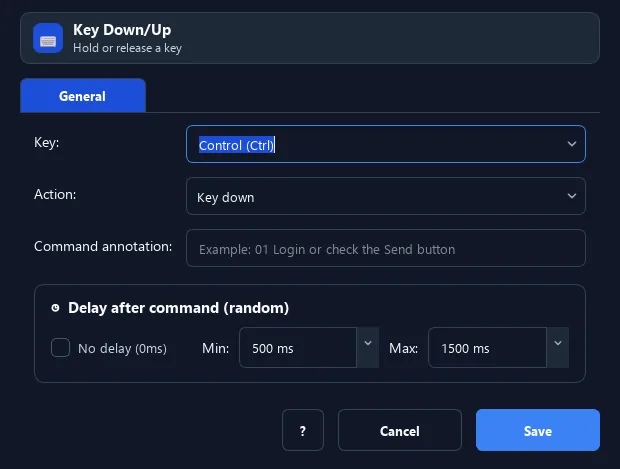
The Key Hold command lets you hold (Down) or release (Up) a single key — unlike Key Press which taps at once.
Prerequisites#
- Add Key Hold/Release to the macro.
- Prepare the data or target that Key Hold/Release will use.
Supported modes#
- Desktop Mode
- Browser Mode — Runs in the background through Chrome CDP: keyDown/keyUp events are dispatched into the page instead of the system keyboard.
What it does#
The Key Hold command lets you hold (Down) or release (Up) a single key — unlike Key Press which taps at once. Use it to keep a key held for a while.
Screenshots & video#
When to use it#
- Hold W/A/S/D to keep moving in a game.
- Hold Shift to select multiple items.
- Hold Ctrl while doing other actions.
When not to use it#
- Do not use it if execution may stop between Down and Up or only a quick tap is needed.
Configuration steps#
- Add a Keyboard › Key Hold command.
- Choose the key and the action: Hold (Down) or Release (Up).
- To hold for X seconds: Hold → Wait → Release.
- Save.
Every option explained#
Expected result#
After execution, Key Hold/Release completes the described action and makes its result available to the next step.
Real example#
Example: hold W to run for 3 seconds in a game#
- Key Hold: key W, action Hold.
- Add a Wait of 3000ms.
- Key Hold: key W, action Release.
Limitations and failure cases#
- Unbalanced Down and Up events can leave a key held; the OS or application can intercept some keys.
Tips & common mistakes#
Always pair each Hold with a Release, otherwise the key stays stuck down.
Verification details#
commands/keyboard.py
