
Docs
RunMacro Documentation
Create your first robot, then go further as needed.
Clear step-by-step guides to create, run, and improve robots for repetitive computer work.
Use a variable value: type, copy, or paste in RunMacro
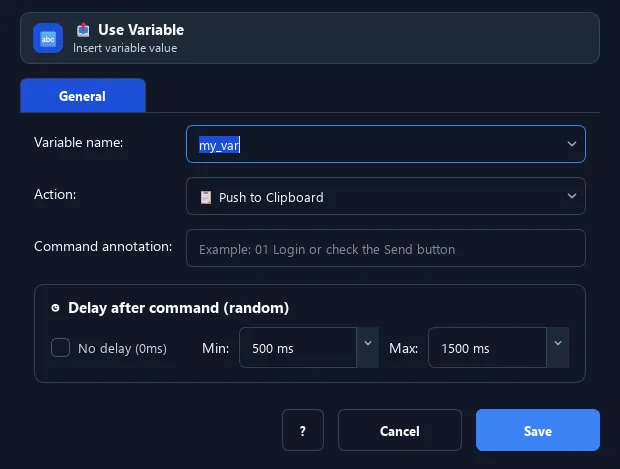
The Use Variable command outputs a variable value your way: type it key by key, copy to clipboard, or paste (Ctrl+V) into the focused field.
Prerequisites#
- Add Use Variable to the macro.
- Prepare the data or target that Use Variable will use.
Supported modes#
- Desktop Mode
- Browser Mode — Runs in the background through Chrome CDP: the type action is dispatched into the page, while the clipboard action writes to RunMacro’s virtual clipboard.
- RunMacro Runner
What it does#
The Use Variable command outputs a variable value your way: type it key by key, copy to clipboard, or paste (Ctrl+V) into the focused field.
Screenshots & video#
When to use it#
- Fill a variable value into a field by typing.
- Put a variable into the clipboard for use elsewhere.
- Quickly paste a variable value into a form.
When not to use it#
- Do not use it when direct Text/Paste interpolation is simpler or the clipboard must remain untouched.
Configuration steps#
- Click the target field (if typing/pasting).
- Add a Variables › Use Variable command and choose the variable.
- Choose the action: Type / Copy to clipboard / Paste. Save.
Every option explained#
Expected result#
After execution, Use Variable completes the described action and makes its result available to the next step.
Real example#
Example: type a stored email into a form#
- You already have an
emailvariable. - Click the email field, add Use Variable
email, action Type. - RunMacro types the email into the field.
Limitations and failure cases#
- Type/Paste require focus; Copy/Paste use OS or virtual clipboard by mode and missing variables can be empty.
Tips & common mistakes#
You can also embed a variable directly in Type Text via
{var_name} — Use Variable is handy when you want to choose the output method.Verification details#
commands/variables.py
